VPN throughput Tests – Palo Alto VM-300 to GCP

I was doing a deep dive read of supported IKEv2 ciphers on GCP native VPNs today and thought I’d setup a quick lab to see which settings would provide best throughput. Lab setup was as follows:

  • Palo Alto VM-300 on m4.xlarge in us-east-2 (Ohio)
  • IKEv2 VPN to GCP us-east4 (N. Virginia)
  • Latency is a steady 13ms round trip time
  • AWS side test instance is t3.xlarge (4 vCPU / 16 GB RAM)
  • GCP side test instance is e2-standard-4 (4 vCPU / 16 GB RAM)
  • Both VMs running Ubuntu Linux 18.04.4
  • File is 500 MB binary file transfer via SCP

Throughput speeds (in Mbps) using DH Group 14 (2048-bit) PFS:

Encryption / HashSHA-512SHA-256SHA-1
AES-GCM 256-bit664668672
AES-GCM 128-bit648680704
AES-CBC 256-bit510516616
AES-CBC 192-bit492523624
AES-CBC 128-bit494573658
Average: 604 Mbps

Throughput speeds (in Mbps) using DH Group 5 (1536-bit) PFS:

Encryption / HashSHA-512SHA-256SHA-1
AES-GCM 256-bit700557571
AES-GCM 128-bit660676616
AES-CBC 256-bit464448656
AES-CBC 192-bit595528464
AES-CBC 128-bit605484587
Average: 574 Mbps

Throughput speeds (in Mbps) using DH Group 2 (1024-bit) PFS:

Encryption / HashSHA-512SHA-256SHA-1
AES-GCM 256-bit680626635
AES-GCM 128-bit672664680
AES-CBC 256-bit584452664
AES-CBC 192-bit536520664
AES-CBC 128-bit528502656
Average: 608 Mbps

Key Takeaways

GCP will prefer AES-CBC in their negotiations, but AES-GCM provides roughly 25% better throughput. So if throughput is paramount, be sure to have only AES-GCM in the IPSec profile.

If using AES-CBC, SHA-1, while deprecated, is 13% faster than SHA-256 and 25% faster than SHA-512. Since SAs are rebuilt every 3 hours, cracking isn’t as large a concern as in typical SHA-1 use cases.

DH Group does not affect speeds. May as well use the strongest mutually supported value, which is Group 14 (2048-bit). GCP does not support Elliptic Curve (Groups 19-21) so these couldn’t be tested. I would expect faster SA build times, but no change in transfer speeds.

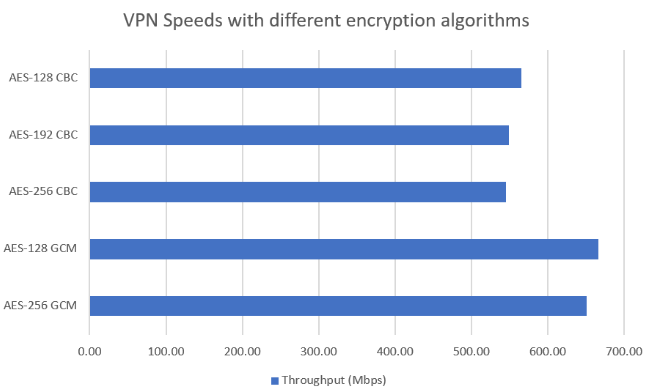
Assuming SHA-256 and Group 14 PFS, this graph summarizes the results:
Reset admin password for CheckPoint IaaS Gateway in GCP or AWS

Someone changed the admin password, but we could still access the gateway via the SSH key. The processes for resetting the password, bypassing password history was quite easy:

Go to expert mode and generate a hashed string for password ‘ABCXYZ1234’

[Expert@checkpoint:0]# cpopenssl passwd -1 ABCXYZ1234
$1$I54N3F1M$lk/zHvFaKRKXkUFoiEamq1

Then go back to regular CLI and apply the hashed password

set user admin password-hash $1$I54N3F1M$lk/zHvFaKRKXkUFoiEamq1exit

save config

That’s it. Logging in to GAIA as admin / ABCXYZ1234 will then work

IOS-XE 16.6 (Everest) software upgrade on Cisco 3650 & 3850 series switches

Had a 3650 switch stack I needed to upgrade from IOS 16.6.5 to 16.6.8.  The software upgrade procedure is quite different from the 3550/3560/3750s I’d done in the past.

First step is simply download the .bin file to the first switch’s onboard flash drive:

Switch# copy http://mysite/cat3k_caa-universalk9.16.06.08.SPA.bin flash:

I then verify the signature:

Switch#verify flash:cat3k_caa-universalk9.16.06.08.SPA.bin
Starting image verification
Digital signature successfully verified in package cat3k_caa-rpbase.16.06.08.SPA.pkg
Digital signature successfully verified in package cat3k_caa-srdriver.16.06.08.SPA.pkg
Digital signature successfully verified in package cat3k_caa-webui.16.06.08.SPA.pkg
Digital signature successfully verified in package cat3k_caa-rpcore.16.06.08.SPA.pkg
Digital signature successfully verified in package cat3k_caa-guestshell.16.06.08.SPA.pkg
Digital signature successfully verified in file flash:cat3k_caa-universalk9.16.06.08.SPA.bin

The actual command to start the upgrade is quite a mouthful:

Switch#request platform software package install switch all file flash:cat3k_caa-universalk9.16.06.08.SPA.bin new auto-copy

--- Starting install local lock acquisition on switch 1 ---
Finished install local lock acquisition on switch 1
....
SUCCESS: Software provisioned. New software will load on reboot.
[2]: Finished install successful on switch 2
Checking status of install on [1 2]
[1 2]: Finished install in switch 1 2
SUCCESS: Finished install: Success on [1 2]

This distributes the software as .pkg files on each stack member.

To proceed with the actual upgrade I simply rebooted the entire stack. Ideally I would have done a rolling upgrade similar to how I did 3750s a few years ago, but could not determine if this is supported on the 3650/3850

Other useful commands:

To copy the image on the fly during the upgrade process:

Switch# request platform software package expand switch all file http://mysite.com/mypath/cat3k_caa-universalk9.16.12.04.SPA.bin to flash: auto-copy

To clean up old packages to free up disk space:

Switch# request platform software package clean switch all file flash:

VPN from Cisco ISR with frontdoor and interior VRFs + HSRP to a Cisco ASA

So this week I was tasked with bringing up a site-to-site VPN between a Cisco ISR and Cisco ASA.   Every site-to-site VPN I’ve done over the last 10 years or so has been route-based.  But the older Cisco ASA code won’t support those, so it was back to isakmp profiles and crypto-maps.  The real trick was the ISR was using both frontdoor and interior VRFs, and HSRP for failover for added complexity.

Here’s was the information:

  • Site A (Cisco ISR 4431, IOS-XE version 16.6.8):
  •   public IP: 198.51.100.52/29, HSRP IP: 198.51.100.54, VRF: EXTERNAL
  •   private IP IP: 10.111.111.1/24, VRF: INTERNAL
  • Site B (Cisco ASA, software version 9.4):
  •   public IP: 203.0.113.105
  •   private network: 10.222.222.0/24

The configuration for the ISR starts with the ISAKMP policy, which basically sets encryption parameters.  This is global, and not VRF-aware:

crypto isakmp invalid-spi-recovery
crypto isakmp keepalive 10
!
crypto isakmp policy 1
 encr aes 256              ! 256-bit AES encrytpion
 authentication pre-share
 group 2                   ! 1024-bit key
 lifetime 86400            ! default setting
 hash sha                  ! default setting
!

The pre-shared key is set in the crypto keyring, with needs to be mapped to the frontdoor VRF (the VRF set on the public interface)

crypto keyring MY_KEYRING vrf EXTERNAL
 local-address 198.51.100.54 EXTERNAL
 pre-shared-key address 203.0.113.105 key xxxxxxxxxxxxxxx

Unlike route-based VPNs, an ISAKMP profile is required, which is VRF-aware.  Note the presence of the iVRF (internal one) on the “vrf” line:

crypto isakmp profile MY_ISAKMP_PROFILE
 vrf INTERNAL
 keyring MY_KEYRING 
 match identity address 203.0.113.105 255.255.255.255 EXTERNAL
 local-address 198.51.100.54 EXTERNAL
!

For IPSec / Phase 2, a transform set of course should be defined.   Here I’m using Encapsulation Security Payload, AES 128-bit encryption with SHA-1 hashing, operating in IPSec tunnel mode:

crypto ipsec transform-set ESP_AES-128_SHA_TUNNEL esp-aes esp-sha-hmac 
 mode tunnel
!
crypto ipsec df-bit clear

Since this is not route-based, an ACL defines the “interesting” traffic to send via the tunnel:

ip access-list extended 101
 permit ip 10.111.111.0 0.0.0.255 10.222.222.0 0.0.0.255
!

Then a crypto map links this ACL with the ISAKMP profile and IPSec settings:

crypto map MY_CMAP 1 ipsec-isakmp 
 set peer 203.0.113.105
 set transform-set ESP_AES-128_SHA_TUNNEL 
 set pfs group5
 set isakmp-profile MY_ISAKMP_PROFILE
 match address 101
 reverse-route
 lifetime 3600                ! default setting
!

Finally, the crypto map is applied to the public interface.  If HSRP is being used between a pair of routers, a name for the HSRP group must be set, then added to the crypto map statement:

interface Port-channel1
 description Public Interface
 vrf forwarding EXTERNAL
 ip address 198.51.100.52 255.255.255.248
 ip nat outside
 standby delay minimum 30
 standby 1 ip 198.51.100.54
 standby 1 priority 254
 standby 1 preempt
 standby 1 name VPNHA
 load-interval 30
 no negotiation auto
 crypto map MY_CMAP redundancy VPNHA
!
ip route vrf EXTERNAL 0.0.0.0 0.0.0.0 198.51.100.49

I had missed the “redundancy” option on the crypto map in my initial config, which probably cause the traffic to source from the primary IP address rather than the HSRP one.  Running debug crypto isakmp, I would see this:

May 15 17:15:35.892: ISAKMP: (0):SA request profile is MY_ISAKMP_PROFILE
May 15 17:15:35.892: ISAKMP: (0):Created a peer struct for 203.0.113.105, peer port 500
May 15 17:15:35.892: ISAKMP: (0):New peer created peer = 0x80007FAD0B334DB8 peer_handle = 0x8000000080000012
May 15 17:15:35.892: ISAKMP: (0):Locking peer struct 0x80007FAD0B334DB8, refcount 1 for isakmp_initiator
May 15 17:15:35.892: ISAKMP: (0):local port 500, remote port 500
May 15 17:15:35.892: ISAKMP: (0):set new node 0 to QM_IDLE      
May 15 17:15:35.893: ISAKMP: (0):insert sa successfully sa = 80007FAD0B75C470
May 15 17:15:35.893: ISAKMP: (0):Can not start Aggressive mode, trying Main mode.
May 15 17:15:35.893: ISAKMP-ERROR: (0):No Cert or pre-shared address key. 
May 15 17:15:35.894: ISAKMP-ERROR: (0):construct_initial_message: Can not start Main mode

Since the debug wasn’t showing the source IP for this traffic, I spent several hours troubleshooting the ISAKMP profile and VRF statements, only to conclude they were in fact correct.


“No Vlan association for STP Interface Member 1.0” when upgrading F5 BigIP in AWS from 13.1.1 to 13.1.3.2

After upgrading several of our AWS Bigip-VEs in AWS from 13.1.1 to 13.1.3.2 without issue, I had big problems with a pair this afternoon.  The first one took forever to boot up, and when it did, was complaining about incomplete configuration.

I’ve seen this before and know it usually means it couldn’t migrate a certain section of the configuration file, and rather than ignoring it, it just can’t load anything.  This is what was showing up in /var/log/ltm and on console:

May 4 17:47:53 bigip warning mcpd[18134]: 01070932:4: Pending local Interface from cluster.: 1.0, configuration ignored
May 4 17:47:53 bigip warning mcpd[18134]: 01070932:4: Pending Interface: 1.0, configuration ignored
May 4 17:47:53 bigip err mcpd[18134]: 01070523:3: No Vlan association for STP Interface Member 1.0.
May 4 17:47:53 bigip emerg load_config_files: "/usr/bin/tmsh -n -g load sys config partitions all base " - failed. -- 01070523:3: No Vlan association for STP Interface Member 1.0. Error: failed to reset strict operations; disconnecting from mcpd. Will reconnect on next command.

The problem was the original 13.1.1 configuration file had this:

net interface 1.0 {

media-fixed 10000T-FD

}

This is really an error from the get-go, since interface 1.0 is the eth0 / management interface and shouldn’t be in the “net interface” section.

My work around was to reset to factory config, then re-create Self IPs and re-sync the cluster.  Alternately, the configuration file could be modified to simply remove the offending lines.

Since I did not see this configuration in any other F5 BigIP-VEs, I’d suspect it was mistakenly inserted in to the 13.1.1-0.0.4 AMI by F5 that I’d launched last summer.

Ubuntu 20.04: “Unable to locate package python-pip”

I started the upgrade from Ubuntu 18.04 to 20.04 today and got a bit of a surprise when trying to install PIP so I could use the MaxMind geolite2 package:

root@ubuntu-rr58:/home/me# apt install python-pip
Reading package lists... Done
Building dependency tree       
Reading state information... Done
E: Unable to locate package python-pip

The root problem here is Python 2 went EoS in January 2020 and does not ship with Ubuntu 20.  But, there is a hack to load certain Python 2 packages…

First, install python3-pip:

apt install python3-pip

Then try to install the python2 packages you’re looking for:

pip3 install python-geoip
pip3 install python-geoip-geolite2

Now, install Python 2.7:

sudo apt install python2

In your script, use sys.path.insert to add the Python3 packages directory.

#!/usr/bin/env python2

from __future__ import print_function
import sys
sys.path.insert(1, '/usr/local/lib/python3.8/dist-packages/')
from geoip import geolite2


A better solution for this particular issue was migrate from geoip-geolite2 to , which is fully python3.

Working with CGP Storage via Linux/FreeBSD CLI

Installing Google Cloud SDK on FreeBSD:

This is easily done via package or ports:

pkg install google-cloud-sdk

You may also wish to install the Python modules:

pkg install py39-google-api-python-client
pkg install py39-google-cloud-storage

Installing Google Cloud SDK on Debian/Ubuntu:

Follow the instructions here which are summarized below

Add the Google Cloud SDK as a package source:

echo "deb [signed-by=/usr/share/keyrings/cloud.google.gpg] https://packages.cloud.google.com/apt cloud-sdk main" | sudo tee -a /etc/apt/sources.list.d/google-cloud-sdk.list

Install required dependencies:

sudo apt install apt-transport-https ca-certificates gnupg

Add Google Cloud public key:

curl https://packages.cloud.google.com/apt/doc/apt-key.gpg | sudo apt-key --keyring /usr/share/keyrings/cloud.google.gpg add -
 

Install Google Cloud SDK:

sudo apt update
sudo apt install google-cloud-sdk

Prepping gCloud:

If a proxy server is required, set gcloud to use it:

gcloud config set proxy/type http
gcloud config set proxy/address 10.10.10.100
gcloud config set proxy/port 3128

Configure gCloud.  This will spit out a URL to paste in to browser, which will return an authorization code

gcloud init

This will generate an encrypted file ~/.gsutil/credstor that will be used for authentication.  To re-authenticate:

gcloud auth login

To switch to a different project:

glcoud config set project <PROJECT_ID>

To switch to a different account:

gcloud config set account

To use a service account:

gcloud auth activate-service-account <ACCOUNT_EMAIL> --key-file=<JSON_KEY_FILE>

CLI commands for working with Google Cloud Storage

List existing buckets

gsutil ls

Create a storage bucket called ‘mybucket’

gsutil mb gs://mybucket

Get information about a bucket called ‘mybucket’

gsutil ls -L -b gs://mybucket/

Upload a single file to the bucket

gsutil cp myfile gs://mybucket/

Upload a directory and its contents to a bucket

gsutil cp -r folder1 gs://code-j5-org/

List contents of a bucket

gsutil ls -r gs://mybucket/

Download a file called ‘testfile.png’ in ‘folder1’

gsutil cp gs://mybucket/folder1/testfile.png

Delete multiple files in a folder

gsutil rm gs://mybucket/folder1/*.png

Delete a folder and all its contents

gsutil rm -r gs://mybucket/folder1

Delete a bucket, if bucket is empty

gsutil rb gs://mybucket

Delete a bucket all all files

gsutil rm -r gs://mybucket

Accessing buckets via HTTPS

asdflkj

curl -X POST --data-binary @[OBJECT_LOCATION] \
-H "Authorization: Bearer [OAUTH2_TOKEN]" \
-H "Content-Type: [OBJECT_CONTENT_TYPE]" \
"https://storage.googleapis.com/upload/storage/v1/b/[BUCKET_NAME]/o?uploadType=media&name=[OBJECT_NAME]"

To download files, buckets can be accessed at https://<bucket name>.storage.googleapis.com/path   For example,

curl https://mybucket.storage.googleapis.com/folder1/testfile.png

Within GCP for subnets that have “Private google access”, this DNS name will always resolve to 199.36.153.8-11

Using AWS S3 Storage from Linux CLI

Start by installing aws-shell, then run the configure command to enter key and region information:

sudo apt install aws-shell
aws configure

To list files in a bucket called ‘mybucket’:

aws s3 ls s3://mybucket

To upload a single file:

aws s3 cp /tmp/myfile.txt s3://mybucket/

To upload all files in a directory with a certain extension:

aws s3 cp /tmp/ s3://mybucket/ --recursive --exclude '*' --include '*.txt'

To recursively upload contents of a directory:

aws s3 cp /tmp/mydir/ s3://mybucket/ --recursive

To delete a single file:

aws s3 rm s3://mybucket/myfile.text

To empty a bucket (delete all files, but keep bucket):

aws s3 rm s3://mybucket --recursive


Adding a swap file to a t2.nano in AWS running Ubuntu 18

I recently moved my Cacti/Rancid/Ansible Linux VM to a t2.nano in AWS. With only 500 MB of RAM, I knew there would be some performance limitations, but  what I didn’t realize is by default, the instance had no swap configured.  A MariaDB server consumes ~200 MB of memory when running, and sure enough, mysqld died after a few days uptime:

Apr 20 15:42:20 nettools kernel: [351649.590161] Out of memory: Kill process 27535 (mysqld) score 491 or sacrifice child
Apr 20 15:42:20 nettools kernel: [351649.598181] Killed process 27535 (mysqld) total-vm:1168184kB, anon-rss:240496kB, file-rss:0kB, shmem-rss:0kB
Apr 20 15:42:20 nettools kernel: [351649.676624] oom_reaper: reaped process 27535 (mysqld), now anon-rss:0kB, file-rss:0kB, shmem-rss:0kB

So I wanted to add a 1GB swap file so that any memory-heavy processes would be happy and stable.  It was easy enough to find a blog post that outlined creating the swapfile:

# Become root
sudo su

# Create an empty 1 GB (1MB x 1024) file called /swap.img
dd if=/dev/zero of=/swap.img bs=1M count=1024

# Set recommended permissions
chmod 600 /swap.img

# Convert it to usable swap
mkswap /swap.img

Many of these posts were neglecting how to make the swap activated automatically at boot time.  To do so, add this line to bottom of /etc/fstab

/swap.img swap swap defaults 0 0

The swap file can be activated immediately with this command:

swapon -a

Or, give it a test reboot and verify it’s being activated automatically at startup:

ubuntu@linux:~$ top
top - 16:55:04 up 18 min,  1 user,  load average: 0.00, 0.01, 0.03
Tasks: 108 total,   1 running,  71 sleeping,   0 stopped,   0 zombie
%Cpu(s): 10.3 us,  6.0 sy,  0.0 ni, 80.8 id,  3.0 wa,  0.0 hi,  0.0 si,  0.0 st
KiB Mem :   491200 total,    21040 free,   329668 used,   140492 buff/cache
KiB Swap:  1048572 total,   992764 free,    55808 used.   140596 avail Mem 

  PID USER      PR  NI    VIRT    RES    SHR S %CPU %MEM     TIME+ COMMAND                                                                                                    
  905 mysql     20   0 1166460 160616  10508 S  4.7 32.7   0:04.90 mysqld                                                                                                     
 1781 www-data  20   0  283268  29696  18944 S  1.7  6.0   0:00.05 php                                                                                                        
 1785 www-data  20   0  289512  30488  18688 S  1.7  6.2   0:00.05 php                                                                                                        
   35 root      20   0       0      0      0 S  1.0  0.0   0:00.45 kswapd0                                                                                                    
  967 www-data  20   0  481904  22936  18432 S  0.3  4.7   0:00.16 apache2                                                                                                    
    1 root      20   0  225264   8408   6792 S  0.0  1.7   0:02.56 systemd

Using the Palo Alto XML API

Palo Alto version 9 and above has a nice REST-API. For those still on 8, only the older XML-API is available. Here’s a quick rundown on how to use it.

Setup accounts and roles. By default, users with an API key will have full access to the XML API. Here’s a specifically restrictive role:

Once roles are configured, each user or account should obtain a separate API key. This can be done with a simple curl request:

curl -k -X GET \
'https://myfirewall.mydomain.com/api/?type=keygen&user=myusername&password=XXXYYYZZZ1234'

Look for the API key in the XML output between they <key></key> tags.

Download pan-python and unpack it:

tar -xzvf pan-python-0.16.0.tar.gz

Note: this can also be installed as a Python package with pip3 install pan-python. But it requires urllib2, which was replaced with urllib3 in Python3.

Give it a spin:

./pan-python-0.16.0/bin/panxapi.py -h myfirewall.mydomain.com -K "LUFRPT1ZTWcxL0F6RngvNkl2eFdDeS9JMjhDUUlGbTg9ZWhlWEtjUFF3UVU1OEViZlJHWDloLzdvL0s4Zm1kU0MvZ1dMTFpnc2xZcz0=" -x -o "<show><routing><route></route></routing></show>"

This will return XML version of the “show routing route” CLI command.