Authentication to Synology Directory Server (LDAP Server)

Upon configuring Directory Server the Synology will provide something like this:

The password configured is password for the ‘root’ user

Configuration for Cisco ASA / AnyConnect

aaa-server SYNOLOGY protocol ldap
aaa-server SYNOLOGY (Inside) host 192.168.1.100
 ldap-base-dn dc=myserver,dc=mydomain,dc=com
 ldap-scope subtree
 ldap-naming-attribute uid
 ldap-login-password <root user password>
 ldap-login-dn uid=root,cn=users,dc=myserver,dc=mydomain,dc=com
 server-type auto-detect

Configuration for FortiGate GUI

  • Common Name Identifier = uid
  • Distinguished Name = cn=users,dc=myserver,dc=mydomain,dc=com
  • Bind Type = Simple

Configuration for F5 BigIP

Need to change Authentication from ‘Basic’ to ‘Advanced’ to set Login LDAP attribute

  • Remote Directory Tree: dc=myserver,dc=mydomain,dc=com
  • Scope: Sub
  • BIND DN: uid=root,cn=users,dc=myserver,dc=mydomain,dc=com
  • Password: <root user password>
  • User Template: uid=%s,cn=users,dc=myserver,dc=mydomain,dc=com
  • Login LDAP Attribute: uid

To use Remote Role Groups:

Attribute String: memberOf=cn=users,cn=groups,dc=myserver,dc=mydomain,dc=com


EEM Script to Generate Show Tech & Auto Reboot a router

While working through my CSR1000v stability woes, I had the need to automatically generate a “show tech” and then reboot a router after an IP SLA failure was detected.  It seemed fairly easy but I could never get the show tech fully completed before the EMM script would stop running, and the reboot command never worked either.

Posting on Reddit paid off as user caught the problem: EEM scripts by default can only run for 20 seconds.  Since a “show tech” can take longer than this, the subsequent steps may never be processed.  The solution is increase the runtime to say 60 seconds to guarantee the show tech completes:

! Create and run IP SLA monitor to ping default gateway every 5 seconds
ip sla 1
 icmp-echo 10.0.0.1 source-interface GigabitEthernet1
 threshold 50
 timeout 250
 frequency 5
!
ip sla schedule 1 life forever start-time now
!
! Create track object that will mark down after 3 failures
track 1 ip sla 1
 delay down 15 up 30
!
! Create EMM script to take action when track state is down
event manager session cli username "ec2-user"
event manager applet GatewayDown authorization bypass
 event track 1 state down maxrun 60
  action 100 cli command "en"
  action 101 cli command "term len 0"
  action 110 syslog priority notifications msg "Interface Gi1 stopped passing traffic. Generating diag info"
  action 300 cli command "delete /force bootflash:sh_tech.txt"
  action 350 cli command "show tech-support | redirect bootflash:sh_tech.txt"
  action 400 syslog priority alerts msg "Show tech completed. Rebooting now!"
  action 450 wait 5
  action 500 reload

Disabling IPv6 and DNSSEC in Bind9 / Ubuntu 16.04

We recently migrated an internal bastion host from Ubuntu 14 to 16.04.  I was able to pull secondary zones, but getting recursion working was a real problem.  The previous one would forward certain zones to other internal servers, and even thought the configuration was the same I was having zero luck:

root@linux:/etc/bind# host test.mydomain.com 127.0.0.1
Using domain server:
Name: 127.0.0.1
Address: 127.0.0.1#53
Aliases:

Host test.mydomain.com not found: 2(SERVFAIL)

I did a tcpdump and discovered the queries were being sent to the intended forwarder just fine and valid IPs being returned:

19:11:24.180854 IP dns.cache-only.ip.46214 > dns.forwarder.ip.domain: 18136+% [1au] A? test.mydomain.com. (77)
19:11:24.181880 IP dns.forwarder.ip.domain > dns.cache-only.ip.46214: 18136 3/0/1 A 10.10.1.2, A 10.10.1.3 (125)

Grasping at straws, I theorized the two culprits could be IPv6 and DNSSec, some Googling indicated it’s a bit confusing on how to actually disable these, but I did find the answer.

Disabling IPv6 and DNSSEC

There were two steps to do this:

In /etc/default/bind9, add -4 to the OPTIONS variable

OPTIONS="-u bind -4"

In /etc/bind/named.conf.options do this

// Disable DNSSEC 
//dnssec-validation auto
dnssec-enable no;

// Disable IPv6
//listen-on-v6 { any; };
filter-aaaa-on-v4 yes;

After restarting BIND with sudo /etc/init.d/bind9 restart now we’re good:

root@linux:/etc/bind# host test.mydomain 127.0.0.1
Using domain server:
Name: 127.0.0.1
Address: 127.0.0.1#53
Aliases:

test.mydomain.com has address 10.10.1.2
test.mydomain.com has address 10.10.1.3

Verizon’s Connectivity in to AWS sucks, especially from California

I recently began using Amazon’s Northern California region as a Transit VPC / VPN hub – a bit pricier than the others, but certainly the best location for both our office and most of our remote users.  Everything worked great the first couple weeks, then I noticed heavy lag.  Initially I just assumed it to be our office Wifi since everything from home was fine, then realized our parent company had switched our internet service to Verizon (the artist formerly known Worldcom formerly known as MCI formerly known as UUNet formerly known as ALTER.NET)

While many ISPs such as Comcast and Level3 offered under 5ms latency from their Bay Area POPs to Amazon, Verizon’s was 10 times higher.

verizon_aws-ncalifornia-sanjose.png

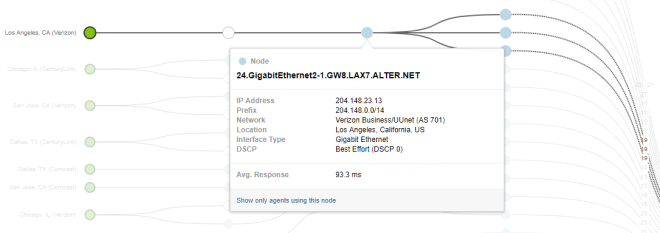
From Los Angeles, it’s even worse.  One would expect around 20ms.  Instead, you get over 90ms of latency before even leaving Verizon’s network.  If the reverse DNS is correct and that’s truly only gigabit link…shame, shame, shame…

verizon_aws-ncalifornia-losangeles

Hard to say exactly what’s going on here, but noticed the only POP with the expected latency Ashburn, VA at around 70ms.  In Dallas Verizon was about 60ms while competitors were 50ms.  My guess here is Verizon partially backhauls their connectivity to AWS through some central point(s), likely Virginia and somewhere near Texas.

FortiGate Static NAT using Port Forwarding / PAT

Easy in hindsight, but may be counter-intuitive for those coming from a Cisco or Palo Alto background such as myself.  There are two steps:

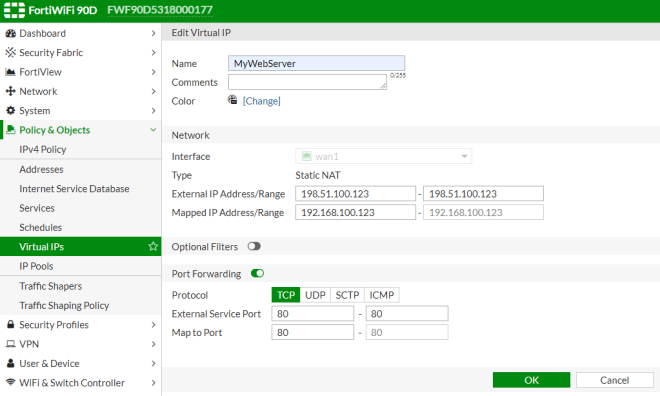
  1. Under Policy & Objects -> Virtual IPs, add a statement for each PAT rule with the “Port Forwarding” switch enabled at the bottom.
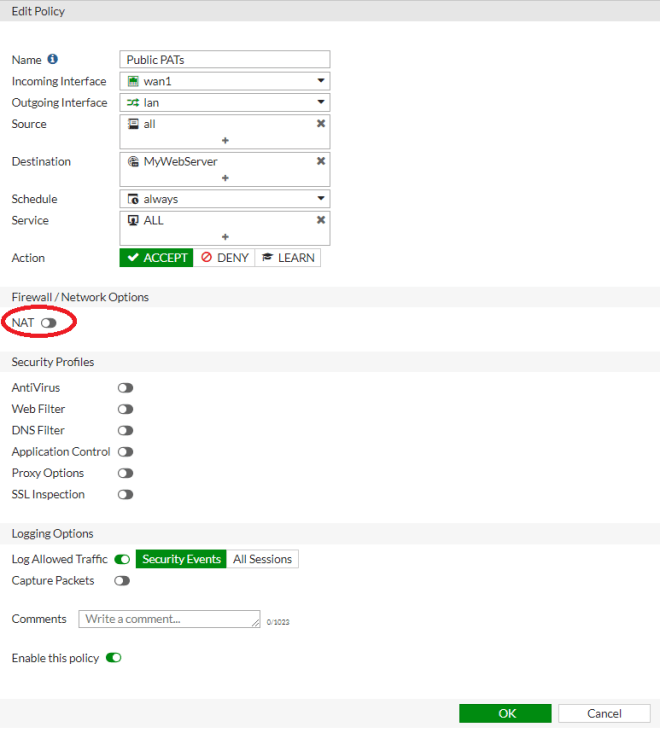
  2. Under Policy & Objects -> IPv4 Policy, add a rule from the public interface to the private interface with destination to be the object(s) created and service set to ALL.  NAT switch should remain disabled.

FortiGate_PAT_Virtual_IP

FortiGate_PAT_Rule

Cisco Serial Console w/ VRF

In this example an HWIC-16a is installed in a 2921 ISR G2 router’s slot 0/0.  The management port is configured to a VRF called “MGMT”.  The hostnames for the connected devices are set with the “ip host” line along with the VRF, port number (port 0 = tcp port 2003) and local router’s IP address.

hostname isr2921
interface Port-channel1.10
 encapsulation dot1Q 10
 ip vrf forwarding MGMT
 ip address 10.10.10.10 255.255.255.0
!
ip host vrf MGMT router1 2003 10.10.10.10
ip host vrf MGMT router2 2004 10.10.10.10
!
line 0/0/0 0/0/15
 session-timeout 30 
 exec-timeout 30 0
 transport input telnet ssh
!

To connect, specify the VRF name as a parameter

isr2921#telnet router1 /vrf MGMT
Translating "router1"
Trying router1 (10.10.10.10, 2003)...

F5 Bigip-VE tips for AWS deployment

Launch and initial configuration

The instructions are slightly incorrect.  You’ll want to ssh as ‘admin’ (not root or ec2-user)

$ ssh -i mykey.pem admin@10.10.10.111

Then use these TMOS commands to set and save a password for the admin user:

(tmos)# modify auth user admin prompt-for-password
(tmos)# save sys config

Login to the GUI as admin with the new password to do licensing and initial configuration.

Interfaces, Self IPs, and VLANs

While F5 guides list a variety of interface configurations, my advice is use 3

  1. eth0: mgmt – Used for SSH, HTTPS, and SNMP polling access
  2. eth1: interface 1.1: vlan “external” in a public subnet – For talking to Internet
  3. eth2: interface 1.2: vlan “internal” in a private subnet – For talking to internal resources and HA

Routing

The default route should of course be via the external interface’s gateway.  Any private IP address spaces (10.0.0.0/8, etc) can be routed via the internal interface’s gateway

If doing an HA pair across multiple availability zones, items with unique IP addresses such as routes, virtual servers, and perhaps pools/nodes will need to go in a separate non-synchronized partition.

  1. To go System -> Users -> Partition list
  2. Create a new partition with a good name (i.e. “LOCAL_ONLY”)
  3. Uncheck the Device Group and set the Traffic Group to “traffic-group-local-only”


Installing F5 Images and Hotfixes on BigIP-VE

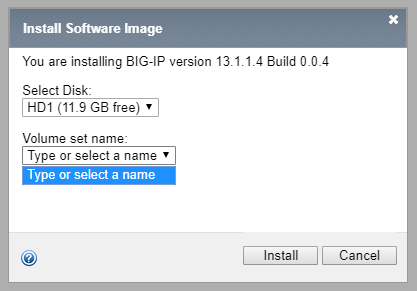
Often with the Bigip-VEs, installing an image or hotfix via the GUI will be impossible because the volume drop-down menu is empty:

F5GUInoVolumes

First verify the name of the image that’s been uploaded.  It should be in /shared/images

(tmos)# bash
# ls -l /shared/images/*.iso
-rw-r--r--. 1 tomcat tomcat 2096115712 2020-03-11 09:56 /shared/images/BIGIP-13.1.1.4-0.0.4.iso

Then install the image via tmsh with the create-volume option:

# tmsh

(tmos)# install sys software image BIGIP-13.1.1.4-0.0.4.iso volume HD1.2 create-volume

(tmos)# show sys software status
----------------------------------------------------------------
Sys::Software Status
Volume Product Version Build Active Status
----------------------------------------------------------------
HD1.1    BIG-IP  13.1.0.8  0.0.1     yes               complete
HD1.2    BIG-IP  13.1.1.4  0.0.4      no  installing 10.000 pct

At this point you can go back to GUI, watch the installation complete, and boot to that volume.