Words of caution deploying the CSR1000v with DMVPN on AWS t2.medium instances

The last 6 months of my life have been living hell thanks to Cisco.  I was assigned a relatively simple project of configuring some CSR1000v virtual routers in Amazon Web Services for the purpose of DMVPN spoke termination.  It has been miserable thanks to the unprecedented number of bugs on a product that’s over 5 years old.

Adding to the confusion, the primary issue is specific to the t2.medium instance type.  Since these are by far the cheapest instances and support up to 250 Mbps throughput (more than adequate for most organizations) I suspect I’m not the first to encounter problems, but am the first to find the root cause.

Problem #1 – They crash!

We launched the first batch of CSR1000vs in January 2019.  I had meant to tell the person launching them to try and do very 16.6 since that was the company standard for IOS-XE, but they defaulted to 16.9.1.  However, everything seemed fine as basic configuration and connectivity tests were successful.  But a few days after launching some test instances, I noticed the routers had rebooted unexpectedly.   Fortunately this was easy to diagnose since there were crash files I could provide TAC.  The bug was this:

CSCvk42631 – CSR1000v constantly crashes when processing packets larger than 9K

Since most instances launched in AWS have a 9001 Byte MTU by default, going with this version was a non-starter.  No problem, 16.9.2 was already available so that’s an easy fix….or so I thought.

Problem #2 – They stop passing traffic

I copied over 16.9.2 and 16.6.5 software images.  Initially I just booted 16.9.2 to verify they no longer crashed.  Welp, now we have a different problem.

The systems team said they had lost connectivity in the middle of the day.  I tried logging in to the CSR1000v via its external internal and could not access it.  However, I was able to access the peer router and then hop in via the private interface.  I saw that the external interface had “no ip address assigned”, which would indicated it lost connectivity to the DHCP server and failed renewal.

Around this time I started scanning Reddit.  A user mentioned trying to roll out CSR1000vs on t2.mediums with DMVPN configured and having similar stability woes.  Cisco was of little use, but Amazon support blamed it on CPU micro-bursts likely caused by route changes.  Switching the instances from t2.medium to c4.large resolved the issue.  This really didn’t make sense to me, but I could see cases where bursts were triggering a near exhaustion of CPU credits.  I looked at CloudWatch and indeed would see cases of the CPU credit balances suddenly dropping, but could not tell if this was the root cause or simply a secondary symptom of it not passing traffic.  After doing some reading on this topic I switched the instances to  T2 unlimited, but even after a reboot, there was no behavioral change.
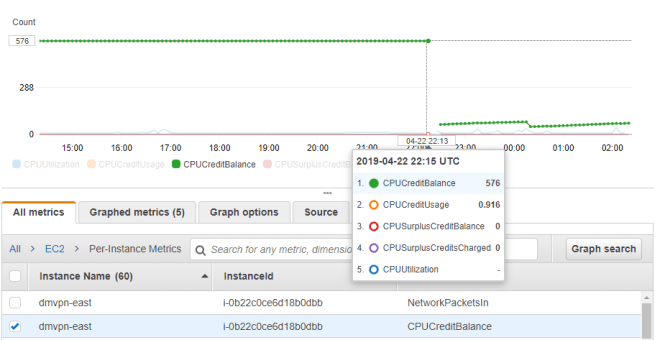
t2Medium_CPUCredits

I also followed the CPU red herring trail for a bit longer and found this

Features—Cisco IOS XE Fuji 16.7.1

The following new software features are supported on the Cisco CSR 1000v for Cisco IOS XE Fuji 16.7.1.
- Templates for vCPU allocation and distribution—including the Control Plane heavy template.

Sure enough, you can see lower on average CPU usage when upgrading to 16.7 and newer trains
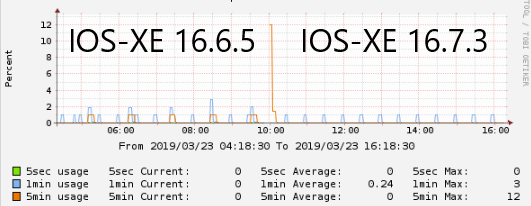
csr1000v_cpu_166_vs_167.png

But this is still overall very low CPU usage that should certainly not be causing an interface to stop passing traffic entirely.  So we’re back to square one.

I’m now caught between a rock and a hard place because 16.6.4 and 16.9.1 will cause the router to crash and reboot, but 16.6.5 and 16.9.2 will cause one of the interfaces to stop passing traffic.  The work-around I came up with was create IP SLA monitors to ping the adjacent gateways combined with an EEM script to auto-reboot upon detection.

Update April 26th 2019: We have a bug ID!  CSCvp48213

Update May 24th 2019: We have a root cause.  It’s a problem related to Generic Receive Offload (GRO) being enabled at the Linux kernel level.  This will be fixed in 16.9.4 or 16.6.6, which are due out towards the end of 2019 😐

Update June 6th 2019:  I went back at the original bug and have a theory what the problem is.  Looks like between 16.9.1 and 16.9.2 they lowered the MTU at the vNIC level to 1500 bytes:

Router#show platform software system all
VNIC Details
============
Name Mac Address Status Platform MTU
GigabitEthernet1 12bf.4f69.eb56 UP 1500
GigabitEthernet2 1201.c32b.1d16 UP 1500

To me, this seems much more like a hackish workaround that a fix.

Problem #3 – Internal traffic is fine, but Internet traffic is painfully slow

After working through the above two problems, I finally got time to try upgrading to 16.10.1b.  Surprisingly, this fixed the stability problem.  No more crashes, no more freeze-ups.  But upon doing more detailed testing, we found a new issue – when using the CSR1000v for internet access (via NAT), speeds were horribly slow.  I would get 125 KBps at best despite having verified the 100 Mbps license was installed and “platform hardware throughput level” was configured and enabled.

ubuntu@ip-10-13-22-161:~$ curl ftp://ftp.freebsd.org/pub/FreeBSD/releases/i386/i386/ISO-IMAGES/11.2/FreeBSD-11.2-RELEASE-i386-bootonly.iso > /dev/null
 % Total % Received % Xferd Average Speed Time Time Time Current Dload Upload Total Spent Left Speed
100 261M 100 261M 0 0 30733 0 2:28:55 2:28:55 --:--:-- 92708

Very much seemed like a licensing issue since 125 KBps = 1 Mbps which is the speed set in evaluation mode.  But speeds going over an IPSec VPN tunnel were up to 50 Mbps, which made no sense.

Opened another TAC case and got nowhere.  Once again I’m on my own, so I desperately started reading release notes and find this:

CSCvn52259 – CSR1Kv:Throughput/BW level not set correctly when upgrade to 16.10.1 .bin image with AWS/Azure PAYG
We’re using BYOL rather than PAYG, but this seemed very suspicions since I had indeed upgraded from 16.9.X to 16.10.1.  Sure enough, I do another upgrade to 16.11.1a and speeds now jump to 100 Mbps!  This is also fixed in 16.10.2

I would suspect this has something to do with Smart licensing, since it is mandatory starting with version 16.10



tviUezPkMB8zTzccFGi3M661t4vQJL25Ic5ytcPFMr0


Importing SSL Certificate on FortiGate 90D

The instructions talk about importing via GUI, but lower end platforms like the F90D don’t have that option.

Instead, certificates must be imported via a copy/paste job in the CLI

FWF90D5318062277 # config vpn certificate local
FWF90D5318062277 (local) # edit MyNewCert
FWF90D5318062277 (MyNewCert) # set private-key "-----BEGIN RSA PRIVATE KEY-----..."
FWF90D5318062277 (MyNewCert) # set certificate "-----BEGIN CERTIFICATE-----..."
FWF90D5318062277 (MyNewCert) # end

The certificate can then be set in the GUI.

Authenticating ZenDesk via AWS SSO

Setting up ZenDesk for AWS SSO was a bit weird due to their requirements, but not that difficult in hindsight.

  1. Copy the SSO Sign-in and Sing-out URLs to ZenDesk.
  2. For the certificate fingerprint, download the AWS SSO certificate, open it, click Details tab, and look for Thumbprint at the bottom.
  3. The Application ACS URL will be https://MYSUBDOMAIN.zendesk.com/access/saml
  4. The Application SAML audience URL will be https://MYSUBDOMAIN.zendesk.com
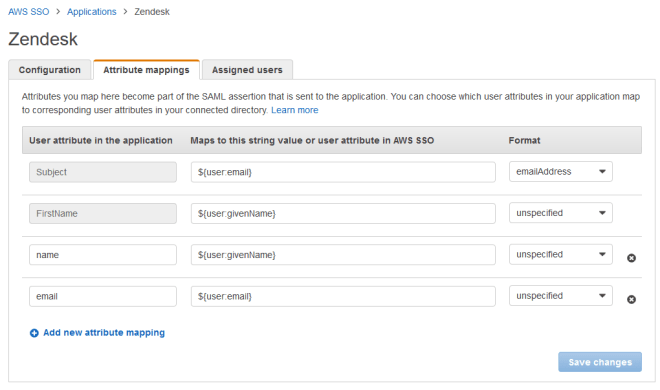
  5. The final step is add two custom attributes in the AWS configuration
  • name = ${user:givenName}
  • email = ${user:email}

AWSSSO_ZenDesk_AttributeMappings

Handy OpenSSL Commands

Create new private key:

openssl genrsa -out myServer.key 2048

Create self-signed certificate, good for 10 years:

openssl req -x509 -key myServer.key -out myServer.crt -days 3652

Create new Certificate Signing Request:

openssl req -new -key myServer.key -out myServer.csr

Verify CSR details:

openssl req -text -noout -verify -in myServer.csr

Create a PKCS12 bundle file from cert/key

openssl pkcs12 -export -out myFile.p12 -inkey myServer.key -in MyServer.crt

Unbundle a PKCS12 file to PEM cert:

openssl pkcs12 -in myFile.pfx -out myCert.pem -clcerts -nokeys

Unbundle PKCS12 file to PEM key:


openssl pkcs12 -in myFile.pfx -out myKey.key -nocerts -node

Convert a key from PEM to RSA format

openssl rsa -in myServer.key -out myServer-rsa.key

Check if a cert matches a key:

openssl x509 -noout -modulus -in myServer.crt | openssl md5 ;\ openssl rsa -noout -modulus -in myServer.key | openssl md5

Perform a simulate SSL handshake to a website:

openssl s_client -connect www.mysite.com:443

Cisco ASA: Forcing local authentication for serial console

One of the root problems of administrative access to the ASA platform is there’s no easy way to bypass a broken AAA server

Cisco IOS has this:

aaa authentication enable default group radius none

But the ASA equivalent has no “none” option, so most people will configure this:

aaa authentication enable console RADIUS LOCAL

Now the problem here is if the user authenticates locally and the Radius server is still marked “up”, they’ll be forced to authenticate through it.  This creates two problematic scenarios

  1. The Radius server is reachable, but the username does not exist
  2. The Radius server is marked up but is actually unreachable, misconfigured, or horked in some way

The latter case occurred during our last two ASA outages.  It was especially frustrating because I had configured serial consoles to both ASAs, only to be unable to get to enable mode to force a reboot/failover and recover from the outage without having to drive to the data center.

A reddit user pointed me to this command:

aaa authorization exec LOCAL auto-enable

Which should in theory force accounts using local authentication to bypass the enable prompt assuming they’re set to priv 15.  But after having no luck with it and escalating through Cisco I discovered this command does not work with serial console logins.  So, I was back to square one.

The solution I settled on was to simply force local for both serial console authentication and enable mode:

aaa authentication serial console LOCAL
aaa authentication enable console LOCAL

Unfortunately the catch 22 revealed itself again, as this broke enable mode for Radius users, since they did not have local accounts.  So I added this line to try and bypass enable for Radius users:

aaa authentication ssh console RADIUS LOCAL
aaa authorization exec authentication-server auto-enable

Now I see them passing authentication on the Radius server, but the ASA rejecting them with this error:

%ASA-3-113021: Attempted console login failed user 'bob' did NOT have appropriate Admin Rights.

I had already configured priv-lvl=15 in the Radius server’s policy, so not sure what else it could need.  Turns out it also needed this attribute set:

Service-Type: Administrative

After this, now everything is happy.  SSH users get auto-enabled via RADIUS and can still fallback to local (in theory) if the server is down.  But if that’s broken, I can console in with a local username/password and enter enable mode.


F5 to ADFS 2016 SSL/TLS handshake failure

Browser to ADFS server works fine, but dies when going through the F5 LTM.  Packet capture showed the F5 would send a client hello SSL handshake message as expected, with the ADFS server responding with a TCP RST.

Upon doing some more digging, found this the ADFS 2016 guide:

The load balancer MUST NOT terminate SSL. AD FS supports multiple use cases with certificate authentication which will break when terminating SSL. Terminating SSL at the load balancer is not supported for any use case.

So, the F5 Virtual server should be configured as Layer 4.

The unsupported work-around is set a custom ServerSSL profile with the server name field:

ltm profile server-ssl /Common/serverssl-myserver {
 app-service none
 defaults-from /Common/serverssl
 server-name adfs.mydomain.com
}

Quick start with Ansible

Install ansible.  For example, on Ubuntu Linux:

sudo apt-get install ansible

Populate /etc/ansible/hosts

[myrouters]

router1.mydomain.com
router2.mydomain.com

[myswitches]

Switch1
Switch2.mydomain.com
192.168.1.1

Try a read-only command just on a single router

 ansible router1.mydomain.com -u myusername -k -m raw -a "show version"

Try a command on a group of routers

ansible myrouters -u myusername -k -m raw -a "show version"

Automating Push/Pulls to GitHub via SSH

Normally a git clone would be via HTTPS, with prompts for GitHub credentials:

$ git clone https://github.com/MyOrg/MyRepo.git

To automate GitHub pull/push requests, need to use SSH w/ key authentication.

Start by setting up a ~/.gitconfig file and specify your primary GitHub e-mail address:

[core]
 editor = nano
[user]
 name = Johnny Five
 email = johnny5@shortcircuit.com

Upload the SSH public key to GitHub.  This will be ~/.ssh/id_rsa.pub by default.  To specify a different private key for GitHub,  add an entry in ~/.ssh/config like this:

Hostname github.com
User git
IdentityFile ~/.ssh/mySpecialGitHubKey.pem

Then do clone via SSH.  Note “git” should be username, not GitHub username.

$ git clone ssh://git@github.com/MyOrg/MyRepo.git

Removing Warning Messages for BYOD PEAP clients with NPS

Last year I rolled out PEAP (Cisco 2504 WLC + Windows Server 2012 NPS) to get our wifi secured.  One of the nagging problems is I could never eliminate the ‘untrusted certificate’ warning messages when new clients joined.  Most of our clients are Macs, and are neither joined to the domain nor trust the internal Windows CA.  Secondly, we have iPhones, iPads, and Android phones who fall in to the same boat.  So, we’re in reality a BYOD environment.  All the examples I could find were Enterprise scenarios that assumes Windows client are joined to the domain, and inherently trust the internal CA.

The original cert used by NPS was set to expire this week, so I figured it would be a good time to try buying one from an external CA.  There was some question of which CAs would be trusted by Apple.  Fortunately I found these two knowledge base articles:

GoDaddy was then selected as the CA.  The first step was to generate a new 2048-bit private key and CSR (Certificate Signing Request).  As usual, I use OpenSSL to do this:

$ openssl req -out wifi.mydomain.com.csr -new -newkey rsa:2048 -nodes -keyout wifi.mydomain.com.key

Note that the certificate must be a FQDN hostname as wildcard certs won’t work with Windows.

After submitting the CSR and waiting for their approval, I download the certificate in Apache or IIS format, and end up with a .crt file.  Windows requires the cert and key to be bundled together in PKCS12 format, which I’m able to do via this OpenSSL command:

$ openssl pkcs12 -in wifi.mydomain.com.crt -inkey wifi.mydomain.com.key -export -out wifi.mydomain.com.pfx
Enter Export Password:
Verifying - Enter Export Password:

Now the next trick was to actually import this to NPS so it could be used.  To to this, I have to go through the Certificate snap-in.

  1. Remote Desktop to the NPS server
  2. Copy the .pfx file to C:\Users\Administrator\Documents (I simply used FTP)
  3. Type MMC at the command prompt
  4. File -> Add/Remove Snap-ins, Certificates, Add, “Computer account”, Finish
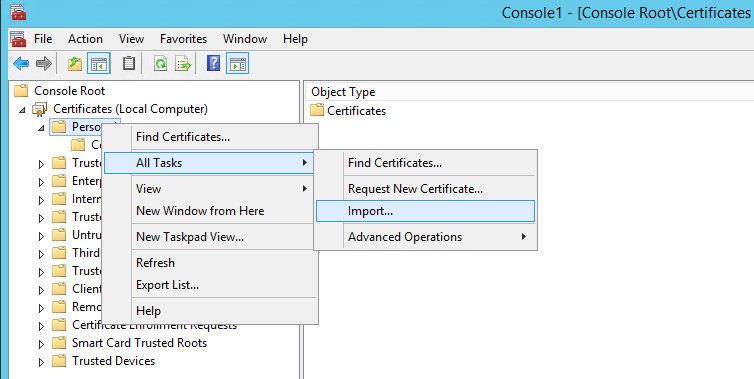
  5. Under Personal tree, All tasks -> Import.  Select the .pfx file that was created

import_certificate

Finally, we’re now ready to have NPS use the new certificate

  1. Administrative Tools -> Network Policy Server
  2. Policies -> Network Policies -> Wireless Authentication
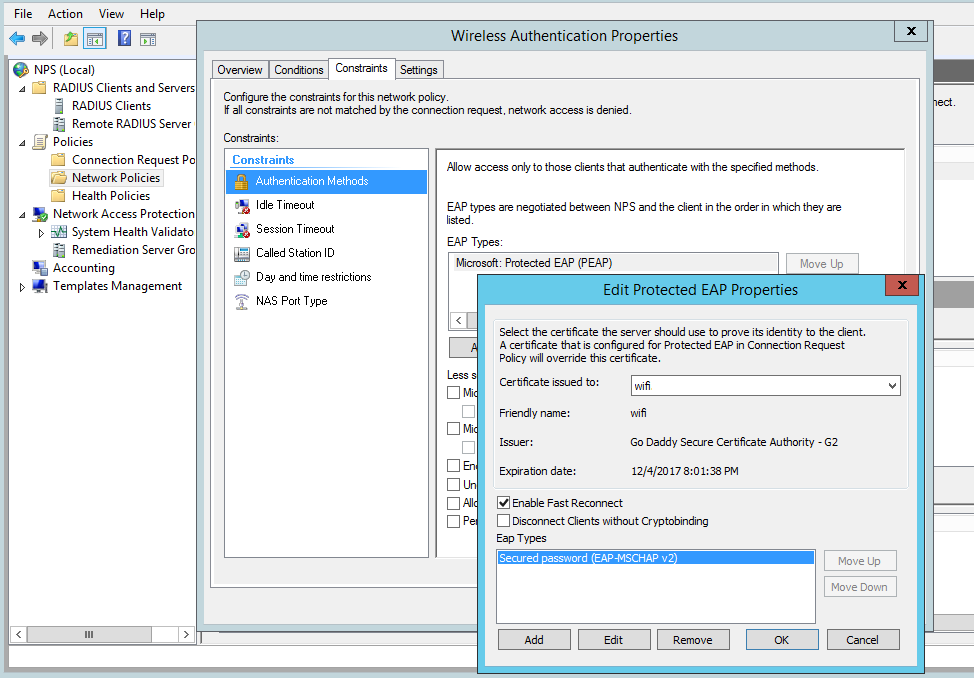
  3. Constraints -> Authentication Methods -> Microsoft: Protected EAP (PEAP) -> Edit
  4. The new cert should show in the top drop-down menu.  Select it and click OK

eap_certificate.png