Deploying CheckPoint CloudGuard IaaS High Availability in GCP

A minimum 3 NICs are required and will be broken down like so:

  • eth0 – Public / External Interface facing Internet
  • eth1 – Management interface used for Cluster sync.  Can also be used for security management server communication
  • eth2 – First internal interface.  Usually faces internal servers & load balancers.  Can be used for security management server communication

The Deployment launch template has a few fields which aren’t explained very well…

Security Management Server address

A static route to this destination via management interface will be created a launch time.  If the Security Management server is accessed via one of the internal interfaces, use a dummy address here such as 1.2.3.4/32 and add the static routes after launch.

SIC key

This is the password to communicate with the Security Management server. It can be set after launch, but if already known, it can be set here to be pre-configured at launch

Automatically generate an administrator password

This will create a new random ‘admin’ user password to allow access to the WebGUI right after launch, which saves some time especially in situations were SSH is slow or blocked.

Note – SSH connections always require public key authentication, even with this enabled

Allow download from/upload to Check Point

This will allow the instance to communicate outbound to Checkpoint to check for updates.  It’s enabled by default on most CheckPoint appliances, so I’d recommend enabling this setting

Networking

This is the real catch, and a pretty stupid one.  The form fills out these three subnets:

  • “Cluster External Subnet CIDR” = 10.0.0.0/24
  • “Management external subnet CIDR” = 10.0.1.0/24
  • “1st internal subnet CIDR” = 10.0.2.0/24

If using an existing network, erase the pre-filled value and then select the appropriate networks in the drop-down menus like so:
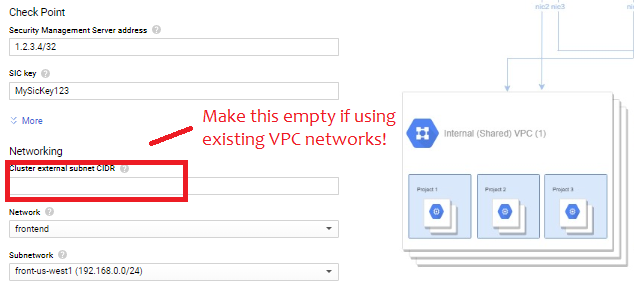
GCP_Existing_VPCNetworks

Also, make sure all subnets have “Private Google Access” checked

Post-launch Configuration

After launch, access the gateways via SSH using public key and/or WebGUI to run through initial setup.  The first step is set a new password for the admin user:

set user admin password

set expert-password

Since eth1 rather than eth0 is the management interface, I would recommend setting that accordingly:

set management interface eth1

I would also recommend adding static routes. The deployment will create static routes for RFC 1918 space via the management interface.  If these need to be overridden to go via an internal interface the CLI command is something like this

set static-route NETWORK/MASK nexthop gateway address NEXTHOP_ADDRESS on

Before importing in to SmartConsole, you can test connectivity by trying to telnet to the security management’s server address on port 18191. Once everything looks good, don’t forget to save the configuration:

save config

Cluster Creation

In SmartConsole, create a new ClusterXL. When prompted for the cluster address, enter the primary cluster address.  The easy way to find this is look the the deployment result under Tools -> Deployment manager -> Deployments
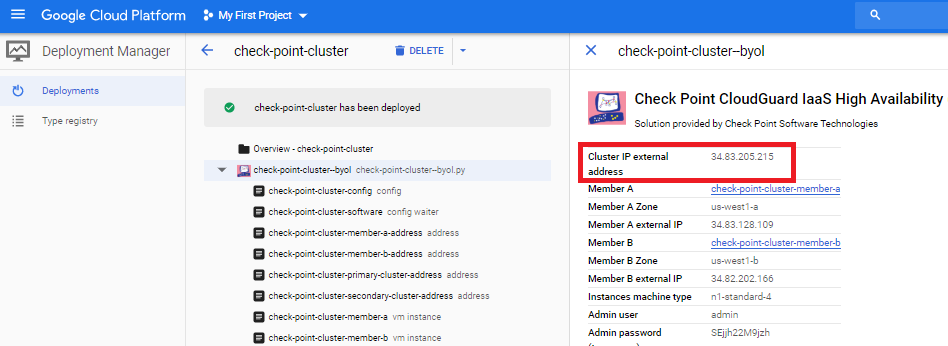
CheckPoint_Deployment_ClusterIPExternalAddress

Then add the individual gateways with the management interface.   Walking through the wizard, you’ll need to define the type of each interface:

  • Set the first (external) interface to private use
  • Set the secondary (management) interface as sync/primary
  • Set subsequent interfaces as private use with monitoring.

Note the wizard tends to list the interfaces backwards: eth2, eth1, eth0

GCP_Clustering

The guide lists a few steps to do within the Gateway Cluster Properties, several of which I disagree with. Instead, I’d suggest the following:

  • Under Network Management, VPN Domain, create a group that lists the internal subnets behind the Checkpoint that will be accessed via site-to-site and remote access VPNs
  • On the eth1 interface, set Topology to Override / This Network / Network defined by routes. This should allow IP spoofing to remain enabled
  • Under NAT, do not check “Hide internal networks behind the Gateway’s external IP” as this will auto-generate a NAT rule that could conflict with site-to-site VPNs. Instead, create manual NAT rules in the policy.
  • Under IPSec VPN, Link Selection, Source IP address Settings, set Manual / IP address of chosen interface

Do a policy install on the new cluster, and a few minutes later, the GCP console should map the primary and secondary external IP addresses to the two instances
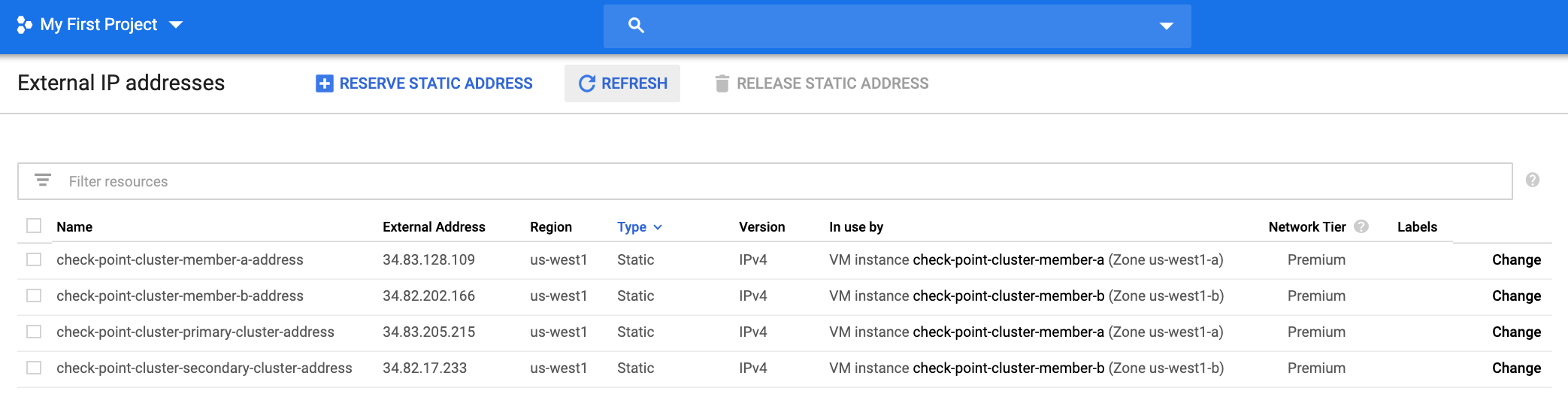
CheckPoint_GCP_External_IPAddresses

Failover

Failover is done via API call and takes roughly 15 seconds.

On the external network (front end), the primary and secondary firewalls will each get external IP address mapped.  CheckPoint calls these “primary-cluster-address” and “secondary-cluster-address”.  I’d argue “active” and “standby” would be better names, because the addresses will flip during a failover event.

On the internal network (back end0, failover is done by modifying the static route to 0.0.0.0/0.  The entries will be created on the internal networks when the cluster is formed.

Known Problems

The script $FWDIR/scripts/gcp_ha_test.py is missing

This is simply a mistake in CheckPoint’s documentation.  The correct file name is:

$FWDIR/scripts/google_ha_test.py

Deployment Fails with error code 504, Resource Error, Timeout expired

DeployFailure

Also, while the instances get created and External static IPs allocated, the secondary cluster IP never gets mapped and failover does not work.

Cause: there is a portion of the R80.30 deployment script relating to external IP address mapping that assumes the default service account is enabled, but many Enterprise customers will have default service account disabled as a security best practice.  As of January 2020, the only fix is to enable the default service account, then redo the deployment.

StackDriver is enabled at launch, but never gets logs

Same issue as a above.  As of January 2020, it depends on the default service account being enabled.
Site-to-Site IPSec VPNs on CheckPoint R80.30

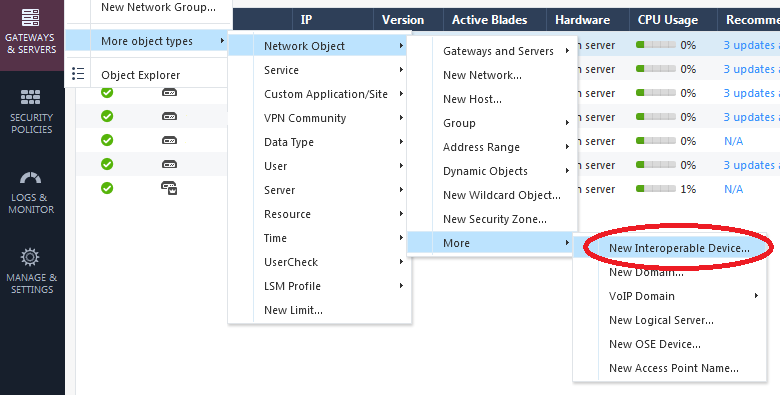
The first step is to create a new object with the public IP address of the other side of the tunnel.  This is fairly well buried in the menus:

R80_30_new_VPN_interop_device

After that, create a new VPN “community” in Objects -> More object types -> VPN Community -> New Meshed VPN and walk through the wizard.

The main gotcha is watch out for weird default settings.  In particular, AES-128 is disabled as encryption cipher for Phase 1.  My guess is since it’s the most popular cipher for Phase 2, they go with the “mix ciphers” strategy.  But personally I just like to use AES-128 for everything – it’s simple, fast, and plenty secure.

CheckPoint Dedicated Management Route

New feature (finally!) in R80.30 is the ability to enabled Management data plane Separation, in order to have a separate route table for the management interface and all management related functions (Policy installation, SSH, SNMP, syslog, GAIA portal, etc).

Let’s assume the interface “Mgmt” has already been set as the management interface with IP address 192.168.1.100 and wants default gateway 192.168.1.1, and “eth5” has been setup as the dedicated sync interface:

set mdps mgmt plane on
set mdps mgmt resource on
set mdps interface Mgmt management on
set mdps interface eth5 sync on
add mdps route 0.0.0.0/0 nexthop 192.168.1.1
save config
reboot

After the box comes up you can verify the management route has been set by going in to expert mode and the the “mplane” command to enter management space:

> expert
[Expert@MyCheckPoint:0]# mplane
Context set to Management Plane
[Expert@MyCheckPoint:1]# netstat -rn
Kernel IP routing table
Destination  Gateway       Genmask         Flags MSS Window irtt Iface
169.254.0.0  0.0.0.0       255.255.255.252 U     0   0      0    eth5
192.168.1.0  0.0.0.0       255.255.255.0   U     0   0      0    Mgmt
0.0.0.0      192.168.1.1   0.0.0.0         UGD   0   0      0    Mgmt

Routes from the main route table relating to management can then be deleted, which makes the data plane route table much cleaner:

[Expert@MyCheckpoint:1]# dplane
Context set to Data Plane

[Expert@MyCheckPoint:0]# netstat -rn
Kernel IP routing table
Destination   Gateway       Genmask         Flags MSS Window irtt Iface
203.0.113.32  0.0.0.0       255.255.255.224 U     0   0      0    bond1.11
192.168.222.0 0.0.0.0       255.255.255.0   U     0   0      0    bond1.22
0.0.0.0       203.0.113.33  0.0.0.0         UGD   0   0      0    bond1.11
192.168.0.0   192.168.222.1 255.255.0.0     UGD   0   0      0    bond1.22

Upgrading Checkpoint Management Server in AWS from R80.20 to R80.30

Unfortunately it is not possible to simply upgrade an existing CheckPoint management server in AWS.  A new one must be built, with the database manually exported from the old instance and imported to the new one.

There is a CheckPoint Knowledge base article, but I found it to have several errors and also be confusing on which version of tools should be used.

Below is the process I used to go from R80.20 to R80.30

Login to the old R80.20 server.  Download and extract the R80.30 tools:

cd /home/admin
tar -zxvf Check_Point_R80.30_Gaia_SecurePlatform_above_R75.40_Migration_tools.tgz

Run the export job to create an archive of the database:

./migrate export --exclude-licenses /tmp/R8020Backup.tgz

Copy this .tgz file to the new R80.30 management server in /tmp

On the new management server, run the import job:

cd $FWDIR/bin/upgrade_tools
./migrate import /tmp/R8020Backup.tgz 
The import operation will eventually stop all Check Point services (cpstop)
Do you want to continue? (y/n) [n]? y

After a few minutes, the operation will complete and you’ll be prompted to start services again.

Finish by upgrading SmartConsole to R80.30 and connect to the new R80.30 server.  I’ve noticed it to be very slow, but it will eventually connect and all the old gateways and policies will be there.

CheckPoint Initial Configuration via CLI

The default credentials are admin/admin

Verify the management interface

show management interface

Set the management interface with IP address 192.168.1.222/255.255.255.0

set interface Mgmt ipv4-address 192.168.1.222 mask-length 24

Verify IP address for management interface

show interface Mgmt ipv4-address

Ping something

ping 192.168.1.1

Set the default route to 192.168.1.1

set static-route default nexthop gateway address 192.168.1.1 priority 1 on

Create internal route for 10.0.0.0/8 via gateway 10.10.10.10

set static-route 10.0.0.0/8 nexthop gateway address 10.10.10.1 on

Verify routing

show route

Set DNS servers

set dns primary 8.8.8.8
set dns secondary 9.9.9.9

Save the configuration

save config

Show all interface

show interfaces

Show interfaces with IP addresses configured

show security-gateway monitored-interfaces

Create an 802.3ad (LACP) bonded logical interface with eth1 & eth2 as physical members

add bonding group 1
set bonding group 1 mode 8023AD
set bonding group 1 lacp-rate fast
add bonding group 1 interface eth1
add bonding group 1 interface eth2

Create a VLAN sub-interface on bond1 with 802.1q tag 123

add interface bond1 vlan 123

Check software version

show version all

Get hardware information and serial number

show asset system

Change admin password

set user admin password

Set expert mode password

set expert-password

Check policy Status

fw stat

Clear the current local policy

fw unloadlocal

Check site-to-site VPN status

vpn tu tlist

Reset VPN tunnels (list/delete IKE/IPSec SAs)

vpn tu

Modify license, configure SNMP, reset SIC connection:

cpconfig

Verify number of CPUs

fw ctl multik stat

View CPU to connection distribution table

fw ctl affinity -l -r

Reboot the firewall

reboot

CheckPoint Remote Access VPN Caveats

a4dvqjud9ne31.jpg

Endpoint Security vs. Mobile Access vs. SecuRemote

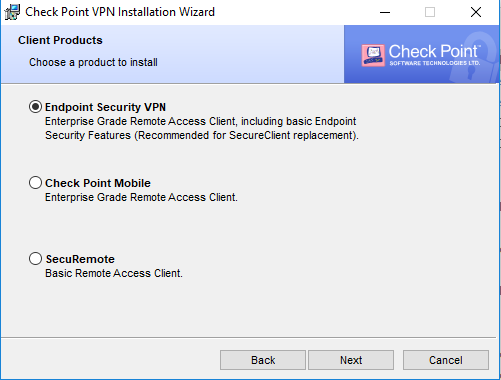
This is the first and foremost headache you’ll run in to.  Mac only supports Endpoint Security, but Windows clients will have 3 options.   The descriptions aren’t very helpful y as “Enterprise Grade” smells like a marketing term that doesn’t help anyone make a decision.

CheckPointVPNClientWindowsInstall

So here’s a quick breakdown:

  • Checkpoint Endpoint Security requires endpoint security on management server
  • CheckPoint Mobile uses the Mobile access blade and thus licensing
  • SecuRemote does not require a license, but does not support Office Mode

So they key take-away on Endpoint Security VPN vs. Check Point Mobile are fundamentally the same feature-wise, but work on different licensing models.

When to use Office Mode?

The main benefit of Office Mode is it mitigates IP conflict between a user’s home/office network and the VPN domain.  For example, say the user’s workstation is on 192.168.1.0/24 and 192.168.0.0/16 is to be routed via the VPN.  Since the client will simply show up as 10.10.10.100 or whatever for the CheckPoint, this will clash with the topology and the client will be disconnected after a few seconds.

The easy workaround for this problem not using Office Mode is only route very specific internal traffic via the VPN.

VPN Client IP address pool

By default, VPN client IP are controlled by this object:

CP_default_Office_Mode_addresses_pool = 172.16.10.0/24

An automatic NAT rule to hide behind the gateway will be enabled as well, so it’s usually OK to leave this as is.  But, it can be changed at the gateway level under VPN Clients -> Office Mode

Split Tunnel network list

CheckPoint calls this the VPN domain.  By default, it’s generated via the topology, which is a combination of interfaces and routes.  It can instead be manually set on the gateway under Network Management -> VPN Domain.


Common VPN Client Problems

Uninstalling Endpoint Security version 81.10 on Windows 10 horks all network adapters

https://community.checkpoint.com/t5/Remote-Access-Solutions/Lost-network-connectivity-uninstalling-Endpoint-VPN/m-p/25650/highlight/false

Workaround is to install/uninstall and older client version such as 80.89

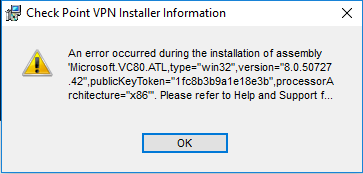
Can’t install client on Windows 10 version 1803

Installation fails with ugly error message “An error occurred during the installation of assembly “Microsoft.VC80.ATL, type=”win32”, version “8.0.50727.42”

CheckPointSecuremoteWindowsInstallFail

This is a known issue that can be caused by an incomplete Microsoft .NET library installation.

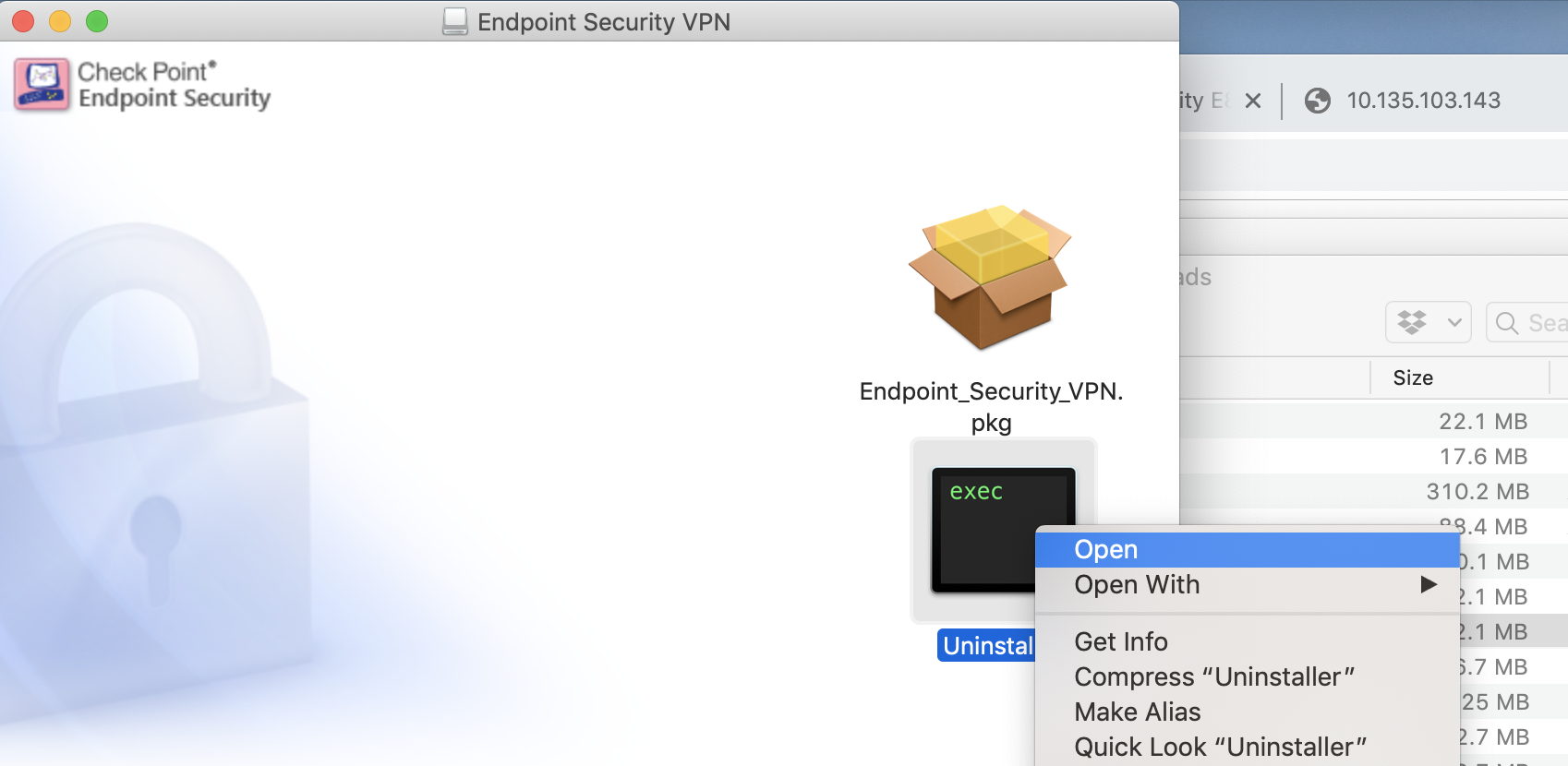
Can’t uninstall Mac Client

Simply dragging to the trash won’t fully un-install the client.  Instead, Re-open the .dmg file and Ctrl + click the black and green Uninstaller icon, then Select Open

CheckPointMacVPNClientUninstall

Clients connect to the gateway’s Internal IP address

This is usually because the gateway is behind NAT, referenced by internal IP address in SmartConsole, and Link selection is using the main IP address, which is the default.

The fix is under IPSec VPN -> Link selection.  Put the public IP address as the statically NAT’d IP and the clients will then stay connected to the public IP address.

Clients connect, but can’t access anything, then drop a few second later

In my case this this was due to giving the VPN clients a 10.X.X.X address but having a route to 10.0.0.0/8 via the internal interface, which triggered anti-spoofing rules:

@;2251823;[cpu_0];[fw4_1];fw_log_drop_ex: Packet proto=1 10.135.200.81:2048 -> 10.135.202.161:33536 dropped by fw_antispoof_log Reason: Address spoofing;
@;2251849;[cpu_0];[fw4_1];fw_log_drop_ex: Packet proto=17 10.135.200.81:18011 -> 10.135.202.199:18234 dropped by fw_antispoof_log Reason: Address spoofing;
@;2251849;[cpu_0];[fw4_1];fw_log_drop_ex: Packet proto=17 10.135.200.81:18012 -> 10.135.202.199:18234 dropped by fw_antispoof_log Reason: Address spoofing

The simple solution is disable spoofing on the external interface.

An alternate work-around is choose IP address for the VPN clients that are outside the internal interface’s topology.  I used 198.51.100.0/24.  This also fixes the route conflicts described above under “Office Mode”

After initial connection, VPN Client caches gateway’s internal IP address

This will happen when the Checkpoint gateway is behind a NAT.  The fix is provide the external IP address under Gateway -> IPSec VPN -> Link Selection “Always use this address” and enter the external IP in the “Statically NATed IP” field.

Client complains VPN-1 Server could not find any certificate for use for IKE

Means the connection is expecting the client to authenticate via certificate.  Quickest fix: on the gateway under VPN Clients -> Authentication, set the Authentication Method to “Username and password”

Common Gateway/SmartConsole problems not related to VPN

Can’t SSH to gateway after hooking in to SmartConsole

Unlike the Web Admin access, which is implicit, SSH has to be explicitly allowed in the policy.  This is true even when using the dedicated management route feature in R80.30

Launching Checkpoint Gateway in AWS

Instance types for R80.20 or higher:

  • Checkpoint Gateway: c5.large  (2 vCPU / 4 GB) or c5.xlarge (4 vCPU / 8 GB)
  • Checkpoint Manager: m5.large ( 2vCPU / 8 GB) or m5.xlarge ( 4 vCPU / 16 GB)

Once launched, SSH in and set a temporary admin password:

$ ssh -i ~/.ssh/mykey.pem admin@10.10.10.123
This system is for authorized use only.
In order to configure your system, please access the Web UI and finish the First Time Wizard.

gw-f0633c> set user admin password
New password:
Verify new password:
gw-f0633c> save config

I also like to add routes so the Internal interface is accessible:

gw-f0633c> set static-route 10.0.0.0/8 nexthop gateway address 10.10.10.1 on
gw-f0633c> set static-route 172.16.0.0/12 nexthop gateway address 10.10.10.1 on
gw-f0633c> set static-route 192.168.0.0/16 nexthop gateway address 10.10.10.1 on
gw-f0633c> save config

Now access the GUI.  In this case, https://10.10.10.123