Docker Cheat Sheet

Install Docker on Ubuntu

sudo apt update
 
sudo apt install apt-transport-https ca-certificates curl software-properties-common

curl -fsSL https://download.docker.com/linux/ubuntu/gpg | sudo apt-key add -
sudo add-apt-repository "deb [arch=amd64] https://download.docker.com/linux/ubuntu focal stable"
apt-cache policy docker-ce
apt install docker-ce

List images

docker image list

Run a container from an image

docker run --name <RUN_NAME> -p <HOST_PORT>:<CONTAINER_PORT> <IMAGE_NAME>:latest

List running containers

docker ps

Build a container

docker build -t <IMAGE_NAME> <DIR_OF_Dockerfile>

Upload an image to Docker registry

docker push <IMAGE_NAME>

Save (export) an image

docker save <IMAGE_NAME>:latest -o image.tar

Save (export) an image with real-time gziping

docker save <IMAGE_NAME>:latest | gzip > image.tgz

Fix unsigned repo errors for ubuntu and debian

docker system prune

Delete all local images

docker rmi -f $(docker images -aq)

Getting Let’s Encrypt SSL Certificates on Linux and FreeBSD

First install certbot. This is basically the Python script that will read the web server configuration and make the request to the Let’s Encrypt API.

On Debian or Ubuntu:

sudo apt install certbot
sudo apt install python3-certbot-nginx
sudo apt install python3-certbot-apache

On FreeBSD:

sudo pkg install py37-certbot
sudo pkg install py37-certbot-nginx
sudo pkg install py37-certbot-apache
sudo pkg install py37-acme

Note that certbot can only match virtual hosts that listen on port 80.

Run this command for Nginx:

sudo certbot certonly --nginx

Or for Apache:

sudo certbot certonly --apache

Certificates will get saved in /etc/letsencrypt/live on Linux, or /usr/local/etc/letsencrypt/live on FreeBSD

In each sub-directory, there will be 4 files created:

  • privkey.pem = The private key
  • cert.pem = The SSL certificate
  • fullchain.pem = SSL cert + Intermediate Cert chain. This format is required by NGINX and some other web servers
  • chain.pem = Just the intermediate cert

Here’s a Python script that will create a list of all directories with Let’s Encrypt certs:

#!/usr/bin/env python3

import sys, os

if "linux" in sys.platform:
    src_dir = "/etc/letsencrypt/live"
if "freebsd" in sys.platform:
    src_dir = "/usr/local/etc/letsencrypt/live"

sites = [ f.name for f in os.scandir(src_dir) if f.is_dir() ]
for site in sites:
    if os.path.exists(src_dir + "/" + site + "/cert.pem"):
        print("Letsencrypt certificate exists for site:", site)

Enabling Private Google Access in Google Cloud Platform

By default, calls to the various Google Cloud APIs will resolve to a random Google-owned IP, and require outbound internet access, either via external IP, Cloud NAT, or 3rd party network appliance.

If outbound Internet is not required for the application, or not desired for security reasons, enabling Private Google Access allows VM instances to connect an internally routed prefix.

  1. On the subnet, turn on Private Google Access via the radio button
  2. By default, all egress traffic is permitted. If egress traffic is being denied deliberately, create a rule allowing egress traffic to destination 199.36.153.8/30, tcp ports 80 and 443
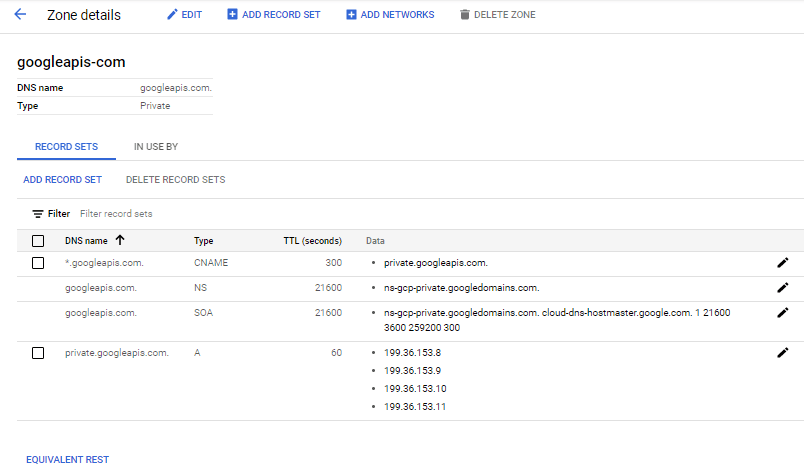
  3. Create a Private DNS zone called googleapis.com, and apply it to any networks that will use Google Private Access.

In the DNS zone, create two entries:

An A record called ‘private’ that resolves to the following 4 IP addresses:

  • 199.36.153.8
  • 199.36.153.9
  • 199.36.153.10
  • 199.36.153.11

A wildcard record ‘*’ that points to hostname ‘private’

The zone will look like this once created.

Private Google Access should now be working. To test it, ping something.googleapis.com and it should resolve to one of those 4 IP addresses

ping www.googleapis.com
PING private.googleapis.com (199.36.153.9) 56(84) bytes of data.

Getting web server variables and query parameters in different Python Frameworks

As I explore different ways of doing Web programming in Python via different Frameworks, I kept finding the need to examine HTTP server variables, specifically the server hostname, path, and query string. The method to do this varies quite a bit by framework.

Given the following URL: http://www.mydomain.com:8000/derp/test.py?name=Harry&occupation=Hit%20Man

I want to create the following variables with the following values:

  • server_host is ‘www.mydomain.com’
  • server_port is 8000
  • path is ‘/derp/test.py’
  • query_params is this dictionary: {‘name’: ‘Harry’, ‘occupation’: ‘Hit Man’}

Old School CGI

cgi.FieldStorage() is the easy way to do this, but it returns a list of tuples, and must be converted to a dictionary.

#!/usr/bin/env python3

if __name__ == "__main__":

    import os, cgi

    server_host = os.environ.get('HTTP_HOST', 'localhost')
    server_port = os.environ.get('SERVER_PORT', 80)
    path = os.environ.get('SCRIPT_URL', '/')
    query_params = {}
    _ = cgi.FieldStorage()
    for key in _:
        query_params[key] = str(_[key].value)

Note this will convert all values to strings. By default, cgi.FieldStorage() create numberic values as int or float.

WSGI

Similar to CGI, but environment variables get passed simply in a dictionary as the first parameter. There is no need to load the os module.

def application(environ, start_response):

    from urllib import parse

    server_host = environ.get('HTTP_HOST', 'localhost')
    server_port = environ.get('SERVER_PORT', 80)
    path = environ.get('SCRIPT_URL', '/')
    query_params = {}
    if '?' in environ.get('REQUEST_URI', '/'):
        query_params = dict(parse.parse_qsl(parse.urlsplit(environ['REQUEST_URI']).query))

Since the CGI Headers don’t exist, urllib.parse can be used to analyze the REQUEST_URI environment variable in order to form the dictionary.

Flask

Flask makes this very easy. The only real trick comes with path; the ‘/’ gets removed, so it must be re-added

from flask import Flask, request

app = Flask(__name__)

# Route all possible paths here
@app.route("/", defaults={"path": ""})
@app.route('/<string:path>')
@app.route("/<path:path>")

def index(path):
      
    [server_host, server_port] = request.host.split(':')
    path =  "/" + path
    query_params = request.args
 

FastAPI

This one’s a slightly different because the main variable to examine actually a QueryParams object with is a form of MultiDict

from fastapi import FastAPI, Request

app = FastAPI()

# Route all possible paths here
@app.get("/")
@app.get("/{path:path}")
def root(path, req: Request):

    [server_host, server_port] = req.headers['host'].split(':')
    path = "/" + path
    query_params = dict(req.query_params)

AWS Lambda

Lambda presents a dictionary called ‘event’ to the handler and it’s simply a matter of grabbing the right keys:

def lambda_handler(event, context):

    server_host = event['headers']['host']
    server_port = event['headers']['X-Forwarded-Port']
    path = event['path']
    query_params = event['queryStringParameters']

If multiValueheaders are enabled, some of the variables come in as lists, which in turn may have a list as values, even if there’s only one item.

    server_host = event['multiValueHeaders']['host'][0]
    query_params = {}
    for _ in event["multiValueQueryStringParameters"].items():
        query_params[_[0]] = _[1][0]

Getting started with Flask and deploying Python apps to Google App Engine

Installing Flask on Linux or Mac

On Debian 10 or Ubuntu 20:

sudo pip3 install flask flask-cors

On Mac or FreeBSD:

sudo pip install flask flask-cors

Creating a basic flask app:

#!/usr/bin/env python3

from flask import Flask, request, jsonify

app = Flask(__name__)

@app.route("/", defaults = {'path': ""})
@app.route("/<string:path>")
@app.route("/<path:path>")

def index(path):
    req_info = {
        'host': request.host.split(':')[0],
        'path': "/" + path,
        'query_string': request.args,
        'remote_addr': request.environ.get('HTTP_X_REAL_IP', request.remote_addr),
        'user_agent': request.user_agent.string
    }
    return jsonify(req_info)

if __name__ == '__main__':
    app.run()

Run the app

chmod u+x main.py
./main.py
Running on http://127.0.0.1:5000/ (Press CTRL+C to quit)

Do a test curl against it

$ curl -v "http://localhost:5000/oh/snap?x=1&x=2"

< HTTP/1.0 200 OK
< Content-Type: application/json
< Content-Length: 65
< Access-Control-Allow-Origin: *
< Server: Werkzeug/1.0.1 Python/3.7.8
< Date: Wed, 21 Apr 2021 17:07:58 GMT
<
{"host":"localhost","path":"/oh/snap","query_string":{"x":"1"},"remote_addr":"127.0.0.1","user_agent":"curl/7.72.0"}

Deploying to Google Cloud App Engine

Create a requirements.txt file:

echo "flask" > requirements.txt

Create an app.yaml file:

printf "runtime: python38\nenv: standard\n" > app.yaml 

Now deploy the app to Google using the gCloud command:

gcloud app deploy

Using Remotely configured Role Names on a Palo Alto firewall

I’ve previously used a mix of LDAP, RADIUS, and TACACS authentication for administrator access on Palo Alto firewalls, but have never done so without local accounts configured on each device. Since our Palo Alto VM-300s are being turned over to the larger parent company with over 20 admins, it is no longer practical to have individual accounts as we needed to control group policy / admin role centrally on the authentication server.

Still on software version 8.1.18, it was a bit confusing how to do this as there were several outdated docs but there, but eventually I found https://knowledgebase.paloaltonetworks.com/KCSArticleDetail?id=kA10g000000ClIxCAK which got me on the right track.

Palo Alto Device Setup

Here’s the steps to do this on the Palo Alto device:

  1. If not done already, create a RADIUS or TACACS server profile
  2. If not done already, create an Authentication Profile
  3. Under Device -> Admin Roles, create a new role.
  4. Create or modify a test admin account, defined locally, by setting it to use that role
  5. After verifying roles work as expected, delete that account.
  6. Under Device -> Setup -> Management Tab -> Authentication Settings, set the Authentication Profile for administrative accounts that aren’t defined locally

RADIUS Server Setup

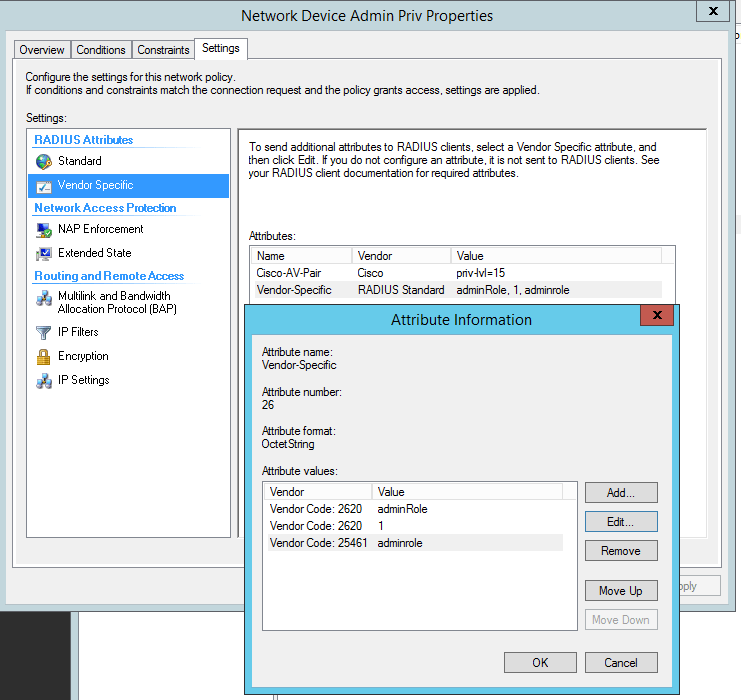
If not done so already, setup a user group to Admin role name mapping on the authentication server. In RADIUS, this is done by adding vendor-specific attribute (VSA) which maps vendor code 25461 to the Admin Role name for the appropriate group. Use Attribute number 1, format = String, and set the attribute value to the admin role name that was created above. This is similar to how the CheckPoints (vendor code 2620) operate.

Here’s an example using NPS on Windows Server 2012R2

Upon successful authentication, the authentication server will result the role name, and the user should be set to that role.

Cisco ISE (TACACS) Server Setup

The process is fundamentally the same, and can be found here:

https://knowledgebase.paloaltonetworks.com/KCSArticleDetail?id=kA10g000000PMYmCAO

Note the case is not consistent on their group names: they use “Read-Write” and “Read-only”. You can change these to whatever values you want, as long as they’re in sync.

IPAddress vs NetAddr in Python3

I’d heard about netaddr a few weeks ago and had made a note to start. What I learned today as a similar library called ipaddress is included in Python 3, and offers most of netaddr’s functionality just with different syntax.

It is very handy for subnetting. Here’s some basic code that takes the 198.18.128.0/18 CIDR block and splits in it to 4 /20s:

#!/usr/bin/env python

import ipaddress

cidr = "198.18.128.0/18"
subnet_size = "/20"

[network_address, prefix_len] = cidr.split('/')
power = int(subnet_size[1:]) - int(prefix_len)
subnets = list(ipaddress.ip_network(cidr).subnets(power))

print("{} splits in to {} {}s:".format(cidr, len(subnets), subnet_size))
for _ in range(len(subnets)):
    print("  Subnet #{} = {}".format(_+1, subnets[_]))

Here’s the output:

198.18.128.0/18 splits in to 4 /20s:
  Subnet #1 = 198.18.128.0/20
  Subnet #2 = 198.18.144.0/20
  Subnet #3 = 198.18.160.0/20
  Subnet #4 = 198.18.176.0/20

Migrating from CGI to WSGI for Python Web Scripts on Apache

I began finally migrating some old scripts from PHP to Python late last year, and while I was happy to finally have my PHP days behind me, I noticed the script execution was disappointing. On average, a Python CGI script would run 20-80% slower than an equivalent PHP script. At first I chalked it up to slower libraries, but even basic ones that didn’t rely on database or anything fancy still seemed to be incurring a performance hit.

Yesterday I happened to come across mention of WSGI, which is essentially a Python-specific replacement for CGI. I realized the overhead of CGI probably explained why my Python scripts were slower than PHP. So I wanted to give WSGI a spin and see if it could help.

Like PHP, WSGI is an Apache module that is not included in many pre-packaged versions. So first step is to install it.

On Debian/Ubuntu:

sudo apt-get install libapache2-mod-wsgi-py3

The install process should auto-activate the module.

cd /etc/apache2/mods-enabled/

ls -la wsgi*
lrwxrwxrwx 1 root root 27 Mar 23 22:13 wsgi.conf -> ../mods-available/wsgi.conf
lrwxrwxrwx 1 root root 27 Mar 23 22:13 wsgi.load -> ../mods-available/wsgi.load

On FreeBSD, the module does not get auto-activated and must be loaded via a config file:

sudo pkg install ap24-py37-mod_wsgi

# Create /usr/local/etc/apache24/Includes/wsgi.conf
# or similar, and add this line:
LoadModule wsgi_module libexec/apache24/mod_wsgi.so

Like CGI, the directory with the WSGI script will need special permissions. As a security best practice, it’s a good idea to have scripts located outside of any DocumentRoot, so the scripts can’t accidentally get served as plain files.

<Directory "/var/www/scripts">
  Require all granted
</Directory>

As for the WSGI script itself, it’s similar to AWS Lambda, using a pre-defined function. However, it returns an array or bytes rather than a dictionary. Here’s a simple one that will just spit out the host, path, and query string as JSON:

def application(environ, start_response):

    import json, traceback

    try:
        request = {
            'host': environ.get('HTTP_HOST', 'localhost'),
            'path': environ.get('REQUEST_URI', '/'),
            'query_string': {}
        }
        if '?' in request['path']:
            request['path'], query_string = environ.get('REQUEST_URI', '/').split('?')
            for _ in query_string.split('&'):
                [key, value] = _.split('=')
                request['query_string'][key] = value

        output = json.dumps(request, sort_keys=True, indent=2)
        response_headers = [
            ('Content-type', 'application/json'),
            ('Content-Length', str(len(output))),
            ('X-Backend-Server', 'Apache + mod_wsgi')
        ]
        start_response('200 OK', response_headers)
        return [ output.encode('utf-8') ]
            
    except:
        response_headers = [ ('Content-type', 'text/plain') ]
        start_response('500 Internal Server Error', response_headers)
        error = traceback.format_exc()
        return [ str(error).encode('utf-8') ]

The last step is route certain paths to WSGI script. This is done in the Apache VirtualHost configuration:

WSGIPythonPath /var/www/scripts

<VirtualHost *:80>
  ServerName python.mydomain.com
  ServerAdmin nobody@mydomain.com
  DocumentRoot /home/www/html
  Header set Access-Control-Allow-Origin: "*"
  Header set Access-Control-Allow-Methods: "*"
  Header set Access-Control-Allow-Headers: "Origin, X-Requested-With, Content-Type, Accept, Authorization"
  WSGIScriptAlias /myapp /var/www/scripts/myapp.wsgi
</VirtualHost>

Upon migrating a test URL from CGI to WSGI, the page load time dropped significantly:

The improvement is thanks to a 50-90% reduction in “wait” and “receive” times, via ThousandEyes:

I’d next want to look at more advanced Python Web Frameworks like Flask, Bottle, WheezyWeb and Tornado. Django is of course a popular option too, but I know from experience it won’t be the fastest. Flask isn’t the fastest either, but it is the framework for Google SAE which I plan to learn after mastering AWS Lambda.

Policy-Based VPNs on Cisco ISRs when behind NAT

A couple years ago I wrote a post about route-based IPSec VPNs involving NAT-T on Cisco Routers. However today I had to setup a lab environment using policy-based VPNs. This was a real blast from past as I hadn’t done a policy-based VPN on a Cisco router since the late 1990s :-O

VPN Parameters:

  • Local side, private IP of external interface of router: 192.0.2.2
  • Local side, private IP subnet 192.168.100.0/24
  • Local side, public IP address: 198.18.51.78
  • Remote side, public IP address: 203.0.113.161
  • Remote side, private IP subnet: 10.13.0.0/16
  • Pre-shared key: MySecretKey1234
  • Phase 1 encryption and lifetime: AES-256, SHA-384, Group 14, 1 day
  • Phase 2 encryption and lifetime: AES-128, SHA-1, Group 2, 1 hour

With both IKEv1 or v2, you’ll want to start by verifying NAT-T is enabled, which is the default setting. This will allow the router to detect behind behind NAT and tunnel traffic on udp/4500 rather than using regular ESP (protocol 50):

crypto ipsec nat-transparency udp-encapsulation

If the other side is expecting or requiring NAT-T and it’s been disabled, Cisco IOS will log this warning:

%IKEV2-3-NEG_ABORT: Negotiation aborted due to ERROR: NAT-T disabled via cli

IKEv1

As with route-based VPN, I start by setting some global ISAKMP parameters:

crypto isakmp disconnect-revoked-peers
crypto isakmp invalid-spi-recovery
crypto isakmp keepalive 30 2 on-demand
crypto isakmp nat keepalive 900

The ISAKMP policy defines global encryption and authentication settings.

! 256-bit AES + SHA2-384 + PFS Group14 (2048-bit key)
crypto isakmp policy 100
 encr aes 256
 hash sha384
 authentication pre-share
 group 14
 lifetime 86400              ! 1 day, which is the default
!

Configure authentication for the peer by defining a keyring, specifying the public IP of the remote side. Then create an ISAKMP profile, again specifying the remote’s public IP and the local’s external interface:

crypto keyring CRYPTO_KEYRING
  local-address GigabitEthernet0/0
  pre-shared-key address 203.0.113.161 key MySecretKey1234
!
crypto isakmp profile ISAKMP_PROFILE
   keyring CRYPTO_KEYRING
   match identity address 203.0.113.161 255.255.255.255 
   local-address GigabitEthernet0/0
!

Now the crypto map, which replaces the crypto ipsec profile of route-based VPNs. I’m just using the typical encryption settings of 128-bit AES/SHA-1/Group2 PFS. The access-list must be defined to match “interesting” traffic to send across the VPN.

! LOCAL = 192.168.100.0/24.   REMOTE = 10.13.0.0/16
access-list 101 permit ip 192.168.100.0 0.0.0.255 10.13.0.0 0.0.255.255
!
crypto ipsec security-association replay window-size 1024
crypto ipsec df-bit clear
!
crypto ipsec transform-set ESP_AES128_SHA esp-aes esp-sha-hmac 
 mode tunnel
!
crypto map CRYPTO_MAP 1 ipsec-isakmp 
 set peer 203.0.113.161
 set security-association lifetime seconds 3600      ! 1 hour, which is the default
 set transform-set ESP_AES128_SHA
 set pfs group2
 match address 101
 reverse-route
!

Finish by applying the crypto map to the external interface:

ip route 0.0.0.0 0.0.0.0 192.0.2.1
!
interface GigabitEthernet0/0
 ip address 192.0.2.2 255.255.255.0
 crypto map CRYPTO_MAP
!
interface GigabitEthernet0/1
 ip address 192.168.100.100 255.255.255.0
!

Send a ping that matches the interesting traffic. Make sure to use an interface that’s with the source IP range specific on the ACL referenced by the Crypto Map.

Router# ping 10.13.113.11 source Gi0/1
Type escape sequence to abort.
Sending 5, 100-byte ICMP Echos to 10.13.113.11, timeout is 2 seconds:
Packet sent with a source address of 192.168.100.100 
.!!!!
Success rate is 80 percent (4/5), round-trip min/avg/max = 68/71/72 ms

Verify IPSEC SAs are up:

Router# show crypto ipsec sa peer 203.0.113.161

interface: GigabitEthernet0/0
    Crypto map tag: CRYPTO_MAP, local addr 192.0.2.2

   protected vrf: (none)
   local  ident (addr/mask/prot/port): (192.168.100.0/255.255.255.0/0/0)
   remote ident (addr/mask/prot/port): (10.13.0.0/255.255.0.0/0/0)
   current_peer 203.0.113.161 port 4500
     PERMIT, flags={origin_is_acl,}
    #pkts encaps: 4, #pkts encrypt: 4, #pkts digest: 4
    #pkts decaps: 4, #pkts decrypt: 4, #pkts verify: 4

IKEv2

I always start IKEv2 configuration with some global settings:

crypto ikev2 nat keepalive 900
crypto ikev2 dpd 30 2 on-demand
crypto logging ikev2

As with route-based VPN, configure an IKEv2 proposal and policy. Here’s a broad one that should match anything with reason:

crypto ikev2 proposal IKEV2_PROPOSAL
 encryption aes-cbc-256 aes-cbc-128 3des
 integrity sha512 sha384 sha256 sha1
 group 21 20 19 16 14 2
!
crypto ikev2 policy IKEV2_POLICY 
 match fvrf any
 proposal IKEV2_PROPOSAL
!

Create a keyring entry for the other side specifying their public IP, then an IKEv2 profile. If the other side is expecting to see the public IP address, configure that with the identity local address option. The match identity remote address must match their IKEv2 remote ID. This usually will be the public IP, but may require the private IP if they are also behind NAT and not overriding.

crypto ikev2 keyring IKEV2_KEYRING
 peer TEST1
  address 203.0.113.161
  pre-shared-key MySecretKey1234
 !
crypto ikev2 profile IKEV2_PROFILE
 match address local interface GigabitEthernet0/0
 match identity remote address 203.0.113.161     ! Other side's remote ID
 identity local address 198.51.100.78            ! My public IP
 authentication local pre-share
 authentication remote pre-share
 keyring local IKEV2_KEYRING
 dpd 60 5 on-demand             ! override global DPD setting, if desired
!

Crypto map is same as IKEv1 (see above), just with the IKEv2 profile specified:

crypto map CRYPTO_MAP 1 ipsec-isakmp 
 set ikev2-profile IKEV2_PROFILE
!

Finally apply crypto map to external interface. The IKEv2 SA should pop up within a few seconds.

*Feb 26 22:07:41 PST: %IKEV2-5-SA_UP: SA UP

Verify details of the IKEv2 SA:

Router# show crypto ikev2 sa remote 203.0.113.161 detailed 
 IPv4 Crypto IKEv2  SA 

Tunnel-id Local                 Remote                fvrf/ivrf            Status 
1         192.0.2.2/4500        203.0.113.161/4500    none/none            READY  
      Encr: AES-CBC, keysize: 256, PRF: SHA384, Hash: SHA384, DH Grp:14, Auth sign: PSK, Auth verify: PSK
      Life/Active Time: 86400/115 sec
      CE id: 1007, Session-id: 4
      Status Description: Negotiation done
      Local spi: 55543FD20BD46FA2       Remote spi: 03B6B07E9090FCF2
      Local id: 192.0.2.2
      Remote id: 10.113.13.2
      Local req msg id:  0              Remote req msg id:  14        
      Local next msg id: 0              Remote next msg id: 14        
      Local req queued:  0              Remote req queued:  14        
      Local window:      5              Remote window:      1         
      DPD configured for 10 seconds, retry 2
      Fragmentation not  configured.
      Extended Authentication not configured.
      NAT-T is detected inside 
      Cisco Trust Security SGT is disabled
      Initiator of SA : No

 IPv6 Crypto IKEv2  SA

As with IKEv1, the final step is verify the IPSEC SA.
FortiGate 60-E not supporting AES-GCM in Hardware

On a previous post I’d recommended using AES-GCM on VPNs to AWS and GCP since it’s generally a more efficient algorithm that offers higher throughput. So it came as a surprised today doing some deep-diving on my Fortigate 60-E today: AES-GCM is supported for Phase 2, it is not supported in hardware on the NPU:

FGT60ETK18XXXXXX # get vpn ipsec tunnel details
 gateway
   name: 'aws1'
   type: route-based
   local-gateway: 198.51.100.78:4500 (static)
   remote-gateway: 3.140.149.245:4500 (static)
   mode: ike-v1
   interface: 'wan1' (5)
   rx  packets: 52  bytes: 6524  errors: 0
   tx  packets: 110  bytes: 6932  errors: 3
   dpd: on-demand/negotiated  idle: 20000ms  retry: 3  count: 0
   nat traversal mode: keep-alive   RFC 3947   interval: 10
   selectors
     name: 'aws1'
     auto-negotiate: disable
     mode: tunnel
     src: 0:0.0.0.0/0.0.0.0:0
     dst: 0:0.0.0.0/0.0.0.0:0
     SA
       lifetime/rekey: 3600/3289   
       mtu: 1438
       tx-esp-seq: 2
       replay: enabled
       qat: 0
       inbound
         spi: 7dbc0283
         enc:  aes-gc  35a72036fa9a87000c90415b1863827652bf9dfd875f28a6d20fd1569e5c0099de639dcc
         auth:   null  
       outbound
         spi: ccdb6ab8
         enc:  aes-gc  21dd5c71a83142b0ecee1efe2c000c0dae586054160eb76df6f338d9071380b12103b0d9
         auth:   null  
       NPU acceleration: none

FGT60ETK18XXXXXX # get vpn ipsec stats crypto
NPU Host Offloading:
     Encryption (encrypted/decrypted)
     null      : 0                0               
     des       : 0                0               
     3des      : 0                0               
     aes-cbc   : 833309           0               
     aes-gcm   : 0                0               
     aria      : 0                0               
     seed      : 0                0               
     chacha20poly1305: 0                0               
     Integrity (generated/validated)
     null      : 0                0               
     md5       : 0                0               
     sha1      : 803671           0               
     sha256    : 29540            0               
     sha384    : 48               0               
     sha512    : 50               0 

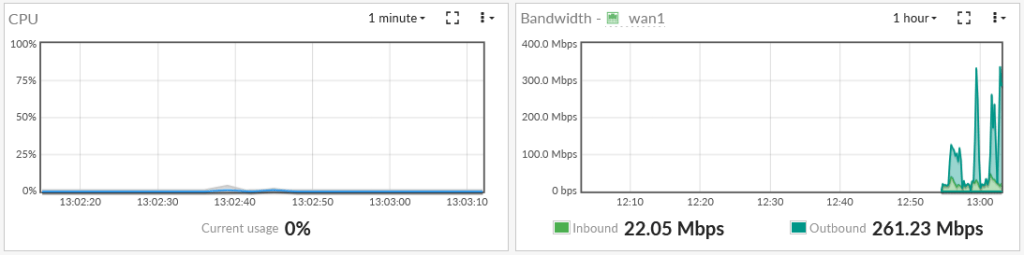
Since the hardware offload isn’t occurring, the main CPU is moderately taxed when doing transfers via AES-GCM. Also, the throughput is only ~ 100 Mbps:

Reconfiguring the VPNs to AES-CBC and redoing the transfers, we get lower CPU usage and significantly higher throughput: