Fixing stuck UCS-E Server

I purchased a UCS-E140DP-M1 blade off eBay for $900 so we could throw it in one of our ISR G2s and play with it.  It powered on fine, and the first step was to get the firmware upgraded.  The CIMC went from 1.0 to 2.4.1 no problem, but upon taking it to 3.1.3, the blade would not boot.  Seemed to be stuck at the BIOS prompt..
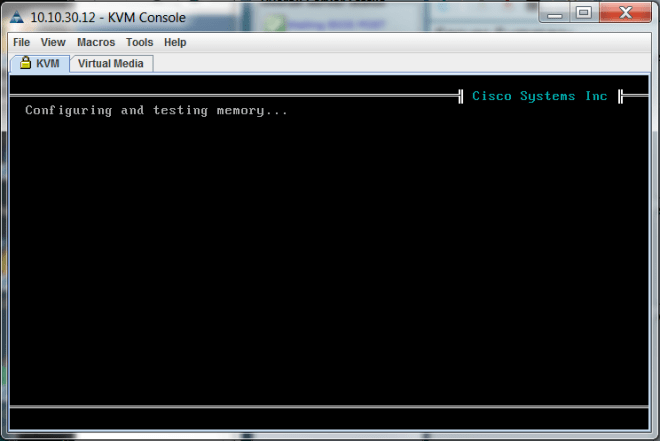
ucse_bios_stuck

My theory right away was an incompatibility between the CIMC and the BIOS.  The original BIOS version shipped was 4.6.4.8, but the newer versions were lower, indicating something major had changed.  I attempted multiple times to to upgrade the BIOS to the versions matching CIMC 1.0.2, 2.4.1, and 2.5.0.3, but would always get some error message.  Common output looked like this:

Router#ucse subslot 2/0 session imc 
Trying 10.10.10.10, 2131 ... Open
Username: admin
Password: 
E140DP-FOC16490HEF# scope bios
E140DP-FOC16490HEF /bios # show detail
BIOS:
    BIOS Version: 4.6.4.8
    Boot Order: CDROM:Virtual-CD
    FW Update/Recovery Status: Error, Update invalid
    Active BIOS: backup

After downgrading the CIMC back to 2.4.1, I was copy and map huu-2.4.1.iso, follow the wizards, and then upgrade the BIOS.  This looked much better.

E140DP-FOC16490HEF /bios # show detail
BIOS:
    BIOS Version: "UCSED.1.5.0.2 (Build Date: 05/15/2013)"
    Boot Order: CDROM:Virtual-CD
    FW Update/Recovery Status: Done, OK
    Active BIOS on next reboot: main

So long story short – use the HUU to do all firmware updates, so the CIMC and BIOS firmware versions are in sync.

SSH Cipher Updates in Cisco ASA 9.4(3)12

After upgrading our Cisco ASAs from 9.4(3)11 to 9.4(3)12, Rancid could no longer log in.  Debugging by manually running clogin, the problem was clear: incompatibility with SSH ciphers.  Rancid wanted to use 3DES (“Triple DES”), but the ASA only supported AES.

rancid@localhost:~$ clogin ciscoasa.mydomain.com
ciscoasa.mydomain.com
spawn ssh -c 3des -x -l rancid ciscoasa.mydomain.com
no matching cipher found: client 3des-cbc server aes128-cbc,aes192-cbc,aes256-cbc,aes128-ctr,aes192-ctr,aes256-ctr

By default, the ASA’s SSH server uses the “medium” cipher list.  Sure enough, 3DES is no longer in the list:

ciscoasa/pri/act# show ssh ciphers 
Available SSH Encryption and Integrity Algorithms
Encryption Algorithms:
  low: 3des-cbc aes128-cbc aes192-cbc aes256-cbc aes128-ctr aes192-ctr aes256-ctr 
  medium: aes128-cbc aes192-cbc aes256-cbc aes128-ctr aes192-ctr aes256-ctr
  fips: aes128-cbc aes256-cbc  
  high: aes256-cbc aes256-ctr 

A quick and dirty work-around: configure the ASA to use the “low” cipher list.  However, since it’s time to start phasing out 3DES anyway (it’s from the 90s), I instead wanted to tell Rancid to prefer AES and only use 3DES as a last resort.  The first step was finding the possible cipher names, which were in /etc/ssh/ssh_config:

# Ciphers aes128-ctr,aes192-ctr,aes256-ctr,arcfour256,arcfour128,aes128-cbc,3des-cbc

I simplified this a bit and added this line to Rancid’s .cloginrc:

add cyphertype * aes128-ctr,aes128-cbc,3des-cbc

This preference matches most of my devices since AES-CTR is supported in IOS 15 and is preferred over AES-CBC and 3DES.  Good enough for me.

Removing Warning Messages for BYOD PEAP clients with NPS

Last year I rolled out PEAP (Cisco 2504 WLC + Windows Server 2012 NPS) to get our wifi secured.  One of the nagging problems is I could never eliminate the ‘untrusted certificate’ warning messages when new clients joined.  Most of our clients are Macs, and are neither joined to the domain nor trust the internal Windows CA.  Secondly, we have iPhones, iPads, and Android phones who fall in to the same boat.  So, we’re in reality a BYOD environment.  All the examples I could find were Enterprise scenarios that assumes Windows client are joined to the domain, and inherently trust the internal CA.

The original cert used by NPS was set to expire this week, so I figured it would be a good time to try buying one from an external CA.  There was some question of which CAs would be trusted by Apple.  Fortunately I found these two knowledge base articles:

GoDaddy was then selected as the CA.  The first step was to generate a new 2048-bit private key and CSR (Certificate Signing Request).  As usual, I use OpenSSL to do this:

$ openssl req -out wifi.mydomain.com.csr -new -newkey rsa:2048 -nodes -keyout wifi.mydomain.com.key

Note that the certificate must be a FQDN hostname as wildcard certs won’t work with Windows.

After submitting the CSR and waiting for their approval, I download the certificate in Apache or IIS format, and end up with a .crt file.  Windows requires the cert and key to be bundled together in PKCS12 format, which I’m able to do via this OpenSSL command:

$ openssl pkcs12 -in wifi.mydomain.com.crt -inkey wifi.mydomain.com.key -export -out wifi.mydomain.com.pfx
Enter Export Password:
Verifying - Enter Export Password:

Now the next trick was to actually import this to NPS so it could be used.  To to this, I have to go through the Certificate snap-in.

  1. Remote Desktop to the NPS server
  2. Copy the .pfx file to C:\Users\Administrator\Documents (I simply used FTP)
  3. Type MMC at the command prompt
  4. File -> Add/Remove Snap-ins, Certificates, Add, “Computer account”, Finish
  5. Under Personal tree, All tasks -> Import.  Select the .pfx file that was created

import_certificate

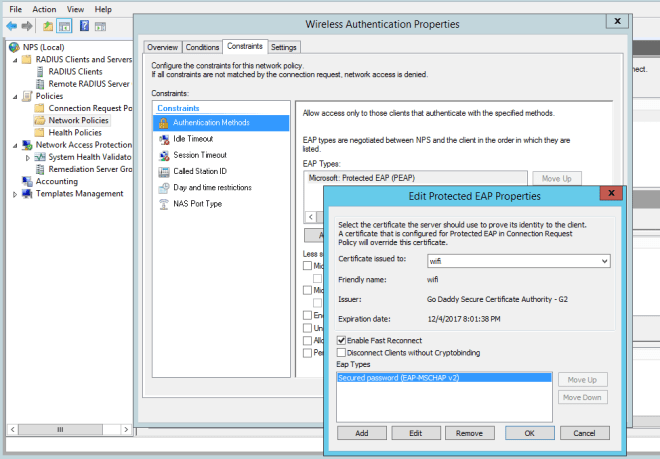
Finally, we’re now ready to have NPS use the new certificate

  1. Administrative Tools -> Network Policy Server
  2. Policies -> Network Policies -> Wireless Authentication
  3. Constraints -> Authentication Methods -> Microsoft: Protected EAP (PEAP) -> Edit
  4. The new cert should show in the top drop-down menu.  Select it and click OK

eap_certificate.png


BGP: remove-private-as command

Take these two original paths, sent by router with ASN 111 to an eBGP peer:

10.0.0.0/16 169.254.1.2 0 100 111 65111 65222 7224
10.1.0.0/16 169.254.1.2 0 100 111 65111 65222 222 7224

Applying remove-private-as has no effect on the second, since the path contains public ASNs.  The paths receiveced by the eBGP peer will look like this:

10.0.0.0/16 169.254.1.2 0 100 7224
10.1.0.0/16 169.254.1.2 0 100 111 65111 65222 222 7224

But doing remove-private-as all will literally remove all private ASNs:

10.0.0.0/16 169.254.1.2 0 100 7224
10.1.0.0/16 169.254.1.2 0 100 111 222 7224

However with remove-private-as all replace-as the path will have the same length, but with each private substituted with public of the advertising peer:

10.0.0.0/16 169.254.1.2 0 100 111 111 7224
10.1.0.0/16 169.254.1.2 0 100 111 111 111 222 7224


Using 1 Gbps Fiber SFPs on a Cisco 6500 supervisor

After numerous headache with our Cisco 2921 routers and the RPS, I decided it was time to bring a 6503 back from the dead to handle the edge routing in our office.  One problem though, I couldn’t get our friggin’ AT&T fiber connection moved to the 6503, even reusing the same cable and SFP.  Port Gi1/1 on the SUP720-3BXL was configured with the exact same information as the 2921, yet the link would not come up.

I swapped the GLC-LH-SM for a SFP-GE-L, which is the fancier version that supports DOM (Digital Optical Monitoring).  This showed the signal was fine, indicating the SFP and cable were not the issue:

Switch#sh int gi1/1 transceiver 
Gi1/1 29.7 3.29 6.1 -7.1 -6.4 

After several days of head scratching, a Reddit user saved my butt and pointed me to the problem.  For whatever reason, disabling speed negotiation fixes everything.  This makes no sense since a fiber SFP would only support 1000/full, but I gave it a shot and disabled speed negotiation entirely.

interface GigabitEthernet1/1
 description AT&T 500Mb Internet
 bandwidth 500000
 ip address 12.34.56.178 255.255.255.252
 no ip redirects
 load-interval 30
 speed nonegotiate
 no lldp transmit
 no cdp enable

Upon adding that, link light came on and interface was up/up.  Yet another entry for the Cisco gotcha hall of fame.

GoDaddy Servers for Secondary DNS

If using GoDaddy as a Master, configure your secondaries to pull from these IPs:

  • xfr03.domaincontrol.com (72.167.238.111)
  • xfr04.domaincontrol.com (72.167.238.110)

Note that the DNS server list should be the two default servers (pdnsXX.domaincontrol.com) plus your secondaries.

As far as using GoDaddy for secondary DNS, good luck with that.

How many 3750-E switches can an RPS 2300 backup?

The Q&A sheet mentions that with dual 1150W power supplies, an RPS can backup 1 or 2 3750-E switches.  This is assuming the switches also have 1150W power supplies installed.

But what if they’re only using 750W?  The RPS would have a total of 2300W of power, while three of the switches would only require 2250W.    So it should be able to backup three switches, right?

Nope.  You can only backup two.  So, there’s actually really no point of installing 1150W power supplies in the RPS.

Switch#show env rps
DCOut State Connected Priority BackingUp WillBackup Portname SW#
----- ------- --------- -------- --------- ---------- --------------- ---
 1 Active Yes 6 Yes Yes FDO1525Y1T5 1
 2 Active No 6 No No <> -
 3 Active Yes 6 Yes Yes FDO1417R07E 3
 4 Active No 6 No No <> -
 5 Active Yes 6 No No FDO1406R1KU 5
 6 Active No 6 No No <> -

Yet another reason why the RPS sucks and StackPower on the 3750X and 3850 series is so much better.

DNS Resolution via VRF on Cisco IOS

For several years I’ve been using VRFs for all management functions.  This greatly improves security since all management functions can be locked down to a certain interface, and also recover-ability in the even of routing problems.  The downside I keep finding is certain things either don’t work, or require special work-rounds. Case in point: DNS resolution.

Per Cisco, VRF-aware DNS functionality has been supported for quite a while.  However, I’m completely stumped on how to actually use it.  Sample config on an 2921 router running IOS 15.5(3)M4:

ip vrf Mgmt-intf
 rd 12345:123
!
ip domain-lookup 
ip domain list vrf Mgmt-intf mydomain.com
ip name-server vrf Mgmt-intf 10.20.30.40

!
interface Port-channel1.123
 encapsulation dot1Q 123
 ip vrf forwarding Mgmt-intf
 ip address 10.20.30.100 255.255.255.0
!
ip domain-lookup vrf Mgmt-intf source-interface po1.123

Still no joy.  Really seems there was a goof here in enabling this feature.  I’ll complain to Cisco and hopefully it will be fixed by the time I die.

Commands to Restore Cisco ACS from backup

We’re still running ACS 5.4 patch 4, which was always buggy, but has gotten especially painful to manage via modern browsers.  Over the last few weeks I’ve realized this has now gone to catastrophic.  If editing a policy with say FireFox 49, trying to make a change will cause the entire policy to be deleted without being prompted.  It’s definitely time to patch, but in the meantime I needed to restore from backup.  So I SSH in to ACS, find last night’s backup file, and go to restore:

acs01/admin# restore acs01-backup-161004-0000.tar.gpg repository MyFTP  application acs 
Restore may require a restart of application services. Continue? (yes/no) [yes] ? yes
Initiating restore.  Please wait...
Backup file does not match installed application
% Application restore failed

Hmm….the application name is ‘acs’.  Maybe I have to put it in UPPER case?!?

acs01/admin# restore acs01-backup-161004-0000.tar.gpg repository MyFTP application ACS
Restore may require a restart of application services. Continue? (yes/no) [yes] ? yes
Initiating restore.  Please wait...
Calculating disk size for /opt/backup/restore-acs01-backup-161004-0000.tar.gpg-1475607189
Total size of restore files are 331 M.
Max Size defined for restore files are 105573 M.
% Backup file does not match installed application(s)

OK, now I’m concerned.  Wait – leave it to Cisco to throw a gotcha.  The “restore” command restores both ACS and the appliance OS.  To restore just ACS configuration, use the “acs restore command”:

acs01/admin# acs restore acs01-backup-161004-0000.tar.gpg repository MyFTP
Restore requires a restart of ACS services. Continue?  (yes/no) yes
Initiating restore.  Please wait...

Bingo!  And a few minutes later, everything is happy.  I logged in using IE8 and was able to make the policy changes without issue.

Ignoring Annoying Syslog messages in Cisco IOS

asdlfkj

Sep 18 14:47:04 PDT: %CRYPTO-4-RECVD_PKT_INV_SPI: decaps: rec’d IPSEC packet has invalid spi for destaddr=198.18.99.123, prot=50, spi=0xA6517B6A(2790357866), srcaddr=82.221.105.6, input interface=Port-channel1.123

On the ASA, something like this is a simple fix.  Each log message has a 6 digit code, and the severity can be modified to say 6 (informational) or 7 (debug) to not trigger a call-home.

Under Cisco IOS of course, it’s not so easy.