FortiGate Static NAT using Port Forwarding / PAT

Easy in hindsight, but may be counter-intuitive for those coming from a Cisco or Palo Alto background such as myself.  There are two steps:

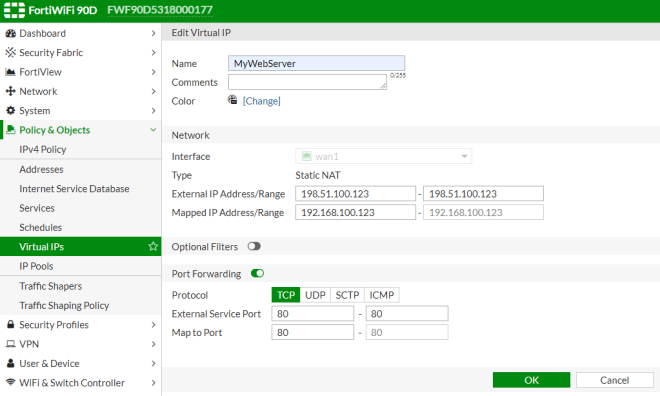
  1. Under Policy & Objects -> Virtual IPs, add a statement for each PAT rule with the “Port Forwarding” switch enabled at the bottom.
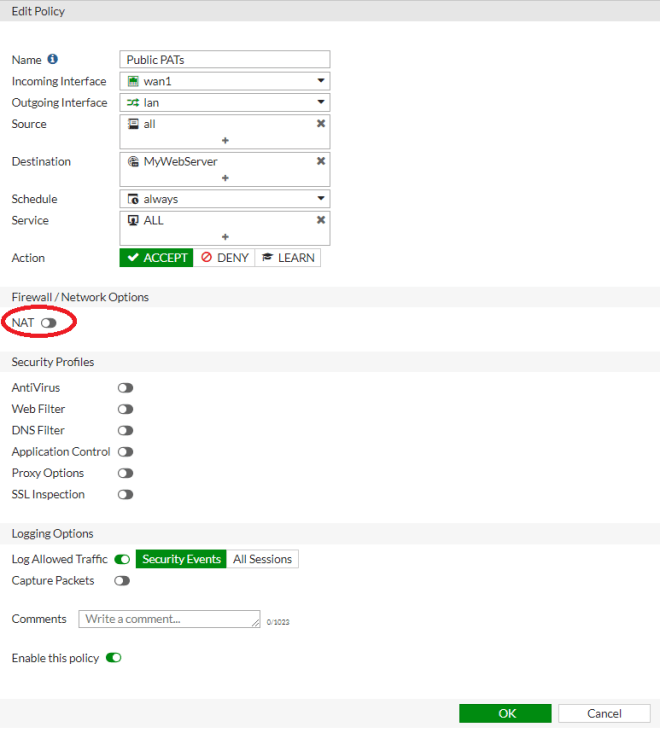
  2. Under Policy & Objects -> IPv4 Policy, add a rule from the public interface to the private interface with destination to be the object(s) created and service set to ALL.  NAT switch should remain disabled.

FortiGate_PAT_Virtual_IP

FortiGate_PAT_Rule

Handy OpenSSL Commands

Create new private key:

openssl genrsa -out myServer.key 2048

Create self-signed certificate, good for 10 years:

openssl req -x509 -key myServer.key -out myServer.crt -days 3652

Create new Certificate Signing Request:

openssl req -new -key myServer.key -out myServer.csr

Verify CSR details:

openssl req -text -noout -verify -in myServer.csr

Create a PKCS12 bundle file from cert/key

openssl pkcs12 -export -out myFile.p12 -inkey myServer.key -in MyServer.crt

Unbundle a PKCS12 file to PEM cert:

openssl pkcs12 -in myFile.pfx -out myCert.pem -clcerts -nokeys

Unbundle PKCS12 file to PEM key:


openssl pkcs12 -in myFile.pfx -out myKey.key -nocerts -node

Convert a key from PEM to RSA format

openssl rsa -in myServer.key -out myServer-rsa.key

Check if a cert matches a key:

openssl x509 -noout -modulus -in myServer.crt | openssl md5 ;\ openssl rsa -noout -modulus -in myServer.key | openssl md5

Perform a simulate SSL handshake to a website:

openssl s_client -connect www.mysite.com:443

Memory needed for OpenStack VM

It’s 4 GB minimum.  The error message is a bit cryptic but it’s right here during the install

+lib/nova:create_flavors:1168 openstack --os-region-name=RegionOne flavor create --id d4 --ram 4096 --disk 20 --vcpus 4 ds4G
Internal Server Error (HTTP 500)


Cisco ASA: Forcing local authentication for serial console

One of the root problems of administrative access to the ASA platform is there’s no easy way to bypass a broken AAA server

Cisco IOS has this:

aaa authentication enable default group radius none

But the ASA equivalent has no “none” option, so most people will configure this:

aaa authentication enable console RADIUS LOCAL

Now the problem here is if the user authenticates locally and the Radius server is still marked “up”, they’ll be forced to authenticate through it.  This creates two problematic scenarios

  1. The Radius server is reachable, but the username does not exist
  2. The Radius server is marked up but is actually unreachable, misconfigured, or horked in some way

The latter case occurred during our last two ASA outages.  It was especially frustrating because I had configured serial consoles to both ASAs, only to be unable to get to enable mode to force a reboot/failover and recover from the outage without having to drive to the data center.

A reddit user pointed me to this command:

aaa authorization exec LOCAL auto-enable

Which should in theory force accounts using local authentication to bypass the enable prompt assuming they’re set to priv 15.  But after having no luck with it and escalating through Cisco I discovered this command does not work with serial console logins.  So, I was back to square one.

The solution I settled on was to simply force local for both serial console authentication and enable mode:

aaa authentication serial console LOCAL
aaa authentication enable console LOCAL

Unfortunately the catch 22 revealed itself again, as this broke enable mode for Radius users, since they did not have local accounts.  So I added this line to try and bypass enable for Radius users:

aaa authentication ssh console RADIUS LOCAL
aaa authorization exec authentication-server auto-enable

Now I see them passing authentication on the Radius server, but the ASA rejecting them with this error:

%ASA-3-113021: Attempted console login failed user 'bob' did NOT have appropriate Admin Rights.

I had already configured priv-lvl=15 in the Radius server’s policy, so not sure what else it could need.  Turns out it also needed this attribute set:

Service-Type: Administrative

After this, now everything is happy.  SSH users get auto-enabled via RADIUS and can still fallback to local (in theory) if the server is down.  But if that’s broken, I can console in with a local username/password and enter enable mode.
 

F5 to ADFS 2016 SSL/TLS handshake failure

Browser to ADFS server works fine, but dies when going through the F5 LTM.  Packet capture showed the F5 would send a client hello SSL handshake message as expected, with the ADFS server responding with a TCP RST.

Upon doing some more digging, found this the ADFS 2016 guide:

The load balancer MUST NOT terminate SSL. AD FS supports multiple use cases with certificate authentication which will break when terminating SSL. Terminating SSL at the load balancer is not supported for any use case.

So, the F5 Virtual server should be configured as Layer 4.

The unsupported work-around is set a custom ServerSSL profile with the server name field:

ltm profile server-ssl /Common/serverssl-myserver {
 app-service none
 defaults-from /Common/serverssl
 server-name adfs.mydomain.com
}

Cisco 2702i Lightweight AP Factory Reset when Controller not available

Power on the AP while holding down the Mode button until the LED turns red, then release.  Wait for the “ap:” prompt.  Then do this:

ap: delete flash:capwap-saved-config
Are you sure you want to delete "flash:capwap-saved-config" (y/n)?y
File "flash:capwap-saved-config" deleted
ap: boot
Rebooting system to reset DPAA...

And for good measure

AP#delete flash:config.txt
Delete filename [config.txt]? 
Delete flash:/config.txt? [confirm]
AP#reload
Proceed with reload? [confirm]


Quick start with Ansible

Install ansible.  For example, on Ubuntu Linux:

sudo apt-get install ansible

Populate /etc/ansible/hosts

[myrouters]

router1.mydomain.com
router2.mydomain.com

[myswitches]

Switch1
Switch2.mydomain.com
192.168.1.1

Try a read-only command just on a single router

 ansible router1.mydomain.com -u myusername -k -m raw -a "show version"

Try a command on a group of routers

ansible myrouters -u myusername -k -m raw -a "show version"