Install Terraform on Debian 10 (Buster) when a proxy is required

# Setup proxy, if required
sudo bash -c 'echo "Acquire::http::Proxy \"http://10.0.0.9:3128\";" > /etc/apt/apt.conf.d/99http-proxy'

# Set environment variables to be used by Curl
export http_proxy=http://10.0.0.9:3128
export https_proxy=http://10.0.0.9:3128

Now install Terraform

curl -fsSL https://apt.releases.hashicorp.com/gpg | sudo apt-key add -

sudo apt-get install software-properties-common

sudo apt-add-repository "deb [arch=$(dpkg --print-architecture)] https://apt.releases.hashicorp.com $(lsb_release -cs) main"

sudo apt update
sudo apt upgrade
sudo apt install terraform 

LACP config migration bug in IOS-XE 16.12.05

Not to publically shame Cisco or anything, but to publically shame Cisco…

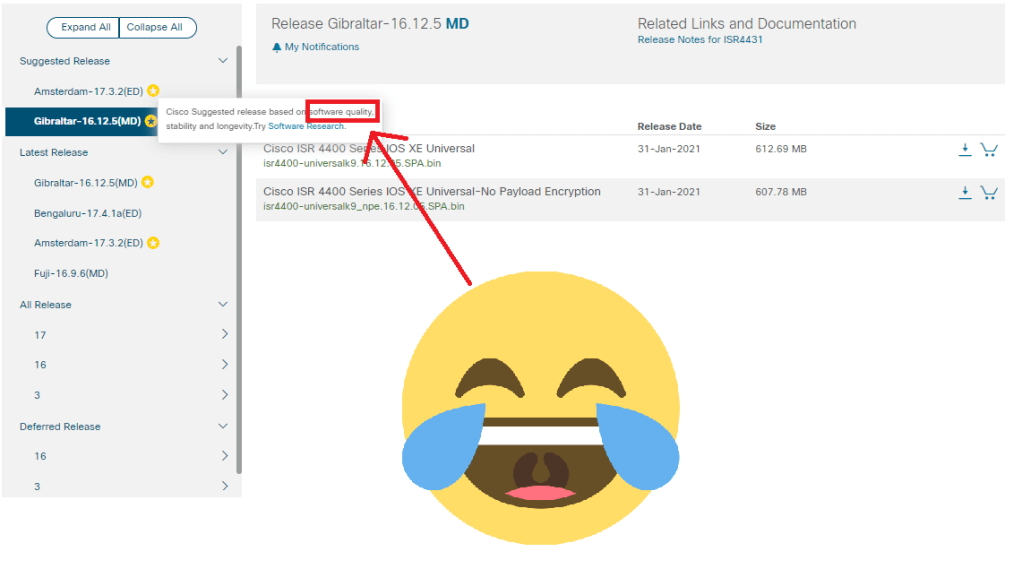
We’re moving a site to a different physical location next week, so I wanted to do a round of patching beforehand to clear out any possible lingering software bugs. Our IOS-XE ISR 4431 routers and 3650 switch stack were on 16.12.04 which is very current, but I noticed 16.12.05 came out last week and while my general rule of thumb is never try a Cisco IOS version until it’s been out for at least a month, you’d think a release ending in a ‘5’ marked as MD would be good to go, right?

Oh…Cisco. Fool me once, shame on you. Fool me twice? We can’t get fooled again…,

So the router came up find with no errors and seemed to check out fine, but I soon realized the DMVPN tunnel showed no EIGRP neighbors and ARP showed all entries incomplete. I ultimately had to come in through a console backdoor and noticed the core switch had suspended the LACP bundle, even though the router reported interface Port-Channel1 up/up. Huh.

Looking closer at the router configuration, I soon realized the problem. What had previously been a working LACP configuration in IOS-XE 16.12.04 had now become broken a forced EtherChannel on 16.12.05:

interface GigabitEthernet0/0/0
 no ip address
 negotiation auto
 channel-group 1 
!
interface GigabitEthernet0/0/1
 no ip address
 negotiation auto
 channel-group 1 
!

Thus, the core switch (Nexus 93180YC-EX) which was still configured as LACP passive had rightfully suspended the bundle.

Recreating the bundles as LACP made them functional again:

conf t
interface GigabitEthernet0/0/0
 no channel-group 1 
!
interface GigabitEthernet0/0/1
 no channel-group 1 
 channel-group 1 mode active
!
interface GigabitEthernet0/0/0
 channel-group 1 mode active
!

Ironically, LACP support is one of the reasons I had retired our working-perfectly-fine 2921s in favor of the 4431s.

Once again, this example proves three important points:

  • IOS-XE, despite being out for like 10 years, is still buggy
  • Code developed non-MD trains is being slipped in to the MD train and bringing new bugs along with it. In this case, https://bst.cloudapps.cisco.com/bugsearch/bug/CSCvw74609
  • Cisco’s branding of “MD” is meaningless anyway, because maintenance releases clearly are not undergoing adequate regression testing

Using the Built-in GeoIP Functionality of GCP HTTP/HTTPS Load Balancers

GCP HTTP/HTTPS Load Balancers offer great performance, and today I learned of a cool almost hidden feature: the ability to stamp custom headers with client GeoIP info. Here’s a Terraform config snippet:

resource "google_compute_backend_service" "MY_BACKEND_SERVICE" {
  provider                 = google-beta
  name                     = "my-backend-service"
  health_checks            = [ google_compute_health_check.MY_HEALTHCHECK.id ]
  backed {
    group                  = google_compute_instance_group.MY_INSTANCE_GROUP.self_link
    balancing_mode         = "UTILIZATION"
    max_utilization        = 1.0
  }
  custom_request_headers   = [ "X-Client-Geo-Location: {client_region},{client_city}" ]
  custom_response_headers  = [ "X-Cache-Hit: {cdn_cache_status}" ]
}

This will cause the Backend Service to stamp all HTTP requests with a custom header called “X-Client-Geo-Location” with the country abbreviation and city. It can then be parsed on the server to get this information for the client without having to rely on messy X-Forwarded-For parsing and GeoIP lookups.

Here’s a Python example that redirects the user to UK or Australia localized websites:

#!/usr/bin/env python3

import os

try:
   client_location = os.environ.get('HTTP_X_CLIENT_GEO_LOCATION', None)
   if client_location:
       [country,city] = client_location.split(',')
   websites = { 'UK': "www.foo.co.uk", 'AU': "www.foo.au" }
   if country in websites:
       local_website = websites[country]
   else:
       local_website = "www.foo.com"
   print("Status: 301\nLocation: https://{}\n".format(local_website))

except Exception as e:
   print("Status: 500\nContent-Type: text/plain\n\n{}".format(e))

Working with HTTP Requests & Responses in Python

http.client

http client is very fast, but also low-level, and takes a few more lines of code than the others.

import http.client
import ssl

try:
    conn = http.client.HTTPSConnection("www.hightail.com", port=443, timeout=5, context=ssl._create_unverified_context())
    conn.request("GET", "/en_US/theme_default/images/hightop_250px.png")
    resp = conn.getresponse()
    if 301 <= resp.status <= 302:
        print("Status: {}\nLocation: {}\n".format(resp.status,resp.headers['Location']))
    else:
        print("Status: {}\nContent-Type: {}\n".format(resp.status, resp.headers['Content-Type']))

except Exception as e:
    print("Status: 500\nContent-Type: text/plain\n\n{}".format(e))

Requests

Requests is a 3rd party, high level library. It does have a simpler format to use, but is much slower than http.client and is not natively supported on AWS Lambda.

import requests

url = "http://www.yousendit.com"
try:
    resp = requests.get(url, params = {}, timeout = 5, allow_redirects = False)
    if 301 <= resp.status_code <= 302:
        print("Status: {}\nLocation: {}\n".format(resp.status_code,resp.headers['Location']))
    else:
        print("Status: {}\nContent-Type: {}\n".format(resp.status_code, resp.headers['Content-Type']))

except Exception as e:
    print("Status: 500\nContent-Type: text/plain\n\n{}".format(e))

Python3 CGI Script Execution on FreeBSD & Apache: env: python3: No such file or directory

My new Synology 218+ supports virtual machines, but with only 2 GB of RAM pre-installed, it only left ~200 MB available. This isn’t enough for any newish version of Linux, but it is adequate for a very basic FreeBSD Apache web server. I was able to create the VM and install Apache, python3, and several python libraries no problem, but to issues trying to get Python CGI scripts working. I had already enabled CGI by creating the file /usr/local/etc/apache24/Includes/cgi.conf and restarting Apache:

LoadModule cgi_module libexec/apache24/mod_cgi.so

<Directory "/usr/local/www/apache24/cgi-bin">
    AllowOverride None
    Options +ExecCGI
    AddHandler cgi-script .cgi
    Require all granted
</Directory>

Then created a very simple Python3 CGI script:

#!/usr/bin/env python3
# -*- coding: utf-8 -*-

import os
print("Status: 200\nContent-Type: text/plain; charset=UTF-8\n")
print("PATH =", os.environ['PATH'])

The 500 error would show up in the apache logs like this:

[Tue Sep 01 11:45:45.476977 2020] [cgi:error] [pid 1126] [client 192.168.1.100:47820] AH01215: env: python3: No such file or directory: /usr/local/www/apache24/cgi-bin/python3.cgi
[Tue Sep 01 11:45:45.477145 2020] [cgi:error] [pid 1126] [client 192.168.249.197:47820] End of script output before headers: python3.cgi

Almost seems like the ‘env’ was the problem. Yet running from CLI, it operated fine:

root@:/usr/local/www/apache24/cgi-bin # ./python3.cgi 
Status: 200
Content-Type: text/plain; charset=UTF-8

PATH = /sbin:/bin:/usr/sbin:/usr/bin:/usr/local/sbin:/usr/local/bin:/root/bin

In desperation, I tried changing the first line to explicitly reference the python3 binary’s location:

#!/usr/local/bin/python3

The script then started returning 200s, and showed the problem: the PATH only contained /bin and /usr/bin, but, on FreeBSD, python3 is installed in /usr/local/bin since it’s installed via package:

root@:/usr/local/www/apache24/cgi-bin # whereis python3
python3: /usr/local/bin/python3 /usr/ports/lang/python3

I didn’t want to change the first line of all my CGI scripts and cause them to break in Linux. So the better fix was tell Apache to look in /usr/local/bin as part of the path by adding this line to any of the config files:

SetEnv PATH /bin:/usr/bin:/usr/local/bin

I did not see any need to have /sbin, /usr/sbin, or /usr/local/sbin in the path since there are no valid interpreters in these paths. But having them in there doesn’t hurt anything.
Basic Network-Related Terraform w/ GCP

Setting up Terraform for GCP

Start creating .tf files:

terraform {
  required_providers {
    google = {
      source = "hashicorp/google"
    }
  }
}

provider "google" {
  version = "3.5.0"
  credentials = file("myproject-123456-f72073802721.json")
  project = "myproject-123456"
  region  = "us-central1"
  zone    = "us-central1-a"
}

Create new VPC Network with subnets in Oregon and London

# Create new network called 'my-network'
resource "google_compute_network" "TF_NETWORK" {
  name = "my-network"
  auto_create_subnetworks = false
}

# Create subnet 172.16.1.0/24 in us-west1 (Oregon);
# Enable private API access & 1 minute 100% flow logging
resource "google_compute_subnetwork" "TF_SUBNET_1" {
  name          = "my-network-subnet-oregon"
  ip_cidr_range = "172.16.1.0/24"
  region        = "us-west1"
  network       = google_compute_network.TF_NETWORK.id
  private_ip_google_access = true
  log_config {
    aggregation_interval = "INTERVAL_1_MIN"
    flow_sampling        = 1.0
    metadata             = "INCLUDE_ALL_METADATA"
  }
}

# Create subnet 172.16.2.0/24 in europe-west2 (London)
# Add secondary IP range 192.168.200.0/26
resource "google_compute_subnetwork" "TF_SUBNET_2" {
  name          = "my-network-subnet-london"
  ip_cidr_range = "172.16.2.0/24"
  region        = "europe-west2"
  network       = google_compute_network.TF_NETWORK.id
  secondary_ip_range {
    range_name    = "tf-subnet-london-secondary-range"
    ip_cidr_range = "192.168.200.0/26"
  }
}

Create (ingress) firewall rules

# Allow ICMP, SSH, and DNS from RFC-1918 Private Address Space
resource "google_compute_firewall" "TF_FWRULE_1" {
  name    = "allow-ssh-and-dns-from-rfc-1918"
  network = google_compute_network.TF_NETWORK.name
  allow {
    protocol = "icmp"
  }
  allow {
    protocol = "tcp"
    ports = ["22"]
  }
  allow {
    protocol = "udp"
    ports = ["53"]
  }
  source_ranges = ["10.0.0.0/8","172.16.0.0/12","192.168.0.0/16"]
}

# Allow HTTP & HTTPS from Internet w/ logging enabled;
# applied to instances with network tag 'nginx' or 'apache'
resource "google_compute_firewall" "TF_FWRULE_2" {
  name    = "allow-http-and-https-from-internet"
  network = google_compute_network.TF_NETWORK.name
  enable_logging = true
  allow {
    protocol = "tcp"
    ports    = ["80", "443"]
  }
  target_tags = ["nginx", "apache"]
}

Create an External L7 Load balancer

# Create basic port 80 healthcheck
resource "google_compute_health_check" "TF_HEALTHCHECK" {
  name               = "check-website-backend"
  check_interval_sec = 15
  timeout_sec        = 3
  tcp_health_check {
    port = "80"
  }
}

# Create Backend service
 with backend timeout of 15 seconds and client IP session affinity
resource "google_compute_backend_service" "TF_BACKEND_SERVICE" {
  name                  = "website-backend-service"
  health_checks         = [google_compute_health_check.TF_HEALTHCHECK.id]
  timeout_sec           = 15
  session_affinity      = "CLIENT_IP"
}

# Create URL map (Load balancer)
resource "google_compute_url_map" "TF_URL_MAP" {
  name                  = "my-load-balancer"
  default_service       = google_compute_backend_service.TF_BACKEND_SERVICE.id
}

# Create HTTP target proxy
resource "google_compute_target_http_proxy" "TF_TPROXY_HTTP" {
  name                  = "my-http-target-proxy"
  url_map               = google_compute_url_map.TF_URL_MAP.id
}

# Create ssl cert/key HTTPS target proxy
resource "google_compute_ssl_certificate" "TF_SSL_CERT" {
  name        = "my-ssl-certificate"
  private_key = file("mykey.key")
  certificate = file("mycert.crt")
}
resource "google_compute_target_https_proxy" "TF_TPROXY_HTTPS" {
  name                  = "my-https-target-proxy"
  url_map               = google_compute_url_map.TF_URL_MAP.id
  ssl_certificates      = [google_compute_ssl_certificate.TF_SSL_CERT.id]
}

# Allocate External Global IP Address
resource "google_compute_global_address" "TF_IP_ADDRESS" {
  name                  = "gcp-l7-externalip-global"
}

# Create HTTP frontend
resource "google_compute_global_forwarding_rule" "TF_FWD_RULE_1" {
  name                  = "my-frontend-http"
  ip_address            = google_compute_global_address.TF_GLOBAL_IP_ADDRESS.address
  port_range            = "80"
  target                = google_compute_target_http_proxy.TF_TPROXY_HTTP.id
}

# Create HTTPS frontend
resource "google_compute_global_forwarding_rule" "TF_FWD_RULE_2" {
  name                  = "my-frontend-https"
  ip_address            = google_compute_global_address.TF_GLOBAL_IP_ADDRESS.address
  port_range            = "443"
  target                = google_compute_target_https_proxy.TF_TPROXY_HTTPS.id
}

Migrating to MaxMind GeoIP2 for Python3

With Python2 now EOL, one of my tasks was to replace old python2/geolite2 code with python3/geoip. This does require a subscription to MaxMind to either make the calls via web or download static database files, which fortunately was a option.

Installing Python3 GeoIP2 package

On Ubuntu 20:

  • apt install python3-pip
  • pip3 install geoip2

On FreeBSD 11.4:

  • pkg install python3
  • pkg install py37-pip
  • pip install geoip2

Verify successful install

% python3
Python 3.7.8 (default, Aug  8 2020, 01:18:05) 
[Clang 8.0.0 (tags/RELEASE_800/final 356365)] on freebsd11
Type "help", "copyright", "credits" or "license" for more information.
>>> import geoip2.database
>>> help(geoip2.database.Reader) 
Help on class Reader in module geoip2.database:

Sample Python Script

#!/usr/bin/env python3

import sys
import geoip2.database

ipv4_address = input("Enter an IPv4 address: ")

with geoip2.database.Reader('/var/db/GeoIP2-City.mmdb') as reader:
    try:
        response = reader.city(ipv4_address)
    except:
        sys.exit("No info for address: " + ipv4_address)
    if response:
        lat = response.location.latitude
        lng = response.location.longitude
        city = response.city.name
        print("lat: {}, lng: {}, city: {}".format(lat, lng, city))

AWS or GCP IPSec Tunnels with BGP routing on a FortiGate software version 6.x

To use BGP routing on an AWS or GCP VPN connection, the tunnel interface needs to have its IP address assigned as a /32 and then the remote IP specified:

config system interface
    edit "GCP"
        set vdom "root"
        set ip 169.254.0.2 255.255.255.255
        set type tunnel
        set remote-ip 169.254.0.1 255.255.255.255
        set interface "wan1"
    next
end

BGP can be configured under the GUI in Network -> BGP in most cases, but the CLI has additional options. Here’s an example config for a peer 169.254.0.1 with ASN 64512, announcing the 192.168.1.0/24 prefix.

config router bgp
    set as 65000
    set router-id 192.168.1.254
    set keepalive-timer 10
    set holdtime-timer 30
    set scan-time 15
    config neighbor
       edit "169.254.0.1"
           set remote-as 64512
       next
    end
    config network
        edit 1
            set prefix 192.168.1.0 255.255.255.0
        next
    end


CheckPoint SmartView Monitor shows Permanent Tunnels Down, even though they’re up

Being fairly new to CheckPoint, I hadn’t yet used SmartView monitor, which is the windows desktop monitoring application. At first glance it wasn’t very useful. I had terminated several test tunnels to various Cisco, FortiGate, and Palo Alto firewalls, all of which were working fine. But they all showed down in SmartView. What the heck?

Reason: When it comes to monitoring tunnels, CheckPoint by default uses a proprietary protocol they call “tunnel_test” (udp/18234). In order to properly monitor VPN tunnels to Non-CheckPoint Devices, DPD (dead peer detection) must be used.

Here’s how to enable DPD on an interoperable device:

  1. In the CheckPoint SmartConsole folder (usually C:\Program Files (x86)\CheckPoint\SmartConsole), run GuiDBedit.exe
  2. Under Network Objects folder -> network_objects, look for the interoperable device Object. The class name will be “gateway_plain”
  3. Search for Field name tunnel_keepalive_method and change it to dpd
  4. File -> Save All, exit.
  5. Restart SmartConsole and install policy to the applicable Checkpoint gateways / clusters

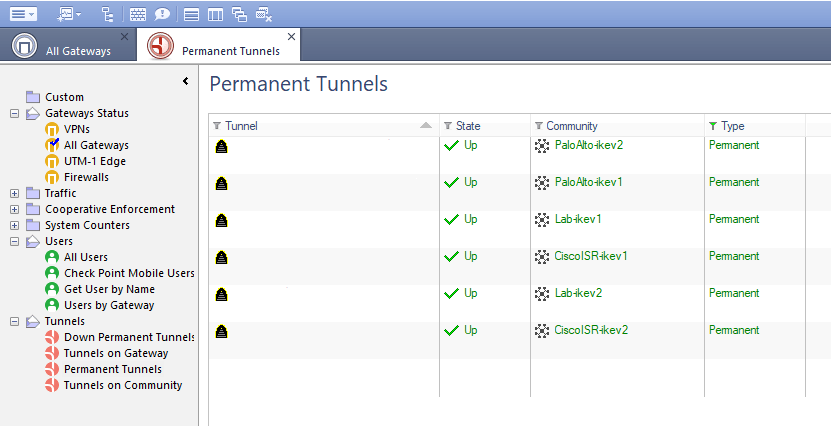
After making that change, pushing policy, and restarting SmartView Monitor, the tunnels now show green:

Cisco ISR G2 to CheckPoint R80.30 IKEv1 VPN woes

I had previously done Cisco router to CheckPoint R80.30 gateway VPNs before without issue, but for whatever reason could not even establish phase 1 for this one. CheckPoint R80 VPN communities default to AES-256, SHA-1, Group 2, and 1-day timetime which is easy to match on the Cisco with this config:

crypto keyring mycheckpoint
 local-address GigabitEthernet0/0
 pre-shared-key address 192.0.2.190 key abcdefghij1234567890
!
crypto isakmp policy 100
 encr aes 256
 authentication pre-share
 group 2
 hash sha          ! <--- default value
 lifetime 864000   ! <--- default value
!

After verifying connectivity, doing packet captures, and multiple reboots on on both ends, IKE simply would not come up. On the Cisco ISR, debug crypto isakmp wasn’t especially helpful:

Jun 18 11:06:17.085: ISAKMP: (0):purging SA., sa=3246F97C, delme=3246F97C
Jun 18 11:06:17.285: ISAKMP: (0):SA request profile is (NULL)
Jun 18 11:06:17.285: ISAKMP: (0):Created a peer struct for 35.245.62.190, peer port 500
Jun 18 11:06:17.285: ISAKMP: (0):New peer created peer = 0x2CE62C3C peer_handle = 0x80000005
Jun 18 11:06:17.285: ISAKMP: (0):Locking peer struct 0x2CE62C3C, refcount 1 for isakmp_initiator
Jun 18 11:06:17.285: ISAKMP: (0):local port 500, remote port 500
Jun 18 11:06:17.285: ISAKMP: (0):set new node 0 to QM_IDLE
Jun 18 11:06:17.285: ISAKMP: (0):insert sa successfully sa = 2CE620E8
Jun 18 11:06:17.285: ISAKMP: (0):Can not start Aggressive mode, trying Main mode.
Jun 18 11:06:17.285: ISAKMP: (0):found peer pre-shared key matching 192.0.2.190
Jun 18 11:06:17.285: ISAKMP: (0):constructed NAT-T vendor-rfc3947 ID
Jun 18 11:06:17.285: ISAKMP: (0):constructed NAT-T vendor-07 ID
Jun 18 11:06:17.285: ISAKMP: (0):constructed NAT-T vendor-03 ID
Jun 18 11:06:17.285: ISAKMP: (0):constructed NAT-T vendor-02 ID
Jun 18 11:06:17.285: ISAKMP: (0):Input = IKE_MESG_FROM_IPSEC, IKE_SA_REQ_MM
Jun 18 11:06:17.285: ISAKMP: (0):Old State = IKE_READY New State = IKE_I_MM1
Jun 18 11:06:17.285: ISAKMP: (0):beginning Main Mode exchange
Jun 18 11:06:17.285: ISAKMP-PAK: (0):sending packet to 192.0.2.190 my_port 500 peer_port 500 (I) MM_NO_STATE
Jun 18 11:06:17.285: ISAKMP: (0):Sending an IKE IPv4 Packet.
Jun 18 11:06:17.369: ISAKMP-PAK: (0):received packet from 192.0.2.190 dport 500 sport 500 Global (I) MM_NO_STATE
Jun 18 11:06:17.369: ISAKMP-ERROR: (0):Couldn't find node: message_id 2303169274
Jun 18 11:06:17.369: ISAKMP-ERROR: (0):(0): Unknown Input IKE_MESG_FROM_PEER, IKE_INFO_NOTIFY: state = IKE_I_MM1
Jun 18 11:06:17.369: ISAKMP: (0):Input = IKE_MESG_FROM_PEER, IKE_INFO_NOTIFY
Jun 18 11:06:17.369: ISAKMP: (0):Old State = IKE_I_MM1 New State = IKE_I_MM1

The CheckPoint gave a more “useful” error:

Main Mode Failed to match proposal: Transform: AES-256, SHA1, Group 2 (1024 bit); Reason: Wrong value for: Authentication Method

This seemed to imply the CheckPoint was expecting certificate-based authentication rather than PSK. In traditional mode, the gateway is set by default for certificate only. But it’s not clear how this is configured in newer versions.

After poking around settings for quite a while, I simply deleted the VPN community in CheckPoint SmartConsole and re-created it. The connection then popped up immediately.

¯\_(ツ)_/¯