Upgrading from Rancid 2.3.8 to 3.4.1

I recently handed off management of our Palo Alto firewalls to a co-worker.  His task was to upgrade from 7.0 to 7.1 (which succeeded, but then broke our 8×8 phones…another topic) and asked if there was automated backups of the config files occurring.  My reply was “good question: no….but gee, I wonder if Rancid can do that”?

Turns out it can, beginning version 3.x.  Too bad we were still running 2.3.8.  So it was time to upgrade.  No biggie I thought, and began work on our CentOS 5.9 VM.  Then I remembered what a pain it is to upgrade apps in Linux when they use multiple languages and dependencies.

$ wget ftp://ftp.shrubbery.net/pub/rancid/rancid-3.4.1.tar.gz
$ tar -xzf rancid-3.4.1.tar.gz
$ cd rancid-3.4.1
$ ./configure --prefix=/usr/local --localstatedir=/home/rancid
checking Socket.pm version... Socket version 2.006 required--this is only version 1.78 at -e line 1.
BEGIN failed--compilation aborted at -e line 1.
configure: error: Socket.pm is older than 2.006; upgrade from http://metacpan.org/pod/Socket

Ok, so it needs a newer version of this Perl module.  After numerous Googles I find this is parr of Perl’s CPAN libray.  So I run this:

yum upgrade perl-CPAN

This upgraded from 1.78 to 1.82.  Still quite short of the 2.0006 version required.  So I begin realizing I have a bigger problem: CentOS 5.9 is really old and it’s time to switch to something newer.  Fortunately a co-worker had already built an Ubuntu VM to do some database monitoring, so that problem was solved.

This time I get a different error from configure: expect was not installed.  That was an easy fix, after I remembered how to install packages in Debian/Ubuntu:

$ apt-get install expect

The configure script now passed…well not quite, but we’ll get to that later.  After make & make install, I did a quick edit of the rancid.conf list to set LIST_OF_GROUPS, then next step was rancid-cvs.  This should create a CVS backend, but instead I got no output:

root@localhost:~# su - rancid
 $ rancid-cvs
 $

Uhhhhh weird?  Once I tried to actually run rancid the problem became more clear: cvs wasn’t installed.  How in the world did the configure script not detect that?  Anyhoo, not a big deal because I already know the fix:

apt-get install cvs

So I re-run rancid-cvs and once again, get no output.  More poking around Google shows the solution: blow away anything that was created by rancid-cvs and re-run it:

rm -Rf /home/rancid/*

rancid-cvs now shows output this time and finally looks like weren’t good to go.  But I try a rancid-run and it quits pretty quick, now showing this in the logs:

WARNING: Have you forgotten to update the FS in router.db?

Umm….what’s FS?  After poking around the Googles some more, it seems they changed the file syntax of router.db to use semicolons rather than full colons.  Uhh….ok?  colons aren’t valid in DNS hostnames so I don’t see where the conflict was, but whatever.  Easy fix:

myrouter.mydomain.com;cisco;up

I then found the other upgrade problem: device type changed for Dell PowerConnect 6348 and 8024-k switches.  Using ‘cisco’ doesn’t work now, and I had to switch to ‘smc’

So rancid 3.4.1 is now running happy as can be.  That only took 2 weeks of banging head on wall.  Bring on the containers, because I’m so sick of this crap.


Enabling Config Syncing on BigIP GTMs

After two weeks of working with the consultant and getting nowhere, I booked a hotel for the weekend

We recently retired data centers, and in the process, transported its GTM to our home office.  Despite being gentle, its single hard drive failed in the process, and once the RMA unit arrive, I was once again reminded how confusing the configuration process is.  The F5 BigIP is loaded with nerd knobs, and the GTM is especially hairy as it has overlapping menus and settings different from the more popular LTM

1) Select the Self IP for Sync communication, and verify iQuery is allowed

This ideally should be an internal interface that has redundancy (for example, is two physical interfaces bonded via LACP).

Usually the internal Self IP is set to “allow all”.  Since I had deliberately set this Self IP as “allow none”, I had to change it to “Allow custom”, and add tcp port 4353.

sol13690

2) Set the config sync source Interface

This will be the step that anyone with F5 HA experience will be familiar with.  However, most will assume it to be under System -> High Availability -> Device Connectivity.

Instead, look under Device Management -> Devices -> and click the self GTM.  Then look under Device Connectivity -> ConfigSync

Note that this is the only step needed under the entire Device Management tree.

3) On the existing GTM, create the other GTM as a server

This is done under DNS -> GSLB -> Servers.  Enter the name and IP address of the other GTM, with the product as “BIG-IP System (Single)”.  Chose the same IP address as the Self IP selected in the previous step.  Set the health monitor to “bigip”

4) Run bigip_add on both units

This will use SSH to exchange SSL certificates.  In order for bigip_add to work, both sides must have SSH enabled, and the account must have advanced shell (bash) set.

admin@(f5bigip01)(cfg-sync In Sync)(Active)(/Common)(tmos)# bash
[admin@f5bigip01:Standby:In Sync] ~ # bigip_add admin@192.168.1.12
Retrieving remote and installing local BIG-IP's SSL certs ...
Password:
==> Done <==

admin@(f5bigip02)(cfg-sync In Sync)(Standby)(/Common)(tmos)# bash
[admin@f5bigip02:Active:In Sync] ~ # bigip_add admin@192.168.1.11
Retrieving remote and installing local BIG-IP's SSL certs ...
Password:
==> Done <==

If the account does not have SSH & bash enabled (which is the default setting), this error appears:

ERROR: Can’t read remote cert via /usr/bin/ssh

Since this is a 1-time exchange, I simply used the management port IP addresses, as it has SSH enabled.

Once this step has been completed, each GTM should have the other’s certificate installed under DNS -> GSLB -> Servers -> Trusted Server Certificates or /config/gtm/server.crt

F5 sol13823

5) On the device whos config you want to overwrite, run gtm_add

This will pull the gtm.conf configuration over iQuery (tcp port 4353). The IP address should match the one that was given in the first step.  In our case, this was the internal interface.

F5 sol13312

Cisco 2921 Router with HSEC License

cerm

After replacing our 2821 routers with 2921s, I encountered a dilemma.   The 2821s were used to terminate Site to Site IPSec tunnels to AWS, and thanks to offloading crypto operations in their AIM-VPN/SSL-2 modules, could easily push 120 Mbps of traffic.  Not quite so with the 2921s, as I immediately started seeing a whole lot of these:

%CERM-4-RX_BW_LIMIT: Maximum Rx Bandwidth limit of 85000 Kbps reached for Crypto functionality with securityk9 technology package license.
%CERM-4-TX_BW_LIMIT: Maximum Tx Bandwidth limit of 85000 Kbps reached for Crypto functionality with securityk9 technology package license

As it turns out, there’s a 85 Mpbs software rate limiter due to Crypto export restrictions.

Router# show platform cerm-information
Crypto Export Restrictions Manager(CERM) Information:
 CERM functionality: ENABLED

----------------------------------------------------------------
 Resource Maximum Limit Available
 ----------------------------------------------------------------
 Tx Bandwidth(in kbps) 85000 85000
 Rx Bandwidth(in kbps) 85000 85000

Since one of the tunnels carries a replication job that needs to complete within an hour, I needed to match if not exceed what the 2821s had been doing.  The dilemma then was to purchase an L-FL-29-HSEC-29 license which would remove the rate limiter, or simply scrap them in favor of a new 4331 or 4351 router.  The decision really hinged on how much throughput a 2921 with HSEC license would deliver.  After not finding anything on the Googles or Cisco Forums, I turned to Reddit and was pointed to two links.

First was the ISR G2 performance whitepaper from Cisco, which gave an IPSec max throughput of 207 Mbps.  This seemed a bit high to me, and was confusing because it did not state whether this was bi-directional or one-way.

Second was a Miercom Report listing values of 70 Mbps for the 2911 and 150 Mbps of the 2951 respectively.  Since the 2921 is closer in terms of hardware to the 2951 but with 20% less horsepower, I ballparked 125 Mbps for the 2921.

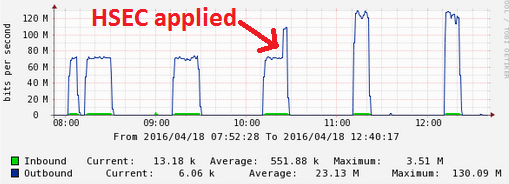
Our reseller had quoted $780 for an HSEC license, but after poking around eBay I found someone willing to sell for $200/each.  Sold!  They were applied this morning.

hsec_throughput

I was a bit surprised to see the CPU is still well short of 100%.  Would guess that the bottleneck is either on the remote side, or at the sever level.

hsec_cpu

So doing the math, 130 Mbps / (1/.78) = 166.66 Mbps. I found it amusing that this was exactly halfway between the estimates of 125 and 207 Mpbs.

NAT Hairpinning on Cisco ISR

I’ve never had a need to do NAT hairpinning on a Cisco ISR, as I’d typically have a fancy firewall like an ASA doing the work.  However, with this blog now hosted on a NAS inside my home network, I’ve found it necessary to support it.  Hairpinning essentially means the internal server is available via the public (global) IP address, even when coming from the private (local) network.  I didn’t want to forge DNS entries because it’s a pain to manage, and, well, it’s just wrong.

First, here’s my traditional NAT configuration.  Fa0/0 is the public interface connected to the ISP.  BVI is the Layer 3 private interface.

interface FastEthernet0/0
 ip address dhcp
 ip nat outside
!
interface Vlan1
 no ip address
 bridge-group 1
!
interface BVI1
 ip address 192.168.0.1 255.255.255.0
 ip nat inside
!
ip nat inside source list NATLIST interface FastEthernet0/0 overload
ip nat inside source static tcp 192.168.0.100 80 interface FastEthernet0/0 80
!
ip access-list extended NATLIST
 deny ip any 10.0.0.0 0.255.255.255
 deny ip any 172.16.0.0 0.15.255.255
 deny ip any 192.168.0.0 0.0.255.255
 permit ip any any
!
bridge 1 protocol ieee
bridge 1 route ip

Now the new config.  Pretty simple, but there’s a gotcha: the requirement for no ip redirects on both outside and inside interfaces.

interface FastEthernet0/0
 ip address dhcp
 no ip redirects
 ip nat enable
!
interface BVI1
 ip address 192.168.0.1 255.255.255.0
 no ip redirects
 ip nat enable
!
ip nat source list NATLIST interface FastEthernet0/0 overload
ip nat source static tcp 192.168.0.100 80 interface FastEthernet0/0 80

And here comes the gotcha: performance.  After switching to this configuration, my throughput over NAT went from about 90 Mbps to 15 Mbps.  Ouch.  Saw these numbers both on a 2811 and 1841.

Wimpy Buffers on Cisco 3750/3560 switches

Pretty much anyone who’s worked with Cisco switches is familiar with the 3750 series and its sister series, the 3560.  These switches started out as 100Mb some 15 years ago, went to Gigabit with the G series , 10 Gb with the E series, and finally 10 Gb SFPs and StackPower with the X series in 2010.  In 2013, the 3560 and 3750 series rather abruptly went end of sale, in favor of the 3650 and 3850 series, respectively.  Cisco did however continue to sell their lower-end cousin, the Layer 2 only 2960 series.

3560 & 3750s are deployed most commonly in campus and enterprise wiring closets, but it’s not uncommon to see them as top of rack switches in the data center.  The 3750s are especially popular in this regard because they’re stackable.  In addition to managing multiple switches via a single IP, they can connect to the core/distribution layer via aggregate uplinks, which saves cabling mess and port cost.

Unfortunately, I was reminded recently the 3750s come with a huge caveat: small buffer sizes.  What’s really shocking is as Cisco added horsepower in terms of bps and pps with the E, and X series, they kept the buffer sizes exactly the same: 2MB per 24 ports.  In comparison, a WS-X6748-GE-TX blade on a 6500 has 1.3 MB per port. That’s about 20x as much.  When a 3750 is handling high bandwidth flows, you’ll almost always see output queue drops:


Switch#show mls qos int gi1/0/1 stat
  cos: outgoing 
-------------------------------

  0 -  4 :  3599026173            0            0            0            0  
  5 -  7 :           0            0      2867623  
  output queues enqueued: 
 queue:    threshold1   threshold2   threshold3
-----------------------------------------------
 queue 0:           0           0           0 
 queue 1:  3599026173           0     2867623 
 queue 2:           0           0           0 
 queue 3:           0           0           0 

  output queues dropped: 
 queue:    threshold1   threshold2   threshold3
-----------------------------------------------
 queue 0:           0           0           0 
 queue 1:    29864113           0         171 
 queue 2:           0           0           0 
 queue 3:           0           0           0 

There is a partial workaround for this shortcoming: enabling QoS and tinkering with queue settings.  When enabling QoS, the input queue goes 90/10 while the output queue goes 25/25/25/25.  If the majority of traffic is CoS 0 (which is normal for a data center), the buffer settings for output queue #2 can be pushed way up.

mls qos queue-set output 1 threshold 2 3200 3200 50 3200
mls qos queue-set output 1 buffers 5 80 5 10
mls qos

Note here that queue-set 1 is the “default” set applied to all ports.  If you want to do some experimentation first, modify queue-set 2 and apply this to a test port with the “queue-set 2” command.  Also note that while the queues are called 1-2-3-4 in configuration mode, they’ll show up as 0-1-2-3 respectively in the show commands.  So, clearly the team writing the configuration and writing the show output weren’t on the same page.  That’s Cisco for you.

Bottom line: don’t expect more than 200 Mbps per port when deploying a 3560 or 3750 to a server farm.  I’m able to work with them for now, but will probably have to look at something beefier long term.  Since we have Nexus 5548s and 5672s at the distribution layer, migrating to the Nexus 2248 fabric extenders is the natural path here.  I have worked with the 4948s in the past but was never a big fan due to the high cost and non-stackability.  End of row 6500 has always been my ideal deployment scenario for a Data Center, but the reality is sysadmins love top of rack because they see it as “plug-n-play”, and ironically fall under the misconception that having a dedicated switch makes over-subscription less likely.

Cisco AnyConnect: Login denied, unauthorized connection mechanism

When doing major software upgrades on an ASA, I found that AnyConnect sessions will authenticate successfully but not initiate access.  The error message on the client was “Login denied, unauthorized connection mechanism”.  There were no logs on the server side.

AnyConnectUnauthorizedMechanism

You’d think the problem would be in the tunnel group policy, but it’s actually in the group policy, where ‘ssl-client’ must be included:

group-policy MyGroup attributes
 vpn-idle-timeout 120
 vpn-session-timeout none
 vpn-tunnel-protocol ikev2 ssl-client


BDPU Filter: global vs. port mode

Most mid-level Cisco network engineers are familiar with BPDU Guard and its sister BPDU Filter, both of which are designed to prevent loops on STP edge (portfast) ports and covered in CCNP certification. When configured in global mode, BPDU filter on a Catalyst 3650 switch will look like this:

spanning-tree mode rapid-pvst
spanning-tree portfast bpdufilter default
spanning-tree extend system-id
spanning-tree pathcost method long

If any port configured as a edge port receives a BPDU, it will automatically revert back to the standard 35-second Rapid Spanning-Tree cycle:

  1. Discarding/Blocking (20 seconds)
  2. Learning (15 seconds)
  3. Forwarding

This is a good tool to have in campus environments where 99.99% of the connections are loop-free, but there’s always a chance a user will plug a switch in to multiple ports, either by accident or thinking it will “bond” the connections.

What most people miss is that bpdu filter can also be configured on a per-port level, but results in very different behavior. When applied the port level, the port will just always be in forwarding state. For all intents and purposes, spanning-tree is disabled on these ports. Whoa! You probably don’t want that!

Many peers do not believe me when I tell them this, but it can be easily tested in a lab. Just configure bpdufilter on two switch ports, plug in a crossover cable:

Notice both ports are in designated/forwarding state:

Now send a broadcast and watch the frames fly Ooof!