Monitoring CPU & Memory in IOS-XE

ios-xe_cpu

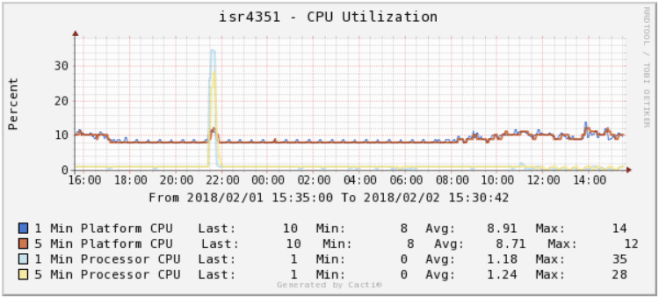
One important thing to understanding in IOS-XE is the different numbers that can be returned when checking CPU and memory statistics.  There’s some very down in the weeds docs on this, but the simplest way to break it down is process vs. platform.  Processes is essentially control plane, while platform is data plane.

CPU

Processor CPU

CLI command: show processes cpu

SNMP OIDs:

1.3.6.1.4.1.9.2.1.56.0 = 5 second
1.3.6.1.4.1.9.2.1.57.0 = 1 minute
1.3.6.1.4.1.9.2.1.58.0 = 5 minute

Platform CPU

CLI command: show processes cpu platform

SNMP OIDs:

1.3.6.1.4.1.9.9.109.1.1.1.1.3.7 = 5 second
1.3.6.1.4.1.9.9.109.1.1.1.1.4.7 = 1 minute
1.3.6.1.4.1.9.9.109.1.1.1.1.5.7 = 5 minute

Note – Most platforms will be multi-core.

Memory

Processor Memory

CLI command: show processes memory

SNMP OIDs:

1.3.6.1.4.1.9.9.48.1.1.1.5.1 = Memory Used
1.3.6.1.4.1.9.9.48.1.1.1.6.1 = Memory Free

Platform Memory

CLI command: show platform resources

SNMP OIDs:

1.3.6.1.4.1.9.9.109.1.1.1.1.12.7 = Memory Used
1.3.6.1.4.1.9.9.109.1.1.1.1.13.7 = Memory Free
1.3.6.1.4.1.9.9.109.1.1.1.1.27.7 = Memory Committed

Cacti Templates

These were written for Cacti 0.8.8f

https://spaces.hightail.com/space/FoUD1PvlXA
 

Improving DNS performance for recursive/cache-only queries to Internet

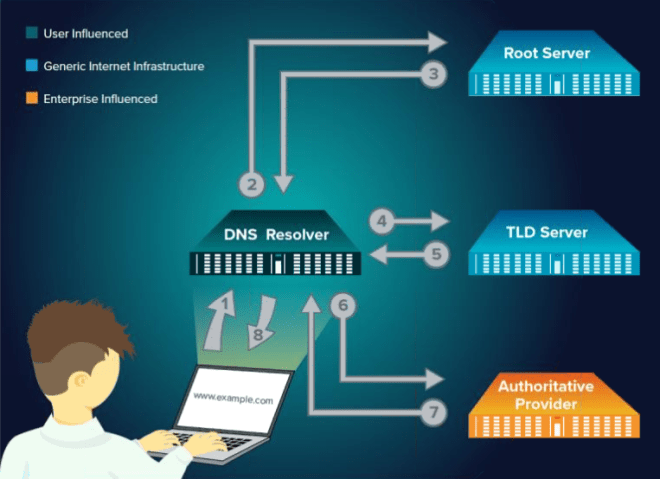
how_dns_works.pngBIND servers will typically ship with a factory-default hint zone like this:

zone "." {
 type hint;
 file "db.root";
};

You’ll see this db.root file contains a static list of the 13 root servers.  It gets the job done, but since recursive queries always go out to the root servers, it’s not ideal.

dns_to_root_servers

A better solution: download the complete database from the root servers themselves:

zone "." {
 type slave;
 masters {
  198.41.0.4;
  192.228.79.201;
  192.33.4.12;
  199.7.91.13;
 };
 file "root.cache";
};

This file is roughly 2 MB and will take a few seconds to transfer, but helps deliver much more consistent lookup times since it hits the TLD servers directly without first bouncing off the root servers.  Note the significantly lower standard deviation below:

dns_to_tld_servers

As an added bonus, it will be resilient should the root servers ever come under DDoS.


Cacti 1.0 to 1.1 upgrade: MySQL TimeZone Database is not populated

Give the cacti user permission to read the internal MySQL table for time zone names:

[j5@linux ~]$ mysql -u root -p mysql
mysql> grant select on mysql.time_zone_name to cactiuser@'%';
Query OK, 0 rows affected (0.00 sec)

mysql> flush privileges;
Query OK, 0 rows affected (0.00 sec)

mysql> quit

To populate MySQL with some Timezone information:

[j5@linux ~]$ mysql -u root -p mysql < /usr/share/mysql/mysql_test_data_timezone.sql 
Enter password:

Now there’s at least some stuff there:

mysql> select * from time_zone_name;
+--------------------+--------------+
| Name | Time_zone_id |
+--------------------+--------------+
| MET | 1 |
| UTC | 2 |
| Universal | 2 |
| Europe/Moscow | 3 |
| leap/Europe/Moscow | 4 |
| Japan | 5 |
+--------------------+--------------+
6 rows in set (0.00 sec)


Setting admin password for Palo Alto VM in AWS

Like the virtual F5, you’ll initially need to SSH to the virtual appliance and change admin password via CLI:

$ ssh -i ~/.ssh/mykey.pem admin@10.10.10.89

admin@PA-VM> configure
Entering configuration mode
[edit] 
admin@PA-VM# set mgt-config users admin password
Enter password : 
Confirm password :

[edit] 
admin@PA-VM# commit

Commit job 2 is in progress. Use Ctrl+C to return to command prompt

..99%........100%
Configuration committed successfully

Then go back to WebGUI, login as admin, and go from there.

Cacti: MySQL table is marked as crashed and should be repaired

Had to do several reboots of the Cacti VM tonight to do some NFS mount fixes, and noticed graphs weren’t updating and the device list was returning zero rows.  Immediately my thought was database, and this was confirmed in cacti.log

2017-09-13 22:00:00 - DBCALL ERROR: SQL Assoc Failed!, Error:145, SQL:"SELECT status, COUNT(*) as cnt FROM `host` GROUP BY status"
2017-09-13 22:00:00 - DBCALL ERROR: SQL Assoc Failed!, Error: Table './cacti/host' is marked as crashed and should be repaired

Also in var/log/mysqld.log:

170913 22:03:00 [ERROR] /usr/libexec/mysqld: Table './cacti/host' is marked as crashed and should be repaired

This blog pointed me to the easy fix:

mysqlcheck -u cactiuser -p --auto-repair --databases cacti


Cisco Serial Console w/ VRF

In this example an HWIC-16a is installed in a 2921 ISR G2 router’s slot 0/0.  The management port is configured to a VRF called “MGMT”.  The hostnames for the connected devices are set with the “ip host” line along with the VRF, port number (port 0 = tcp port 2003) and local router’s IP address.

hostname isr2921
interface Port-channel1.10
 encapsulation dot1Q 10
 ip vrf forwarding MGMT
 ip address 10.10.10.10 255.255.255.0
!
ip host vrf MGMT router1 2003 10.10.10.10
ip host vrf MGMT router2 2004 10.10.10.10
!
line 0/0/0 0/0/15
 session-timeout 30 
 exec-timeout 30 0
 transport input telnet ssh
!

To connect, specify the VRF name as a parameter

isr2921#telnet router1 /vrf MGMT
Translating "router1"
Trying router1 (10.10.10.10, 2003)...

01150b21:3: RCODE returned from query: ‘SERVFAIL’.

Came across an interesting problem after our F5 BigIP-VEs were victim to a storage failure in VMWare.  Certain zones couldn’t be modified or in some cases even viewed in ZoneRunner.  Since F5 doesn’t officially support its BIND backend, I knew I was likely on my own for a fix and began poking around /var/named/config/namedb were the files are stored.

[admin@f5bigip01:Active:In Sync] ~ # cd /var/named/config/namedb/
[admin@f5bigip01:Active:In Sync] namedb # ls -ls db.internal.32.30.10.in-addr.arpa.*
 4 -rw-r--r--. 1 named named 977 2017-08-21 12:53 db.internal.32.30.10.in-addr.arpa.
 4 -rw-r--r--. 1 named named 861 2017-08-19 12:06 db.internal.32.30.10.in-addr.arpa.~
12 -rw-r--r--. 1 named named 11302 2017-08-19 11:55 db.internal.32.30.10.in-addr.arpa..jnl

Took a guess that it’s the .jnl file that’s the problem.  So I decided to halt BIND, delete the file, and try again…

[admin@f5bigip01:Active:In Sync] ~ # bigstart stop zrd
[admin@f5bigip01:Active:In Sync] ~ # rm -f *..jnl
[admin@f5bigip01:zrd DOWN:In Sync] ~ # bigstart start zrd

Went back to ZoneRunner and was able to view and edit the zone just fine.

F5 Bigip-VE tips for AWS deployment

Launch and initial configuration

The instructions are slightly incorrect.  You’ll want to ssh as ‘admin’ (not root or ec2-user)

$ ssh -i mykey.pem admin@10.10.10.111

Then use these TMOS commands to set and save a password for the admin user:

(tmos)# modify auth user admin prompt-for-password
(tmos)# save sys config

Login to the GUI as admin with the new password to do licensing and initial configuration.

Interfaces, Self IPs, and VLANs

While F5 guides list a variety of interface configurations, my advice is use 3

  1. eth0: mgmt – Used for SSH, HTTPS, and SNMP polling access
  2. eth1: interface 1.1: vlan “external” in a public subnet – For talking to Internet
  3. eth2: interface 1.2: vlan “internal” in a private subnet – For talking to internal resources and HA

Routing

The default route should of course be via the external interface’s gateway.  Any private IP address spaces (10.0.0.0/8, etc) can be routed via the internal interface’s gateway

If doing an HA pair across multiple availability zones, items with unique IP addresses such as routes, virtual servers, and perhaps pools/nodes will need to go in a separate non-synchronized partition.

  1. To go System -> Users -> Partition list
  2. Create a new partition with a good name (i.e. “LOCAL_ONLY”)
  3. Uncheck the Device Group and set the Traffic Group to “traffic-group-local-only”


LACP with Palo Alto Firewalls

Today’s task was get LACP working on a Palo Alto, so traffic and fault tolerance could be spread across multiple members of a Cisco 3750X switch stack.  The default settings on the Palo Alto surprised me a bit, as I was expecting it to default to active and enable fast timers, but this was easy to set:

paloalto_lacp_fast.png

Unfortunately during testing, it still took a good minute for failover to work.  This is because the standby unit disables interfaces until going active, so there’s a delay of 30-40 seconds for LACP bundling plus an additional 25-50 seconds for Spanning-Tree.  Working around Spanning-Tree was easy: just use Edge port aka PortFast.  Note it should be enabled at the channel level and ‘trunk’ must be added for it to work on trunk ports:

interface Port-channel4
 description Palo Alto Firewall - LACP
 switchport trunk encapsulation dot1q
 switchport mode trunk
 logging event trunk-status
 logging event bundle-status
 spanning-tree portfast trunk
!

Speeding up LACP took a bit more research.  Apparently, only data center grade Cisco switches like the Catalyst 6500 and Nexus line support LACP 1-second fast timers out of the box.  The Catalyst 3750 however will support fast timers on the bleeding edge 15.2(4)E train.

Upon testing, the failover downtime due to LACP bundling is now under 10 seconds:

Jul 20 17:58:22 PST: %EC-5-UNBUNDLE: Interface Gi4/1/1 left the port-channel Po31
Jul 20 17:58:22 PST: %EC-5-UNBUNDLE: Interface Gi3/1/1 left the port-channel Po31
Jul 20 17:58:30 PST: %EC-5-BUNDLE: Interface Gi3/1/2 joined port-channel Po32
Jul 20 17:58:32 PST: %EC-5-BUNDLE: Interface Gi4/1/2 joined port-channel Po32