Migrating from GCP subnets from INTERNAL_HTTPS_LOAD_BALANCER to REGIONAL_MANAGED_PROXY

First, add the new subnet with purpose = “REGIONAL_MANAGED_PROXY” and role = “BACKUP”. A typical Terraform input might look like this:

{
    name        = "old-proxy-only-subnet"
    description = null
    ip_range    = "100.64.1.0/24"
    region      = "us-central1"
    purpose     = "INTERNAL_HTTPS_LOAD_BALANCER"
    role        = "ACTIVE"
},
{
    name        = "new-proxy-only-subnet"
    description = null
    region      = "us-central1"
    ip_range    = "100.64.2.0/24"
    purpose     = "REGIONAL_MANAGED_PROXY"
    role        = "BACKUP"
},

After the subnet has been created, switch the role to “ACTIVE”

{
    name        = "new-proxy-only-subnet"
    purpose     = "REGIONAL_MANAGED_PROXY"
    role        = "ACTIVE"
},

Google will automatically change the old subnet’s to role = “BACKUP”. It will also change state from “READY” to “DRAINING”. To match the role change, update input:

{
    name      = "old-proxy-only-subnet"
    purpose   = "INTERNAL_HTTPS_LOAD_BALANCER"
    role      = "BACKUP"
},

After 5 minutes, the draining should finish. You may either leave the old subnet as-is, or simply delete it.


To replace a REGIONAL_MANGED_PROXY subnet, follow this process:

  1. Add the new subnet with a unique name and ip range with role = “BACKUP”
  2. Change the new subnet’s role from “BACKUP” to “ACTIVE”. Google will change the old subnet’s role to “BACKUP”
  3. The old subnet can be be deleted after waiting at least 5 minutes for existing sessions to drain

Remember of course to update firewall rules if the IP address has changed! Google does not automatically create firewall rules for you.
Getting started with CheckPoint R81.10 Management API

Finally got some time to start exploring the CheckPoint management server’s API via web. As with most vendors, the tricky part was understanding the required steps for access and making basic calls. Here’s a quick walk-through.

Getting Management API Access

By default, access is only permitted from the Management server itself. To change this, do the following:

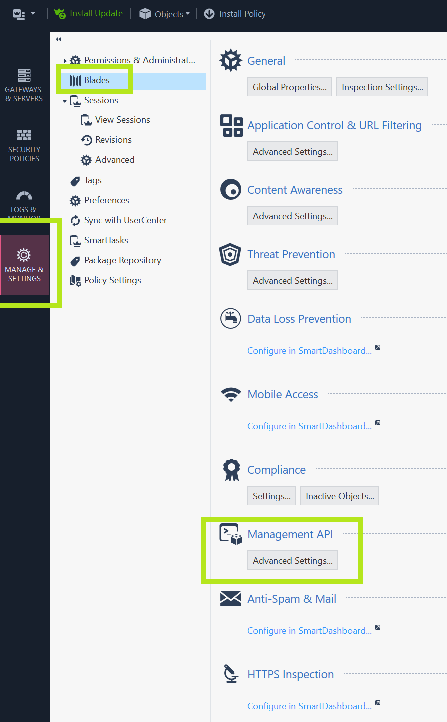
  1. In SmartConsole, navigate to Manage & Settings -> Blades -> Management API

2. Change this to “All IP Addresses that can used by GUI clients” or simply “All IP Addresses”.

3. Click OK. You’ll see a message about restarting API

4. Click the the “Publish” button at the top

5. SSH to the Management Server and enter expert mode. Then enter this command:

api restart

6. After the restart is complete, use the command api status to verify the accessibility is no longer “Require Local”

[Expert@chkp-mgmt-server:0]# api status

API Settings:
---------------------
Accessibility:                      Require all granted
Automatic Start:                    Enabled

Verifying API Permissions

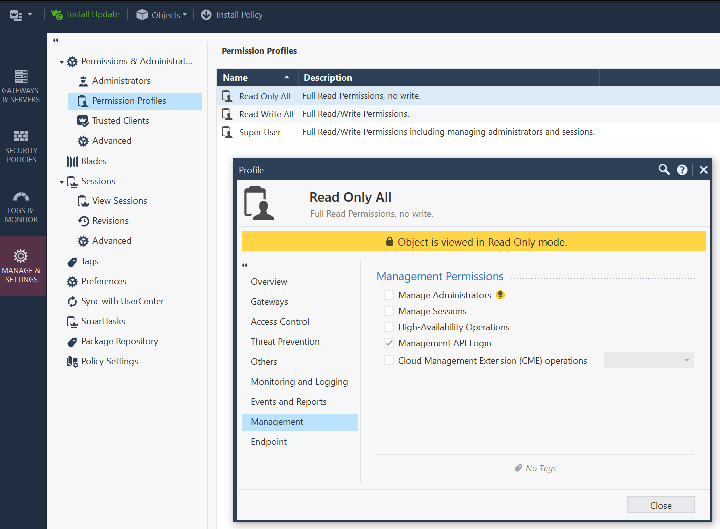
While in Smart Console , also verify that your account and permission profile has API login access by examining the Permission profile and look under the “Management” tab. This should be true by default.

Generating a Session Token

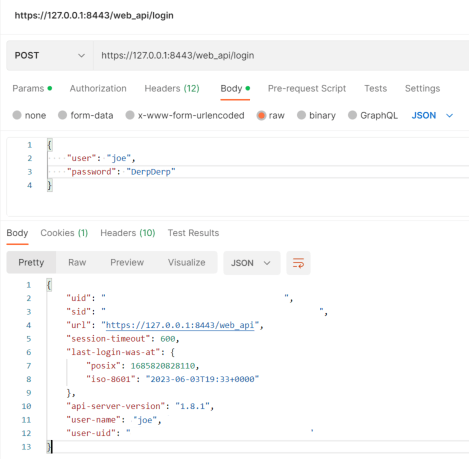
Now we’re ready to hit the API. First step generally is do a POST to /web_api/login to get a SID (session token). There are two required parameters: ‘user’ and ‘password’. Here’s a postman example. Note the parameters are raw JSON in the body (not the headers):

Making an actual API Call

With the SID obtained, we can copy/paste it and start sending some actual requests. There’s a few things to keep in mind

  • The requests are always POST, even if retrieving data
  • Two headers must be included: X-chkp-sid (which is the sid generated above) and Content-Type (which should be ‘application/json’)
  • All other parameters are set in the body. If no parameters are required, the body must be an empty object ({})

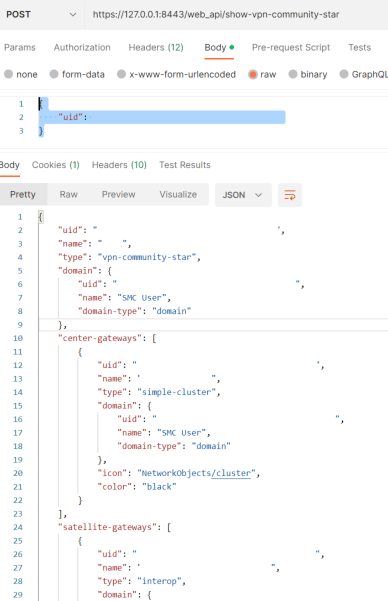
Here’s another Postman example getting the a list of all Star VPN Communities:

Retrieving details on specific objects

To get full details for a specific object, we have to specify the name or uuid in the POST body. For example, to get more information about a specific VPN community, make a request to /web_api/show-vpn-community-star with this:

{
    "uid": "fe5a4339-ff15-4d91-bfa2-xxxxxxxxxx"
}

You’ll get back an object (aka python dictionary) back.

Migrating Terraform State Files to Workspaces in an AWS S3 Bucket

Just as I did with GCP a few weeks ago, I needed to circle back and migrate my state files to a cloud storage bucket. This done mainly to centralize the storage location automatically and thus lower the chance of a state file loss or corruption.

Previously, I’d been separating the state files using the -state parameter. I then use a different input file and state file for each environment like this:

terraform apply -var-file=env1.tfvars -state=env1.tfstate
terraform apply -var-file=env2.tfvars -state=env2.tfstate
terraform apply -var-file=env3.tfvars -state=env3.tfstate

To instead store the state files in an AWS S3 bucket, create a backend.tf file with this content:

terraform {
  backend "s3" {
    bucket               = "my-bucket-name"
    workspace_key_prefix = "tf-state"
    key                  = "terraform.tfstate"
    region               = "us-west-1"
  }
}

This will use a bucket named ‘my-bucket-name’ in AWS region us-west-1. Each workspace will store its state file in tfstate/<WORKSPACE_NAME>/terraform.tfstate

Note: if workspace_key_prefix is not specified, the directory ‘env:‘ will be created and used.

Since the backend has changed, I have to run this:

terraform init -reconfigure

I then have to copy the local state files to the correct location that the workspace will be using. This is easiest done with the AWS CLI tool, which will automatically create the sub-directory if it doesn’t exist.

aws s3 cp env1.tfstate s3://my-bucket-name/tf-state/env1/terraform.tfstate
aws s3 cp env2.tfstate s3://my-bucket-name/tf-state/env2/terraform.tfstate
aws s3 cp env3.tfstate s3://my-bucket-name/tf-state/env3/terraform.tfstate

I then create a workspace for each state file:

$ terraform workspace new env1
Created and switched to workspace "env1"!

Now I’m ready to run the applies and verify state is matching input

$ terraform apply -var-file=env1.tfvars

No changes. Your infrastructure matches the configuration.

Terraform has compared your real infrastructure against your configuration and found no differences, so no changes are needed.

Apply complete! Resources: 0 added, 0 changed, 0 destroyed.

$ terraform workspace new env2
Created and switched to workspace "env2"!

$ terraform apply -var-file=env2.tfvars

No changes. Your infrastructure matches the configuration.

Terraform has compared your real infrastructure against your configuration and found no differences, so no changes are needed.

Apply complete! Resources: 0 added, 0 changed, 0 destroyed.

Doing it in the opposite order

An alternate way to do this migration is enable workspaces first, then migrate the backend to S3.

$ terraform workspace new env1
Created and switched to workspace "env1"!

$ mv env1.tfstate terraform.tfstate.d/env1/terraform.tfstate

$ terraform apply -var-file=env1.tfvars

No changes. Your infrastructure matches the configuration.

Terraform has compared your real infrastructure against your configuration and found no differences, so no changes are needed.

Apply complete! Resources: 0 added, 0 changed, 0 destroyed.

Then create the backend.tf file and run terraform init -reconfigure. You’ll then be prompted to move the state files to S3:

$ terraform init -reconfigure
Initializing modules...

Initializing the backend...
Do you want to migrate all workspaces to "s3"?

Enter a value: yes

$ terraform apply -var-file=env1.tfvars

No changes. Your infrastructure matches the configuration.

Terraform has compared your real infrastructure against your configuration and found no differences, so no changes are needed.

Apply complete! Resources: 0 added, 0 changed, 0 destroyed.

Either way, the state files have to be individually migrated to the storage bucket

Migrating Terraform to Workspaces & Storage Buckets

As I started using Terraform more, I quickly realized it’s beneficial to use separate state files for difference groups of resources. It goes without saying multiple environments should be in different state files, as should MSP scenarios where there’s multiple customer deployments running off the same Terraform code. The main benefit is to reduce blast radius if something goes wrong, but the additional benefit is limiting dependencies and improving performance.

So when running Terraform, I’d end up doing these steps:

git pull
terraform init
terraform plan -var-file="env1.tfvars" -state="env1.tfstate"
terraform apply -var-file="env1.tfvars" -state="env1.tfstate"
terraform plan -var-file="env2.tfvars" -state="env2.tfstate"
terraform apply -var-file="env2.tfvars" -state="env2.tfstate"
git add *.tfstate *.tfstate.backup
git commit -m "updated state files"
git push

This works OK, but isn’t ideal for a couple reasons. First, the state file can’t be checked out and updated by two users at the same time – git would try and merge the two files, which would likely result in corruption. Also, state files can contain sensitive information like passwords, and really shouldn’t be stored in the repo at all.

So the better solution is store in a Cloud Storage bucket, such as AWS S3 or Google Cloud Storage. This is usually configured by a backend.tf file that specifies the bucket name and directory prefix for storing state files and looks something like this:

terraform {
  backend "gcs" {
    bucket = "my-gcs-bucket-name"
    prefix = "terraform"
  }
}

After creating this file, we must run terraform init to initialize the new backend:

terraform init
Initializing modules...

Initializing the backend...

Successfully configured the backend "gcs"! Terraform will automatically
use this backend unless the backend configuration changes.

But now if we run terraform with the -state parameter, it will look for the state file in the bucket, not find it, and determine it needs to re-create everything, which is incorrect.

The solution to this problem is use a different workspace for each state file.

terraform workspace list
* default

terraform workspace new env1
Created and switched to workspace "env1"!

You're now on a new, empty workspace. Workspaces isolate their state,
so if you run "terraform plan" Terraform will not see any existing state
for this configuration.

Terraform will now look in the bucket for terraform/env1.tfstate, but that file is still local. So we must manually copy it over:

gsutil copy env1.tfstate gs://my-gcs-bucket/terraform/

Repeat this process for all state files. Now, when we run terraform plan/apply, there is no need to specify the state file. It’s automatically known. And assuming we’ve made no changes, terraform should report no changes required.

terraform workspace select env1
terraform apply -var-file="env1.tfvars"

No changes. Your infrastructure matches the configuration.

Apply complete! Resources: 0 added, 0 changed, 0 destroyed.

terraform workspace select env2
terraform apply -var-file="env2.tfvars"

No changes. Your infrastructure matches the configuration.

Apply complete! Resources: 0 added, 0 changed, 0 destroyed.

And it’s all good

Using GCP Python SDK for Network Tasks

Last week, I finally got around to hitting the GCP API directly using Python. It’s pretty easy to do in hindsight. Steps are below


If not done already, install PIP. On Debian 10, the command is this:

sudo apt install python3-pip

Then of course install the Python packages for GCP:

sudo pip3 install google-api-python-client google-cloud-storage

Now you’re ready to write some Python code. Start with a couple imports:

#!/usr/bin/env python3 

from googleapiclient import discovery
from google.oauth2 import service_account

By default, the default compute service account for the VM or AppEngine will be used for authentication. Alternately, a service account can be specific with the key’s JSON file:

KEY_FILE = '../mykey.json'
creds = service_account.Credentials.from_service_account_file(KEY_FILE)

Connecting to the Compute API will look like this. If using the default service account, the ‘credentials’ argument is not required.

resource_object = discovery.build('compute', 'v1', credentials=creds)

All API calls require the project ID (not name) be provided as a parameter. I will set it like this:

PROJECT_ID = "myproject-1234"

With the connection to the API established, you can now run some commands. The resource object will have several methods, and in each there will typically be a list() method to list the items in the project. The execute() at the end is required to actually execute the call.

_ = resource_object.firewalls().list(project=PROJECT_ID).execute()

It’s important to note the list().execute() returns a dictionary. The actual list of items can be found in key ‘items’. I’ll use the get() method to retrieve the values for the ‘items’ key, or use an empty list if ‘items’ doesn’t exist. Here’s an example

firewall_rules = _.get('items', [])
print(len(firewall_rules), "firewall rules in project", PROJECT_ID)
for firewall_rule in firewall_rules:
    print(" -", firewall_rule['name'])

The API reference guide has a complete list of everything that’s available. Here’s some examples:

firewalls() - List firewall rules
globalAddresses() - List all global addresses
healthChecks() - List load balancer health checks
subnetworks() - List subnets within a given region
vpnTunnels() - List configured VPN tunnels

Some calls will require the region name as a parameter. To get a list of all regions, this can be done:

_ = resource_object.regions().list(project=PROJECT_ID).execute()
regions = [region['name'] for region in _.get('items', [])]

Then iterate through each region. For example to list all subnets:

for region in regions:
    _ = resource_object.subnetworks().list(project=PROJECT_ID,region=region).execute()
    print("Reading subnets for region", region ,"...")
    subnets = _.get('items', [])
    for subnet in subnets:
        print(" -", subnet['name'], subnet['ipCidrRange'])

Installing Terraform on FreeBSD

I was pleased to recently discover that Terraform is in the FreeBSD packages. To install, simply do this:

pkg install terraform

As of February 2022, the latest version is 1.0.11. To run 1.1.6, first remove the package:

pkg remove terraform

Then download the most recent version and copy the binary to /usr/local/bin. Should be good to go:

% terraform version
Terraform v1.1.6
on freebsd_amd64

% terraform init

Initializing the backend...

Initializing provider plugins...
- Finding latest version of hashicorp/aws...
- Installing hashicorp/aws v4.2.0...
- Installed hashicorp/aws v4.2.0 (signed by HashiCorp)

Terraform has been successfully initialized!

Hopefully they’ll update to 1.1 soon. Today I learned about the nullable option for variables, and it’s a very useful option when working with parent/child modules.

Rancid: no matching key exchange method found. Their offer: diffie-hellman-group-exchange-sha1,diffie-hellman-group14-sha1

Time to move Rancid to a newer VM again, this time it’s Ubuntu 20. Hit a snag when I tried a test clogin run:

$ clogin myrouter
Unable to negotiate with 1.2.3.4 port 22: no matching key exchange method found.  Their offer: diffie-hellman-group-exchange-sha1,diffie-hellman-group14-sha1

OpenSSH removed SHA-1 from the defaults a while back, which makes sense since the migration to SHA-2 began several years ago. So looks like SSH is trying to use SHA-2 but the Cisco Router is defaulting to SHA-1, and something has to give in order for negotiation to succeed.

My first thought was to tell the Cisco router to use SHA-2, and this is possible for the MAC setting:

Router(config)#ip ssh server algorithm mac ?
  hmac-sha1      HMAC-SHA1 (digest length = key length = 160 bits)
  hmac-sha1-96   HMAC-SHA1-96 (digest length = 96 bits, key length = 160 bits)
  hmac-sha2-256  HMAC-SHA2-256 (digest length = 256 bits, key length = 256 bits)
  hmac-sha2-512  HMAC-SHA2-512 (digest length = 512 bits, key length = 512 bits

Router(config)#ip ssh server algorithm mac hmac-sha2-256 hmac-sha2-512
Router(config)#do sh ip ssh | inc MAC       
MAC Algorithms:hmac-sha2-256,hmac-sha2-512

But not for key exchange, which apparently only supports SHA-1:

Router(config)#ip ssh server algorithm kex ?
  diffie-hellman-group-exchange-sha1  DH_GRPX_SHA1 diffie-hellman key exchange algorithm
  diffie-hellman-group14-sha1         DH_GRP14_SHA1 diffie-hellman key exchange algorithm

Thus, the only option is to change the setting on the client. SSH has CLI options for Cipher and Mac:

-c : sets cipher (encryption) list.

-m: sets mac (authentication) list

One quick solution is tell the SSH client to support the Kex Exchange by adding this line to the /etc/ssh/ssh_config file:

KexAlgorithms +diffie-hellman-group14-sha1

But, I wanted to change the setting only for Rancid and not SSH in general, hoping that Cisco adds SHA-2 key exchange soon. I found out it is possible to set SSH options in the .cloginrc file. The solution is this:

add  sshcmd  *  {ssh\  -o\ KexAlgorithms=+diffie-
hellman-group14-sha1}

Clogin is now successful:

$ clogin myrouter
spawn ssh -oKexAlgorithms=+diffie-hellman-group14-sha1 -c aes128-ctr,aes128-cbc,3des-cbc -x -l myusername myrouter
Password:
Router#_

By the way, I stayed away from diffie-hellman-group-exchange-sha1 as it’s considered insecure, whereas diffie-hellman-group14-sha1 was considered deprecated but still widely deployed and still “strong enough”, probably thanks to its 2048-bit key length.

Sidenote: this only affects Cisco IOS-XE devices. The Cisco ASA ships with this in the default configuration:

ssh key-exchange group dh-group14-sha256

Install Terraform on Debian 10 (Buster) when a proxy is required

# Setup proxy, if required
sudo bash -c 'echo "Acquire::http::Proxy \"http://10.0.0.9:3128\";" > /etc/apt/apt.conf.d/99http-proxy'

# Set environment variables to be used by Curl
export http_proxy=http://10.0.0.9:3128
export https_proxy=http://10.0.0.9:3128

Now install Terraform

curl -fsSL https://apt.releases.hashicorp.com/gpg | sudo apt-key add -

sudo apt-get install software-properties-common

sudo apt-add-repository "deb [arch=$(dpkg --print-architecture)] https://apt.releases.hashicorp.com $(lsb_release -cs) main"

sudo apt update
sudo apt upgrade
sudo apt install terraform 

Basic Network-Related Terraform w/ GCP

Setting up Terraform for GCP

Start creating .tf files:

terraform {
  required_providers {
    google = {
      source = "hashicorp/google"
    }
  }
}

provider "google" {
  version = "3.5.0"
  credentials = file("myproject-123456-f72073802721.json")
  project = "myproject-123456"
  region  = "us-central1"
  zone    = "us-central1-a"
}

Create new VPC Network with subnets in Oregon and London

# Create new network called 'my-network'
resource "google_compute_network" "TF_NETWORK" {
  name = "my-network"
  auto_create_subnetworks = false
}

# Create subnet 172.16.1.0/24 in us-west1 (Oregon);
# Enable private API access & 1 minute 100% flow logging
resource "google_compute_subnetwork" "TF_SUBNET_1" {
  name          = "my-network-subnet-oregon"
  ip_cidr_range = "172.16.1.0/24"
  region        = "us-west1"
  network       = google_compute_network.TF_NETWORK.id
  private_ip_google_access = true
  log_config {
    aggregation_interval = "INTERVAL_1_MIN"
    flow_sampling        = 1.0
    metadata             = "INCLUDE_ALL_METADATA"
  }
}

# Create subnet 172.16.2.0/24 in europe-west2 (London)
# Add secondary IP range 192.168.200.0/26
resource "google_compute_subnetwork" "TF_SUBNET_2" {
  name          = "my-network-subnet-london"
  ip_cidr_range = "172.16.2.0/24"
  region        = "europe-west2"
  network       = google_compute_network.TF_NETWORK.id
  secondary_ip_range {
    range_name    = "tf-subnet-london-secondary-range"
    ip_cidr_range = "192.168.200.0/26"
  }
}

Create (ingress) firewall rules

# Allow ICMP, SSH, and DNS from RFC-1918 Private Address Space
resource "google_compute_firewall" "TF_FWRULE_1" {
  name    = "allow-ssh-and-dns-from-rfc-1918"
  network = google_compute_network.TF_NETWORK.name
  allow {
    protocol = "icmp"
  }
  allow {
    protocol = "tcp"
    ports = ["22"]
  }
  allow {
    protocol = "udp"
    ports = ["53"]
  }
  source_ranges = ["10.0.0.0/8","172.16.0.0/12","192.168.0.0/16"]
}

# Allow HTTP & HTTPS from Internet w/ logging enabled;
# applied to instances with network tag 'nginx' or 'apache'
resource "google_compute_firewall" "TF_FWRULE_2" {
  name    = "allow-http-and-https-from-internet"
  network = google_compute_network.TF_NETWORK.name
  enable_logging = true
  allow {
    protocol = "tcp"
    ports    = ["80", "443"]
  }
  target_tags = ["nginx", "apache"]
}

Create an External L7 Load balancer

# Create basic port 80 healthcheck
resource "google_compute_health_check" "TF_HEALTHCHECK" {
  name               = "check-website-backend"
  check_interval_sec = 15
  timeout_sec        = 3
  tcp_health_check {
    port = "80"
  }
}

# Create Backend service
 with backend timeout of 15 seconds and client IP session affinity
resource "google_compute_backend_service" "TF_BACKEND_SERVICE" {
  name                  = "website-backend-service"
  health_checks         = [google_compute_health_check.TF_HEALTHCHECK.id]
  timeout_sec           = 15
  session_affinity      = "CLIENT_IP"
}

# Create URL map (Load balancer)
resource "google_compute_url_map" "TF_URL_MAP" {
  name                  = "my-load-balancer"
  default_service       = google_compute_backend_service.TF_BACKEND_SERVICE.id
}

# Create HTTP target proxy
resource "google_compute_target_http_proxy" "TF_TPROXY_HTTP" {
  name                  = "my-http-target-proxy"
  url_map               = google_compute_url_map.TF_URL_MAP.id
}

# Create ssl cert/key HTTPS target proxy
resource "google_compute_ssl_certificate" "TF_SSL_CERT" {
  name        = "my-ssl-certificate"
  private_key = file("mykey.key")
  certificate = file("mycert.crt")
}
resource "google_compute_target_https_proxy" "TF_TPROXY_HTTPS" {
  name                  = "my-https-target-proxy"
  url_map               = google_compute_url_map.TF_URL_MAP.id
  ssl_certificates      = [google_compute_ssl_certificate.TF_SSL_CERT.id]
}

# Allocate External Global IP Address
resource "google_compute_global_address" "TF_IP_ADDRESS" {
  name                  = "gcp-l7-externalip-global"
}

# Create HTTP frontend
resource "google_compute_global_forwarding_rule" "TF_FWD_RULE_1" {
  name                  = "my-frontend-http"
  ip_address            = google_compute_global_address.TF_GLOBAL_IP_ADDRESS.address
  port_range            = "80"
  target                = google_compute_target_http_proxy.TF_TPROXY_HTTP.id
}

# Create HTTPS frontend
resource "google_compute_global_forwarding_rule" "TF_FWD_RULE_2" {
  name                  = "my-frontend-https"
  ip_address            = google_compute_global_address.TF_GLOBAL_IP_ADDRESS.address
  port_range            = "443"
  target                = google_compute_target_https_proxy.TF_TPROXY_HTTPS.id
}

Cisco IOS-XE SCP Server with RADIUS authentication

I’ve been wanting to try out SCP to copy IOS images to routers for a while, as I figured it would be faster and cleaner than FTP/TFTP.  There’s essentially three tricks to getting it working..

  1. Having the correct AAA permissions
  2. Understanding the SCP syntax and file systems
  3. Making the scp command from the router VRF aware, if required
  4. 16.6.7 or 16.9.4 or newer code.  Performance on older IOS-XE versions is terrible

First, SSH has to be enabled and of course the SCP server must be activated

ip ssh version 2
ip scp server enable

After doing so, verify the router is accessible via SSH.  If not, try generating a fresh key:

Router(config)#crypto key generate rsa modulus 2048

Now on to the AAA configuration.  The important step is have accounts automatically go to their privilege level 15 without manually entering enable mode.  This is done with the “aaa authorization exec” command:

aaa new-model
!
username admin privilege 15 password 7 XXXXXXX
!
aaa group server radius MyRadiusServer
 server-private 10.1.1.100 auth-port 1812 acct-port 1813 key 7 XXXXXXXX
 ip vrf forwarding MyVRF
!
aaa authentication login default local group MyRadiusServer
aaa authentication enable default none
aaa authorization config-commands
aaa authorization exec default local group MyRadiusServer if-authenticated

The RADIUS server will also need this vendor-specific attribute in the policy:

Vendor: Cisco
Name: Cisco-AV-Pair
Value: priv-lvl=15

If I SSH to the router using a RADIUS account, I should automatically see enable mode:

$ ssh billy@10.1.1.1
Password: 
Router#show privilege
Current privilege level is 15

I can now upload IOS images to a router with IP address 10.1.1.1 like this:

scp csr1000v-universalk9.16.06.06.SPA.bin billy@10.1.1.1:bootflash:/csr1000v-universalk9.16.06.06.SPA.bin

If copying images from the router where the egress interface is on a VRF, the source interface must be specified:

ip ssh source-interface GigabitEthernet0

And simply use the IOS copy command:

copy scp://billy@10.1.1.2:/csr1000v-universalk9.16.06.06.SPA.bin bootflash:

Note scp’s performance in IOS-XE 16.6.5, was very poor, but excellent in 16.6.7 and 16.9.4